
- Product Types
- Prices Types
- Adding Products
- One Time Pricing
- Subscription Pricing
- Subscription Trials Setup
- Installment Pricing
- Donation / Pay What You Want
- Inventory Management
- Product Variants
- Variant Images
- Digital Downloads
- Change Product Availability
- Product Collections
- First-Time Payment Discounts
- Manage Product Access
- Create Product With Free Trials
- Charge Set Up Fee on Trials
- Product List
- Product Pages
- Product Content
- Custom Buy Links
- Product SEO
- Change Permalinks
- Custom Fields
- Related Products
- Price Boost
- Product Bundle
- Product Reviews
- Product review shortcodes
- Test Mode/Payments
- Edit & Customize Form
- Change Form Template
- Delete SureCart Forms
- Add Checkout Form
- Checkout Form With Gutenberg
- Checkout Form in Elementor
- Custom Thank You Page
- Create Donation Form
- Customize Confirmation Popup
- Include Coupons in URLs
- Pre-Fill Checkout Fields
- Change Checkout Texts
- Password Field in Checkout
- Default Country Code
- Add Terms to Checkout
- Conditional Block Checkouts
- Remove Coupon Field
- Hide Quantity Option
- Disable Quantity Editing
- Disable Item Removal
- Country Specific Purchases
- Update Store Details
- Dark Mode
- Orders & Receipts
- Manage Slide-out Cart
- Customers Section Overview
- Create Customer
- Delete Customer
- Update Customer Details
- Edit Invoice Details
- Create Shipping Profiles
- Manage Shipping
- Disable Payment Processor
- Manage Store Notifications
- Manage PayPal Branding
- Transfer Store
- How to Download SureCart Purchase Invoice
- Vault – Redeem & Manage Your SureCart Pro Plan
- Enhance Performance Settings
- Invite Team Members
- Enable Spam Protection
- Sync WP Users
- User Roles & Permissions
- Export Data
- Clear Test Data
- Manage Email Notifications
- Remove User Roles
- Remove Plugin Data
- Delete Store
- Delete Business & User Account
- Guest checkout
- Switching Store Currency
- Fix View Order Button
- Fix Express Payment Buttons
- How To Stop Sending WooCommerce Notifications via SureCart?
- Fix PayPal Test Connection
- Fix Sign-In Loop
- Fix Order Confirmation Redirect
- Fix Divi Bullet Point Issue
- Fix Customer Dashboard
- Fix JSON Response Error
- Failed Payment Behavior
- Fix Stripe Zip Code Error
- Fix "Product Can’t Be Blank"
- Troubleshooting Guide
- PayPal IPN Warning Emails
- Caching Configuration for SureCart
- Why iDEAL Might Not Appear in Your Checkout
- Compatibility Guide
- Troubleshooting Stripe Payment
- Fix – SureCart store disconnected
- Configuring LiteSpeed Cache for SureCart
- Webhook Troubleshooting
Steps After Getting Started with SureCart
This document explains how to customize the three main pages of a SureCart store: the Shop Page, the Product Page, and the Checkout Page. It also describes when a page builder may be required.
This guide assumes the SureCart plugin has been installed and the first product has been created. If those steps have not been completed yet, refer to Getting Started with SureCart first.
Requirements
- WordPress admin access
- SureCart plugin installed and activated
- At least one product created in SureCart
Choosing an Editor for Store Pages
SureCart integrates with the WordPress Block Editor (Gutenberg) by default. No additional editor is required to create and customize store pages.
For advanced design control, SureCart also integrates with the following page builders:
- Elementor (and Elementor Pro)
- Bricks Builder
These builders can be used to design the Shop Page and Product Pages with their visual tools and layouts.
Important: The Cart and Checkout Pages can only be customized using the Block Editor. These pages rely on SureCart blocks that are required for the checkout process to function correctly.
Editor recommendations by page type:
- Shop Page and Product Pages: Block Editor, Elementor, or Bricks Builder.
- Cart Page and Checkout Page: Block Editor only.
The Shop Page
The Shop Page displays the list of products available in the store. It is typically the first page customers visit when browsing the store.
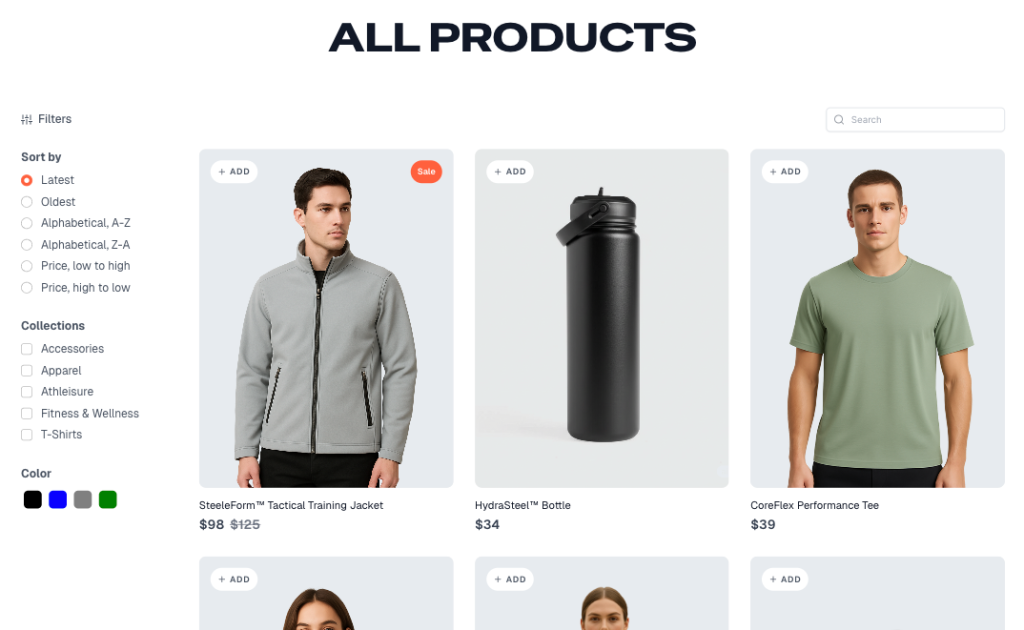
The Shop Page is powered by the Product List Block, which is added automatically when SureCart is installed. This block displays products in a responsive grid layout.
Accessing the Shop Page
- Go to SureCart menu.
- Locate the menu named Shop.
- Click Edit to open it in the Block Editor.
Available Customization Options
The Product List Block includes the following options:
- Number of products displayed per page ↗
- Number of products per row (columns) ↗
- Filters such as Sort By, Collections, or Custom Post Types ↗
- Pagination (enable or disable) ↗
- Aspect ratio of product images ↗
- Product details displayed (title, price, add-to-cart button, and others)
- Typography and spacing
Expected outcome: After saving the changes, the Shop Page reflects the configured layout and product display settings on the frontend.
For a complete walkthrough of each option, refer to Product List Guide – Shop Page.
The Product Page
The Product Page displays detailed information about an individual product, including images, description, price, and purchase options.
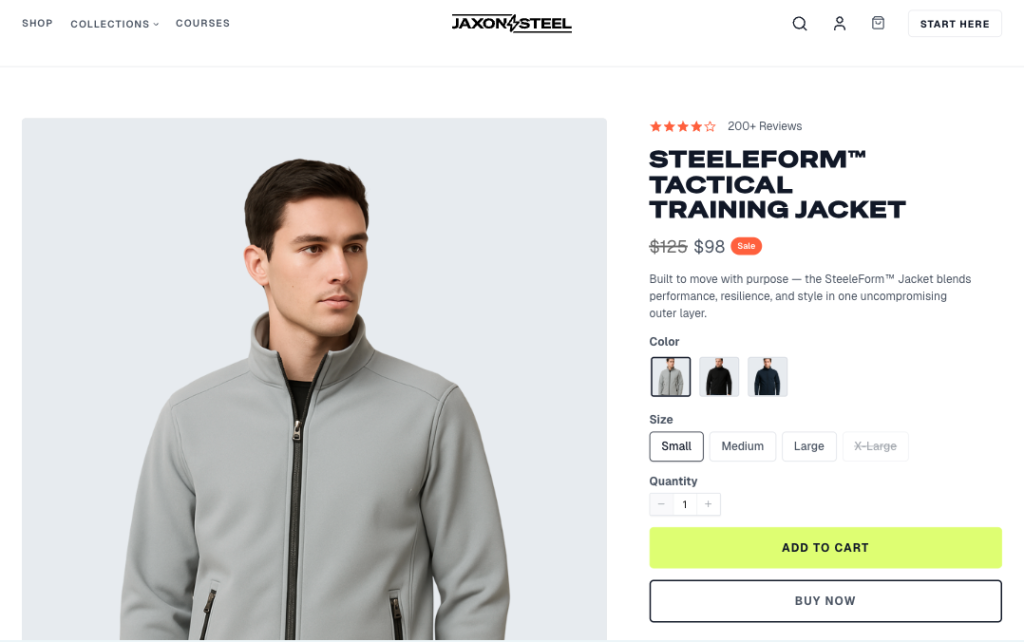
When SureCart is installed, a default Product Page template is created automatically. All products use this template by default. The template can be edited, or additional templates can be created and assigned to specific products.
Editing the Product Page Template
- Go to WordPress Dashboard → SureCart → Products.
- Select the product to edit.
- In the right sidebar, locate the Template section.
- Click Edit Product Template to open the template in the Block Editor.
Available Customization Options
- Image display style: Gallery View or Slideshow View
- Position of elements such as title, description, price, and buttons
- Typography, colors, and spacing
- Adding or removing blocks to adjust the layout
Using Multiple Product Templates
Multiple product templates can be created to apply different layouts to different products. For example, one template can be used for physical products and another for digital downloads.
To assign a template to a product, open the product and select the desired template in the Template section of the right sidebar.
Page Layout Options for Themes
WordPress supports two types of themes: Classic Themes and Full Site Editing (FSE) Themes. The Page Layout setting determines how the Product Page integrates with the active theme.
- Theme Layout: Recommended when a page builder such as Elementor or Bricks Builder is used, or when the product page should match the theme’s design.
- SureCart Layout: Recommended for Classic Themes or when SureCart’s design structure should be used.
Expected outcome: After saving the template, all products assigned to it will display using the configured layout.
For a complete walkthrough of the Product Page template, refer to Product Pages Guide.
The Checkout Page
The Checkout Page is the final step of the purchase process. It collects customer information, processes payment, and confirms the order.
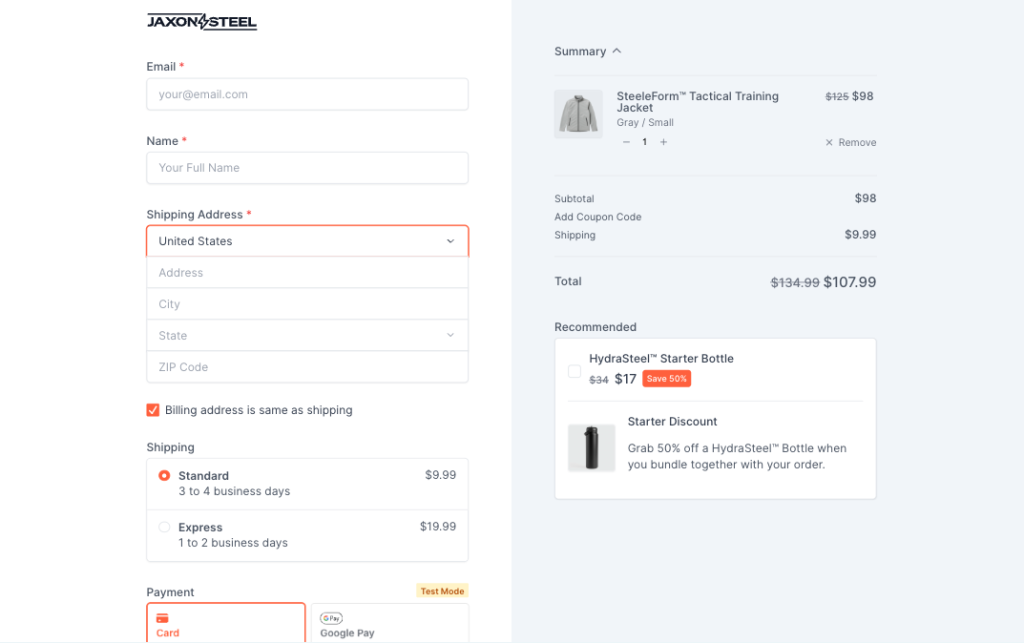
When SureCart is installed, a default checkout form is created automatically. The layout can be replaced by one of the predefined designs, and individual elements can be customized using the Block Editor.
Available Checkout Layouts
SureCart provides the following starting layouts:
- Default
- Full Page
- Simple
- Sections
- Two Column
- Donation
- Invoice
Accessing the Checkout Page
- Go to SureCart menu.
- Locate the page named Checkout.
- Click Edit to open it in the Block Editor.
Available Customization Options
The checkout form is built using the Checkout Form Block, which contains individual SureCart blocks for each section. The following options are available:
- Switch between Test Mode and Live Mode
- Reposition form fields, product selections, and order details
- Control which payment processors are displayed (for example, PayPal or Stripe)
- Configure conditional logic to show or hide elements based on product, total amount, country, or coupon
- Adjust shipping and billing address fields, including compact mode and matching billing to shipping
- Customize the order summary, including collapsible behavior and section names
- Add custom fields such as text boxes, radio buttons, or checkboxes
- Preload a specific product or price into the checkout form
- Set a custom thank-you page and edit loading or success messages
Recommendation: Test the checkout in Test Mode before going live. This allows payment flows, conditional logic, and form behavior to be verified without processing real transactions.
Expected outcome: After saving the checkout configuration, the changes are applied to all customer transactions on the store.
For a complete walkthrough of all checkout form options, refer to Edit Checkout Form.
Notes and Limitations
- The Cart and Checkout Pages cannot be edited with Elementor or Bricks Builder. The Block Editor is required for these pages.
- Changes to a product template apply to all products assigned to that template.
- Switching between Theme Layout and SureCart Layout may require adjustments to ensure the design matches the active theme.
- Test Mode transactions do not process real payments and do not generate live orders.
Related Documentation
- Getting Started with SureCart
- Product List Guide – Shop Page
- Product Pages Guide
- Edit Checkout Form
- Making a First Sale with SureCart
FAQ
We don't respond to the article feedback, we use it to improve our support content.