
- Product Types
- Prices Types
- Adding Products
- One Time Pricing
- Subscription Pricing
- Subscription Trials Setup
- Installment Pricing
- Donation / Pay What You Want
- Inventory Management
- Product Variants
- Variant Images
- Digital Downloads
- Change Product Availability
- Product Collections
- First-Time Payment Discounts
- Manage Product Access
- Create Product With Free Trials
- Charge Set Up Fee on Trials
- Product List
- Product Pages
- Product Content
- Custom Buy Links
- Product SEO
- Change Permalinks
- Custom Fields
- Related Products
- Price Boost
- Product Bundle
- Product Reviews
- Product review shortcodes
- Test Mode/Payments
- Edit & Customize Form
- Change Form Template
- Delete SureCart Forms
- Add Checkout Form
- Checkout Form With Gutenberg
- Checkout Form in Elementor
- Custom Thank You Page
- Create Donation Form
- Customize Confirmation Popup
- Include Coupons in URLs
- Pre-Fill Checkout Fields
- Change Checkout Texts
- Password Field in Checkout
- Default Country Code
- Add Terms to Checkout
- Conditional Block Checkouts
- Remove Coupon Field
- Hide Quantity Option
- Disable Quantity Editing
- Disable Item Removal
- Country Specific Purchases
- Update Store Details
- Dark Mode
- Orders & Receipts
- Manage Slide-out Cart
- Customers Section Overview
- Create Customer
- Delete Customer
- Update Customer Details
- Edit Invoice Details
- Create Shipping Profiles
- Manage Shipping
- Disable Payment Processor
- Manage Store Notifications
- Manage PayPal Branding
- Transfer Store
- How to Download SureCart Purchase Invoice
- Vault – Redeem & Manage Your SureCart Pro Plan
- Enhance Performance Settings
- Invite Team Members
- Enable Spam Protection
- Sync WP Users
- User Roles & Permissions
- Export Data
- Clear Test Data
- Manage Email Notifications
- Remove User Roles
- Remove Plugin Data
- Delete Store
- Delete Business & User Account
- Guest checkout
- Switching Store Currency
- Fix View Order Button
- Fix Express Payment Buttons
- How To Stop Sending WooCommerce Notifications via SureCart?
- Fix PayPal Test Connection
- Fix Sign-In Loop
- Fix Order Confirmation Redirect
- Fix Divi Bullet Point Issue
- Fix Customer Dashboard
- Fix JSON Response Error
- Failed Payment Behavior
- Fix Stripe Zip Code Error
- Fix "Product Can’t Be Blank"
- Troubleshooting Guide
- PayPal IPN Warning Emails
- Caching Configuration for SureCart
- Why iDEAL Might Not Appear in Your Checkout
- Compatibility Guide
- Troubleshooting Stripe Payment
- Fix – SureCart store disconnected
- Configuring LiteSpeed Cache for SureCart
- Webhook Troubleshooting
Dynamic Pricing
This document explains what Dynamic Pricing is, how it works, and how to configure pricing rules using real-world examples.
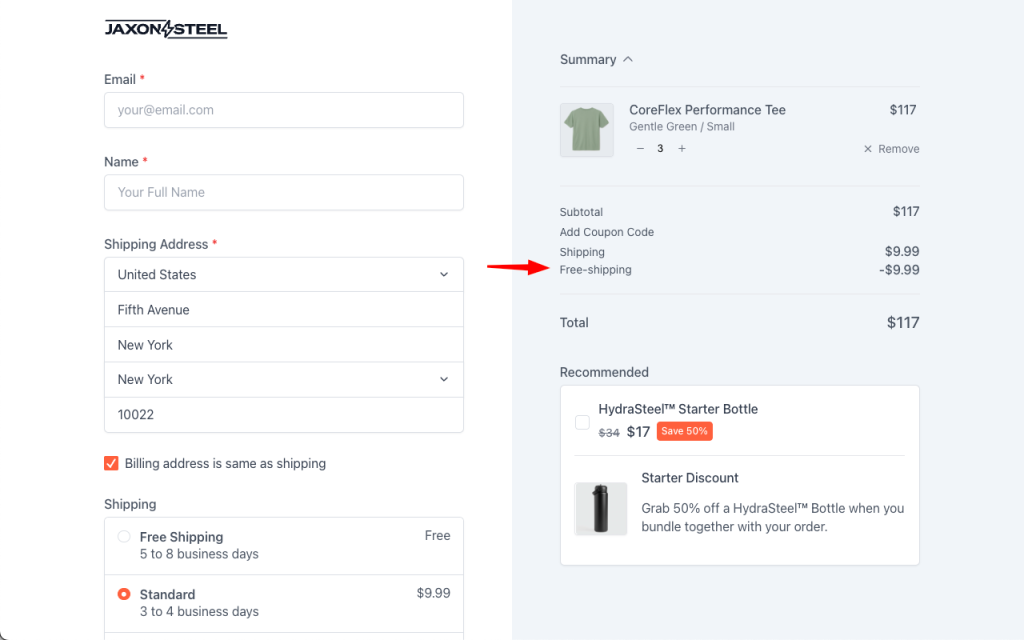
Dynamic Pricing enables you to automatically apply discounts or fees during checkout based on specific conditions, such as cart value, product attributes, customer data, or shipping details.
Requirements
Before getting started, make sure you have:
- WordPress admin access
- SureCart installed and activated
- At least one published product
- Access to SureCart → Promotions → Dynamic Pricing
Creating a Rule
Dynamic Pricing works through rules. Each rule defines:
- Where the pricing applies (Checkout, Line Item, or Shipping)
- When it applies in the purchase lifecycle (initial checkout, renewals, or both)
- Under which conditions it applies
- What adjustment is applied (discount or fee)
Step-by-step
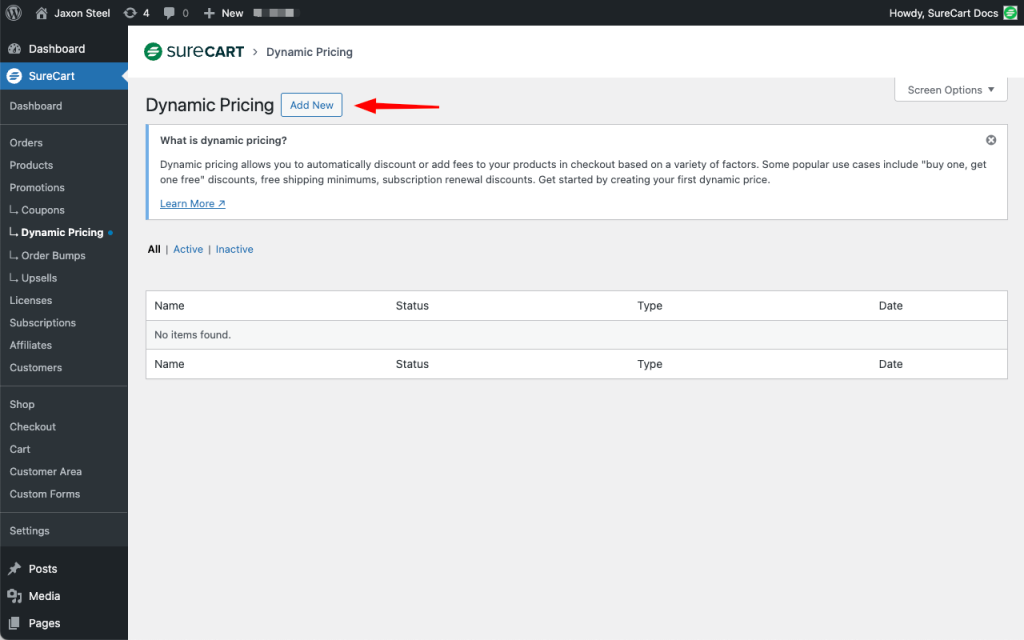
- Go to Promotions > Dynamic Pricing and click Add New.
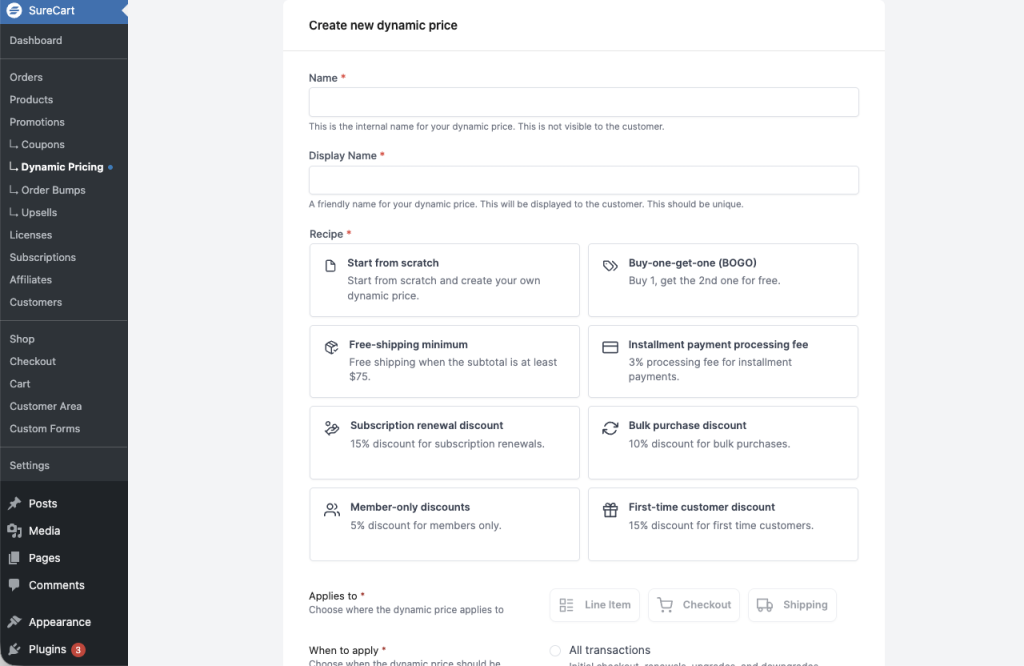
- Enter a Name and Display Name for the rule
- The Name is for internal reference only, while the Display Name is visible to customers.
Using a Template Rule
SureCart provides pre-built templates for common use cases.
Example: Free Shipping Minimum
- Go to Promotions → Dynamic Pricing → Add New
- Select the Free-shipping minimum template
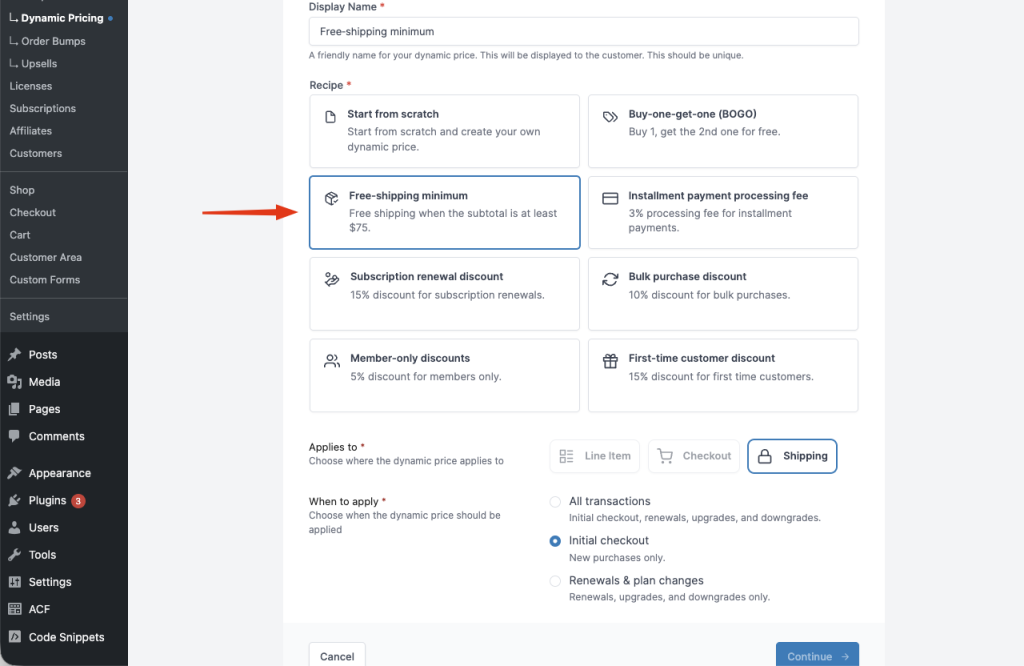
- Add a Name and Display Name
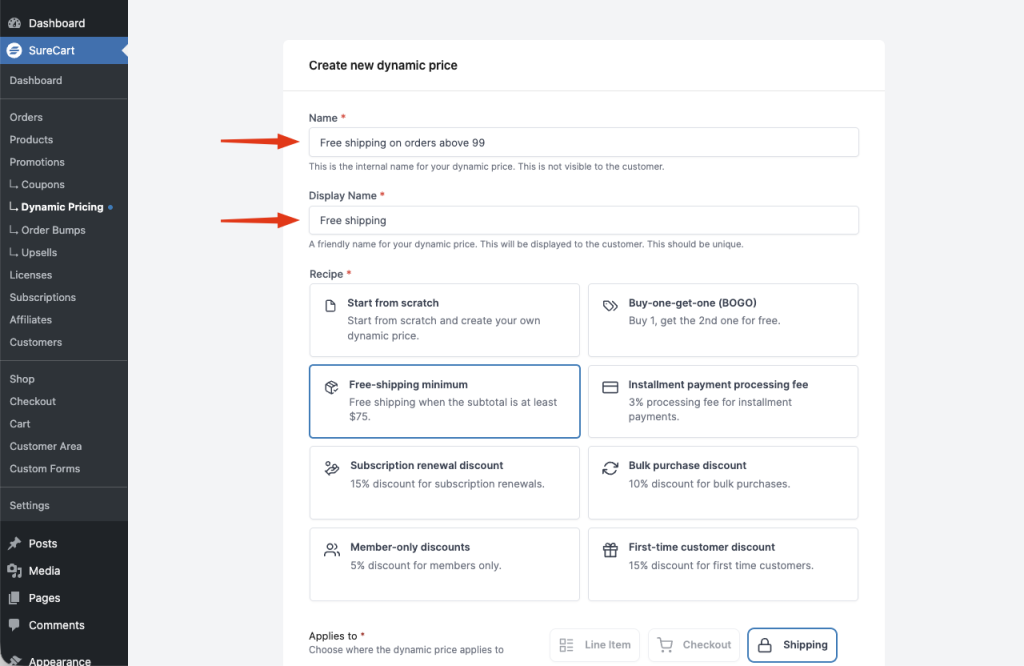
- When to apply is auto-selected. Change if you want a different behavior.
- Click Continue
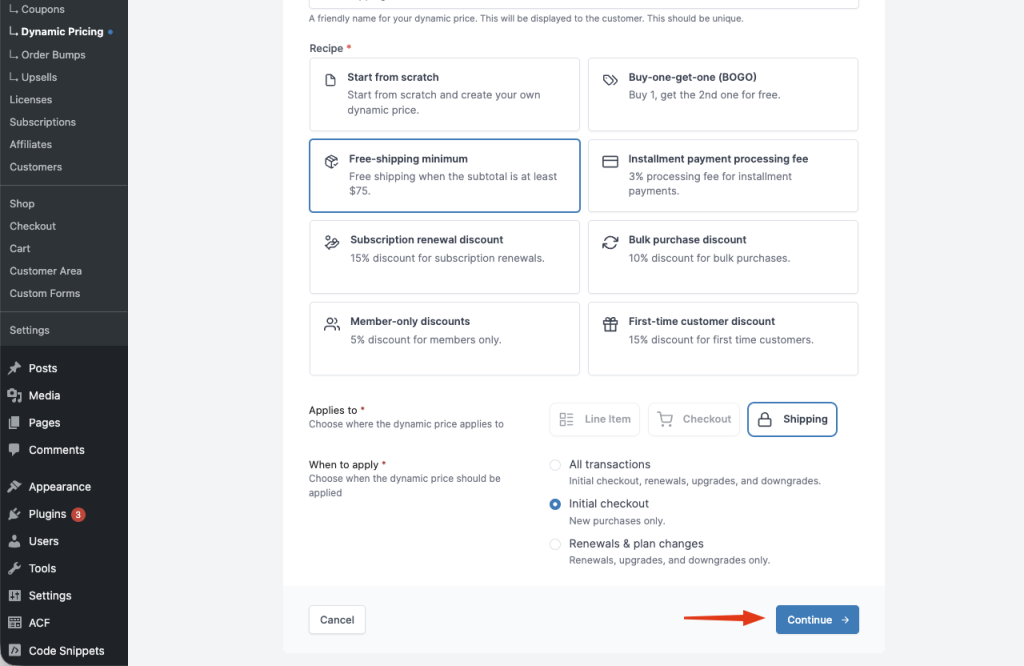
- Adjust the values as needed
- Click Save & Publish
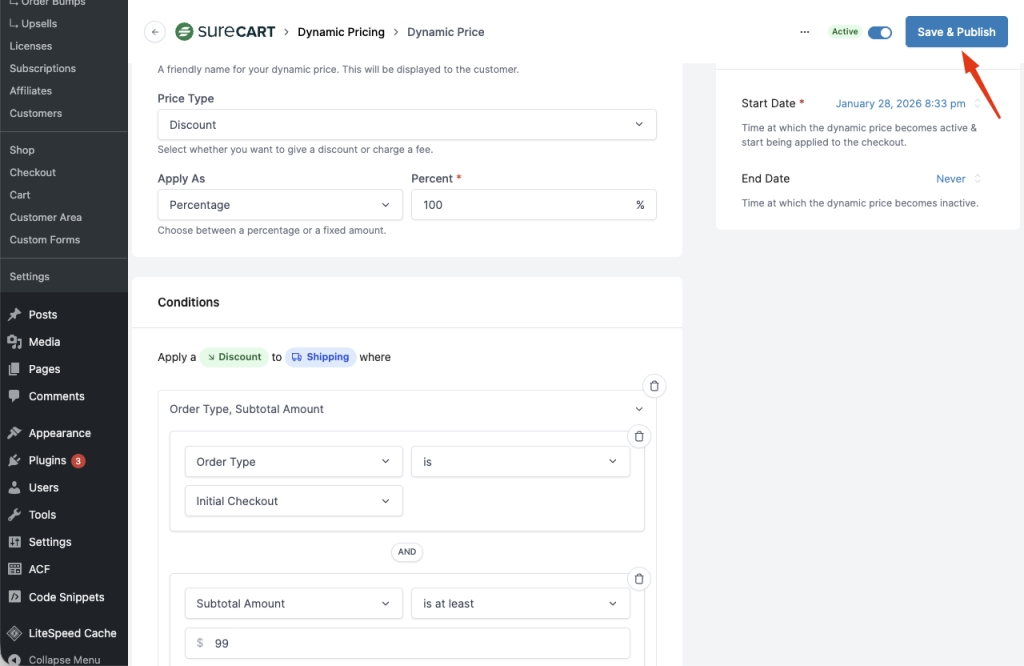
This creates a fully working rule with predefined conditions and default behavior.
Creating a Rule From Scratch
Use this option when you need a custom rule.
Tip
When creating a rule from scratch, you must select the When to Apply option.
This setting is required and ensures the rule does not unintentionally apply to subscription renewals or plan changes.
Example: Discount for a Specific Product SKU
- Go to Promotions → Dynamic Pricing → Add New
- Enter a Name and Display Name
- Select Start from scratch
- Choose Line Item as the target
- Select when the rule should apply using the When to Apply option
(Initial checkout, Renewals & plan changes, or All transactions) - Click Continue
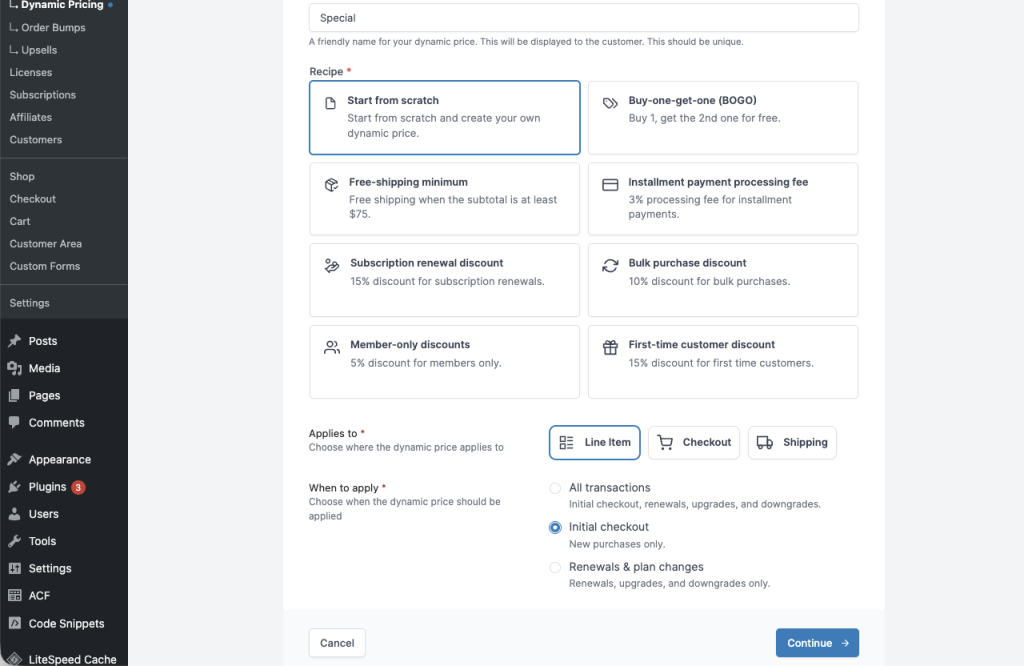
When to Apply
The When to Apply setting is required for all Dynamic Pricing rules and must be selected before you can continue.
This setting determines whether the rule applies to:
- The initial checkout only
- Subscription renewals and plan changes
- Both initial checkout and renewals
This option is available for both template-based rules and rules created from scratch.
Options explained
Available options:
- All Transactions
Applies the dynamic price to both the initial checkout and future renewals or plan changes. - Initial checkout
Applies the dynamic price only to the customer’s first purchase during checkout. - Renewals & plan changes
Applies the dynamic price to subscription renewals, upgrades, and downgrades.
Template behavior
When you create a rule using a template (recipe), the When to Apply option is automatically pre-selected based on the intended use case of the selected recipe.
For example:
- A Subscription renewal discount recipe defaults to Renewals & plan changes.
- A Bulk purchase discount recipe may default to Both.
You can always change this selection before publishing the rule.
Adding Conditions
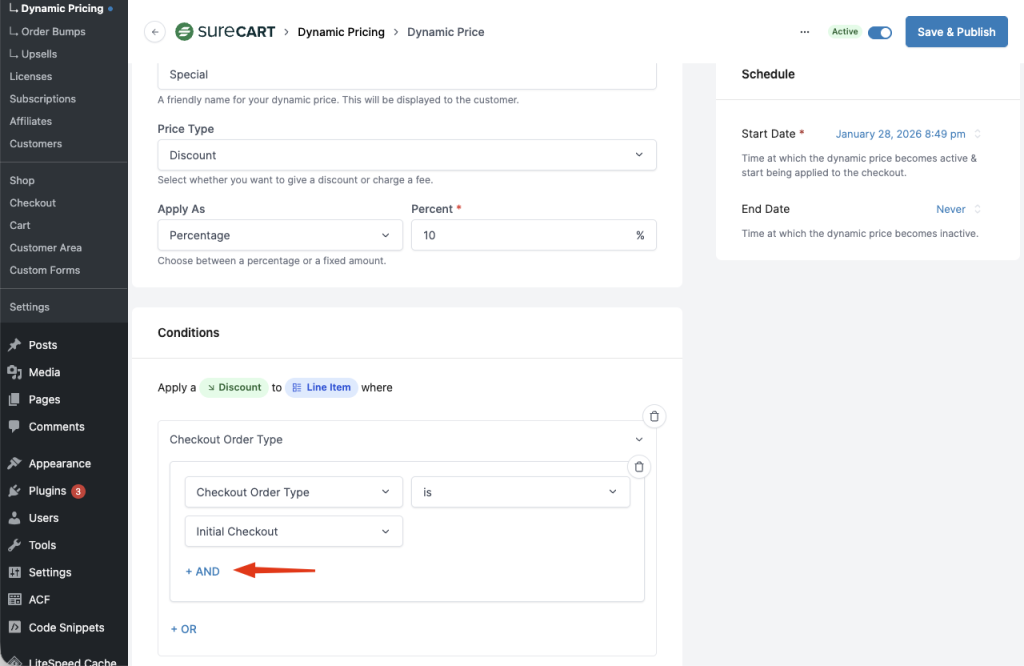
When you create a rule from scratch and select Initial checkout in When to Apply, SureCart automatically adds a default condition for Checkout Order Type = Initial Checkout.
You can remove this condition if needed.
To add another condition:
- Click + AND to add a condition that must also match.
(Or click + OR to add an alternative condition group.) - (Optional) Remove the Checkout Order Type condition if it does not fit your use case.
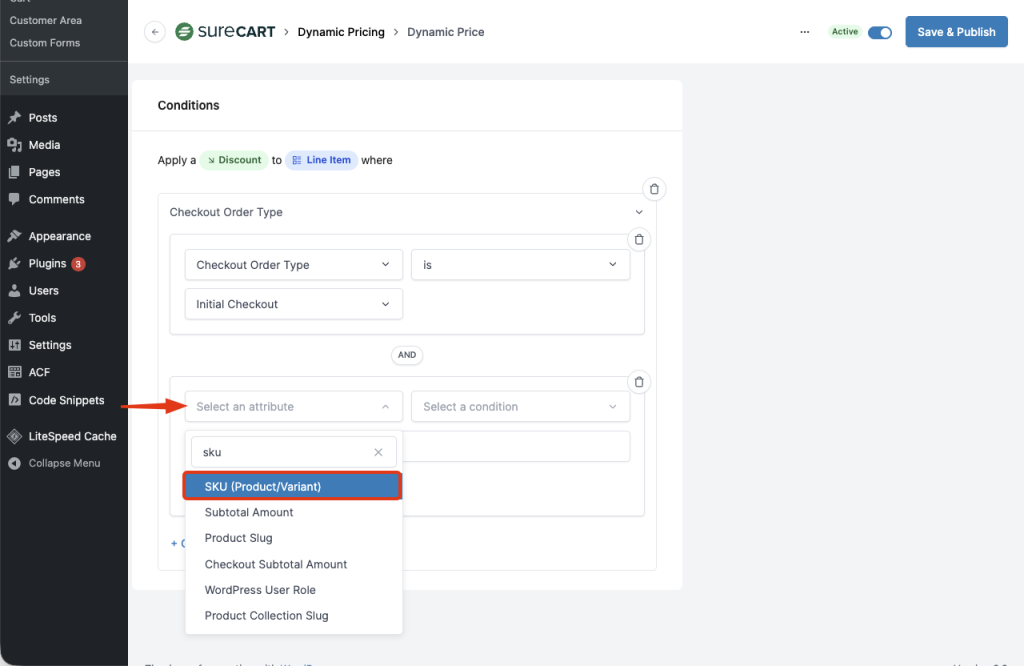
- Open the Select attribute dropdown
- Choose SKU (Product/Variant)
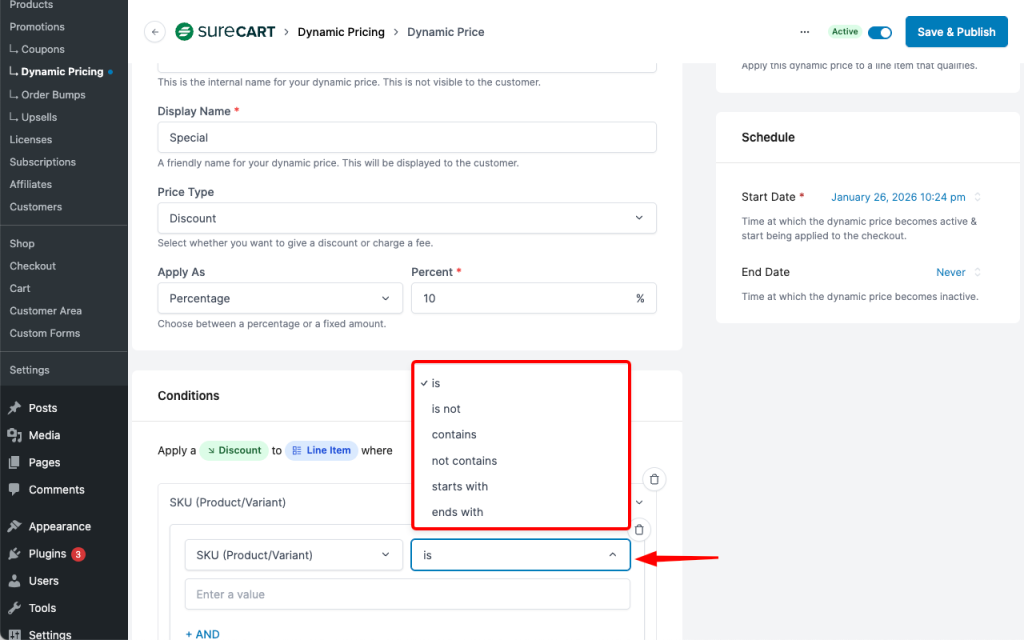
- Select a condition that fits your use case (for example, is).
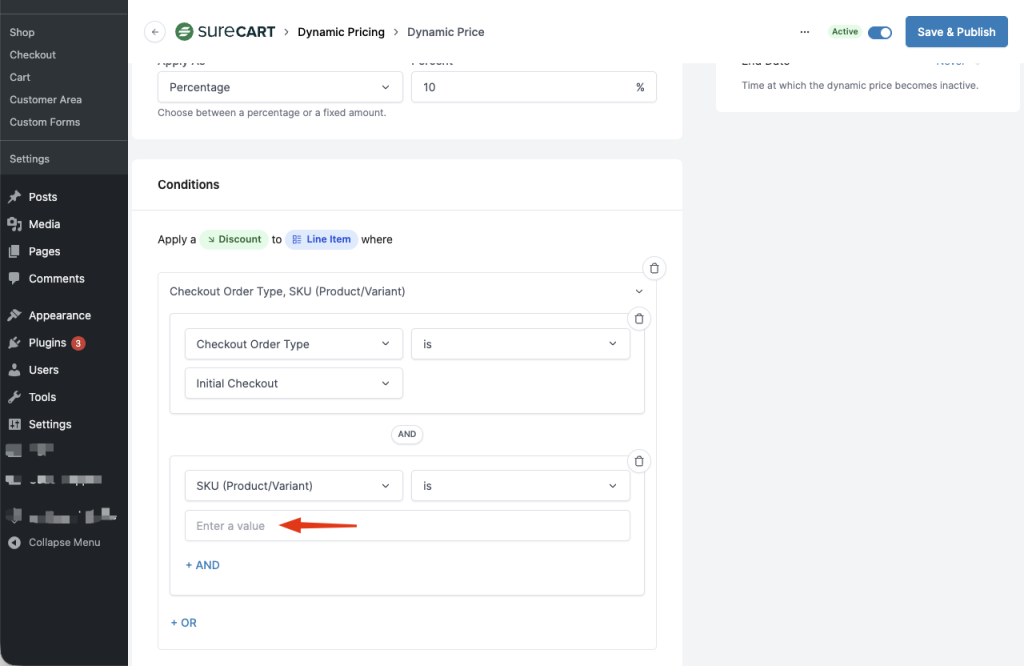
- Enter the product SKU
- Click Save & Publish
Attributes and Conditions Reference
Dynamic Pricing rules evaluate attributes using logical conditions.
The available attributes and supported conditions depend on where the rule applies.
Note
Not all attributes are available in all rule targets. The schema depends on where the rule is applied.
Below is the complete reference, grouped by schema.
Line Item Schema
Use these attributes when the rule target is Line Item.
| Attribute | Condition | Supported Values |
| Quantity | is, is not, is more than, is less than, is at least, is at most | |
| Subtotal Amount | is, is not, is more than, is less than, is at least, is at most | |
| Note | is, is not, contains, not contains, start with, end with | |
| Customer Prior Product Purchase | is, is not, is more than, is less than, is at least, is at most | |
| SKU (Product/Variant) | is, is not, contains, not contains, start with, end with | |
| Checkout Metadata | is, is not, contains, not contains, start with, end with | |
| Checkout Subtotal Amount | is, is not, is more than, is less than, is at least, is at most | |
| Checkout Email | is, is not, contains, not contains, start with, end with | |
| Checkout Email Domain | is, is not, contains, not contains, start with, end with | |
| Checkout First Name | is, is not, contains, not contains, start with, end with | |
| Checkout Last Name | is, is not, contains, not contains, start with, end with | |
| Checkout Order Type | is, is not, contains, not contains, start with, end with | checkout, subscription |
| Customer Created At | is, is not, is after, is before, is on or after, is on or before | |
| Customer Order Count | is, is not, is more than, is less than, is at least, is at most | |
| Price Created At | is, is not, is after, is before, is on or after, is on or before | |
| Price Metadata | is, is not, contains, not contains, start with, end with | |
| Price Name | is, is not, contains, not contains, start with, end with | |
| Price Recurring Period Count | is, is not, is more than, is less than, is at least, is at most | |
| Price Recurring Interval | is, is not, contains, not contains, start with, end with | day, week, month, year |
| Price Type | is, is not, contains, not contains, start with, end with | one time, finite recurring, infinite recurring |
| Product Created At | is, is not, is after, is before, is on or after, is on or before | |
| Product Metadata | is, is not, contains, not contains, start with, end with | |
| Product Name | is, is not, contains, not contains, start with, end with | |
| Product Slug | is, is not, contains, not contains, start with, end with | |
| Product Collection Metadata | is, is not, contains, not contains, start with, end with | |
| Product Collection Name | is, is not, contains, not contains, start with, end with | |
| Product Collection Slug | is, is not, contains, not contains, start with, end with | |
| Product Group Metadata | is, is not, contains, not contains, start with, end with | |
| Product Group Name | is, is not, contains, not contains, start with, end with | |
| WordPress User Role | is, is not |
Checkout Schema
Use these attributes when the rule target is Checkout.
| Attribute | Conditions | Supported Values |
| Weight (g) | is, is not, is more than, is less than, is at least, is at most | |
| Metadata | is, is not, contains, not contains, start with, end with | |
| Line Item Quantity | is, is not, is more than, is less than, is at least, is at most | |
| Order Type | is, is not, contains, not contains, start with, end with | checkout, subscription |
| Subtotal Amount | is, is not, is more than, is less than, is at least, is at most | |
| Shipping Amount | is, is not, is more than, is less than, is at least, is at most | |
| is, is not, contains, not contains, start with, end with | ||
| Email Domain | is, is not, contains, not contains, start with, end with | |
| First Name | is, is not, contains, not contains, start with, end with | |
| Last Name | is, is not, contains, not contains, start with, end with | |
| Customer Created At | is, is not, is after, is before, is on or after, is on or before | |
| Customer Order Count | is, is not, is more than, is less than, is at least, is at most | |
| Selected Shipping Method Name | is, is not, contains, not contains, start with, end with | |
| Original Checkout Billable Purchases Quantity | is, is not, is more than, is less than, is at least, is at most | |
| WordPress User Role | is, is not |
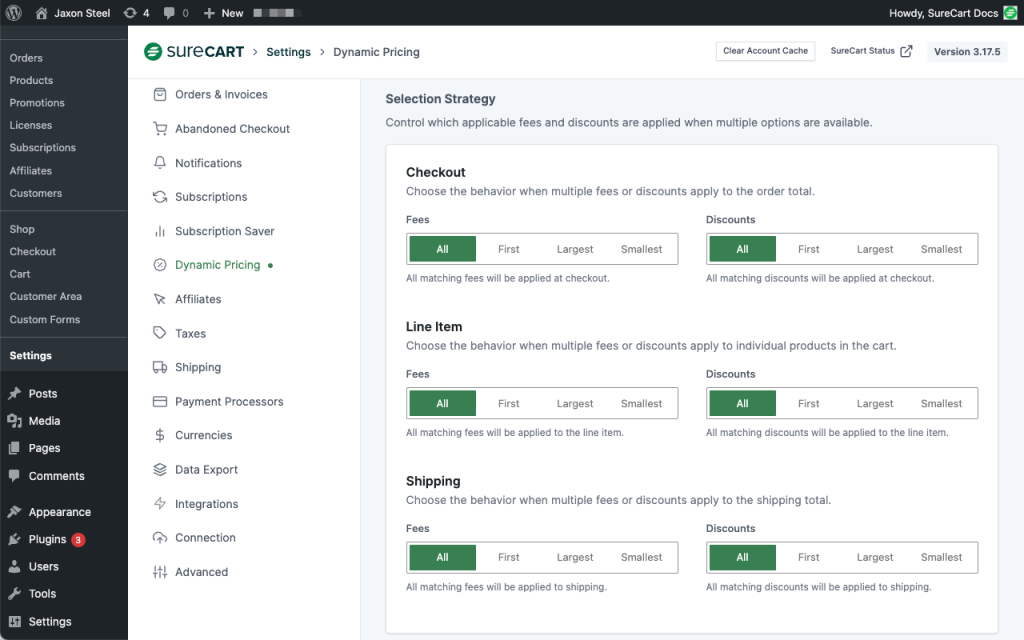
Global Settings
Global Settings define how multiple discounts or fees are applied when more than one rule matches.
This setting exists to prevent unexpected pricing behavior, such as unintentionally stacking multiple discounts.
Why this matters
Without a global strategy, multiple rules can apply simultaneously, resulting in a higher discount than expected.
Example:
- Rule A: 15% discount for orders with 3 or more items
- Rule B: 20% discount for a specific product
If the global strategy is set to All, both discounts may apply together, resulting in a larger total discount.
By choosing a strategy like Smallest, only the smallest matching discount is applied, keeping pricing predictable and controlled.
You can define different strategies for:
- Checkout
- Line items
- Shipping
Expected Outcome
Once a Dynamic Pricing rule is published:
- The rule is automatically evaluated in real time during checkout
- If all conditions match, the discount or fee is applied
- Global Settings determine how the rule behaves when multiple rules are eligible
- Customers see the updated pricing immediately during checkout.
FAQs
We don't respond to the article feedback, we use it to improve our support content.