Say it’s Monday morning. You have four tabs open: the order screen, a stock spreadsheet, a carrier site for labels, and an email thread about a return.
Every switch is a chance to miss something. A sold-out candle could still appear in stock if inventory isn’t kept up to date. A shipping address could be copied incorrectly between systems, or a label could be created with outdated information.
That is what ecommerce management looks like when the tools don’t talk to each other. This guide maps each daily task to the exact SureCart screen in WordPress. Then it walks you through the work, step by step.
We built SureCart, so we’ll also be clear about the few steps that happen somewhere else.
Quick answer: With SureCart, you can manage products, stock, orders, shipping, refunds, and store reporting from WordPress. Shipping labels use a connected Shippo account, while some setup and account-level actions happen outside WordPress.
Where Each Store Task Lives in SureCart
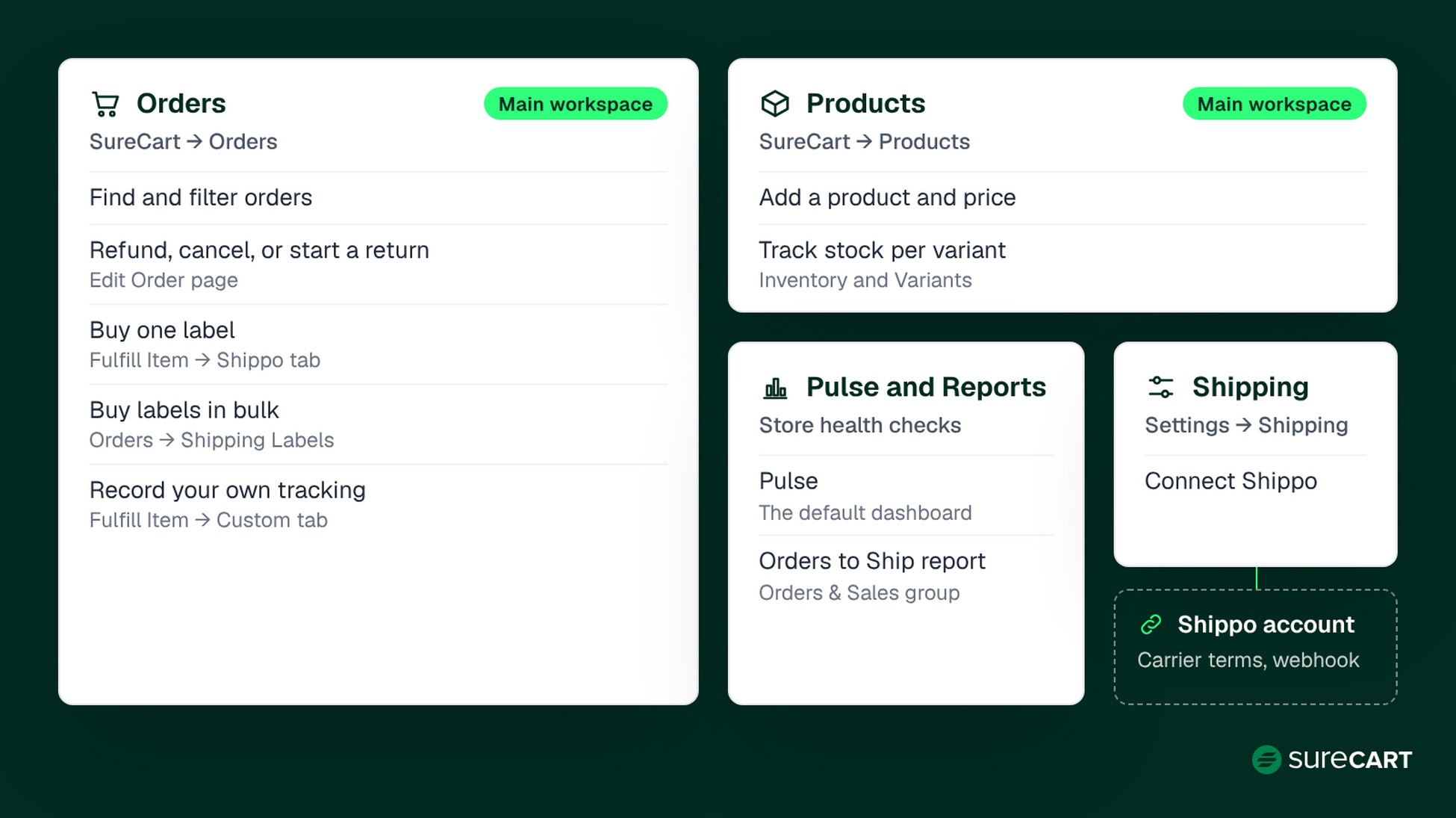
The main routine tasks live on the screens below, and a few need another account. A good ecommerce dashboard saves you clicks, but the real win is knowing where to look before you need it.
We’ll use one example store throughout. Say you’re Maya.
You run a WordPress candle shop with three scents in two sizes, six variants in all. You also offer a free PDF care guide. You ship about 60 orders a week from a home studio in the US.
Every task below starts from the SureCart menu in your WordPress admin.
| Task | Where in SureCart | Outside account needed? |
|---|---|---|
| Add a product and price | SureCart → Products → Add New | No |
| Track stock per variant | Product → Inventory and Variants | No |
| Find and filter orders | SureCart → Orders | No |
| Cancel or revoke | Edit Order page | No |
| Buy one label | Order → Fulfill Item → Shippo tab | Yes, Shippo account |
| Buy labels in bulk | Orders → Shipping Labels | Yes, Shippo account |
| Record your own tracking | Order → Fulfill Item → Custom tab | No |
| Customer tracking view | Customer dashboard | No |
| Issue a refund | Order → Charge → three-dot menu → Refund | Payment processor must support refunds |
| Check store health | Pulse (the default dashboard) and Reports | No |
| Export orders | Import and Export menu on admin list pages | No |
| Connect Shippo, accept carrier terms | Settings → Shipping, plus the Shippo portal | Yes, Shippo account |
Most of Maya’s week happens in two main workspaces: Products and Orders. A few setup steps happen outside WordPress:
- Your Shippo account and carrier terms. You create the account and accept each carrier’s terms in Shippo.
- The Shippo tracking webhook. You add it once in Shippo so tracking updates flow back to your store.
Now that you know where things live, it helps to name what you’re actually managing.
What Ecommerce Management Means for a WordPress Store
Ecommerce management is the daily work of keeping an online store running accurately. It includes managing products, stock, orders, shipping, returns, and store reporting.
For Maya, that means six candle variants, about 60 boxes a week, and the occasional cracked jar.
On WordPress, this work often gets split across plugins. A store adds one tool for stock, another for labels, and a third for returns. Each one has its own screen and its own updates, and you become the glue between them.
So let’s start where every order starts: the product.
Step 1: Set Up Products and Inventory
Orders and shipping read from your products, so start here. If the product setup is wrong, every later step inherits the mistake.
Create the Product and Choose Pricing
Go to SureCart → Products → Add New, name the product, and click Create. On the Edit Product page, you can set one-time, subscription, installment, or trial pricing.
Maya sells each candle once, so she uses one-time pricing. Her free care guide is a download, so she adds the PDF to the product as a download file.
Selling both kinds? Read our guide to selling digital and physical products from the same WordPress store.
Track Inventory: Available Stock, On Hand, and Variants
Good ecommerce inventory management comes down to two numbers.
Available is what you can still sell. On Hand is what is physically on your shelf. They differ when an item is sold but not yet fulfilled.
Set it up in four steps:
- Turn on stock tracking. Open the product, find the Inventory section, and switch on Track Quantity. Then enter your Available Stock.
- Add variants with SKUs. Each variant can carry its own stock and SKU once tracking is on. Maya gives each scent and size its own SKU, like LAV-8OZ.
- Adjust stock when you restock. Click the pencil icon next to Available Stock. Use Adjust By to add a delivery, or set Available or On Hand directly after a count.
- Decide what happens at zero. The Allow Out of Stock Selling toggle lets customers keep buying after stock runs out.
Common mistake: leaving Allow Out of Stock Selling on by accident. SureCart notes that stock can go negative this way, or through recurring purchases such as subscriptions and installments.
If you don’t make to order, keep it off. If you do, turn it on and say so on the product page.
If you need low-stock alerts, check the current SureCart feature set before relying on them. The inventory documentation used for this guide doesn’t describe a low-stock alert, so a manual stock check is a safer routine. We’ll use that manual check later.
Add a Shipping Weight
Add each physical product’s weight. Weight-based shipping rates and Shippo live carrier rates use it at checkout. Not every shipping method does.
In the Shippo label flow, the Use item weight option totals the weight of the items in the shipment. You can also turn it off and enter the package weight manually.
With products set up, the next screen you’ll live in is Orders.
Step 2: Manage Orders From the Orders Screen
Every order lands on one list, under SureCart → Orders. This is the main workspace for ecommerce order management in SureCart, so it helps to understand its three status types.
Read the Three Statuses
Each order carries separate statuses for the order, fulfillment, and shipping. SureCart manages order and fulfillment status independently, so one can change while the other stays the same.
Think of them like a café order.
Paying at the counter is the order status. The barista making your drink is fulfillment. Handing it across the counter is shipping.
| Status type | What it tracks | Values |
|---|---|---|
| Order | Payment | Paid, Processing, Failed, Canceled |
| Fulfillment | Seller’s fulfillment progress | Unfulfilled, Fulfilled, Partially Fulfilled |
| Shipping | Delivery | Not Shipped, Shipped, Partially Shipped, Delivered |
Customers see shipping status on their dashboard, but not fulfillment status. So packing an order doesn’t change the shipping status the customer sees. Maya updates the shipping status when the box leaves.
Find, Filter, and Open an Order
At the top of the Orders list, you can filter by order status, and also by fulfillment or shipment status. You can also search by order ID when a customer emails about one order.
Click an order to open its Edit Order page. You’ll see the payment, the customer, the shipping address, the items, and any linked subscription.
There’s also an Additional Order Data editor for extra details, like a wholesale reference number.
Refund, Cancel, or Revoke
Pick the action that matches what went wrong:
- Refund from the Charge section when you owe the customer money back. It depends on your payment processor supporting refunds, and processor fees are typically not returned.
- Cancel Order from the Actions button when the order should no longer proceed. The customer loses access to the product, its downloads, and any linked subscription.
- Revoke under Purchases to end one specific purchase. It removes the customer’s access to that product, cancels its subscription if it has one, and cannot be undone.
Decision rule: use Refund when money needs to go back. Use Cancel Order when the order should no longer proceed. Use Revoke when you need to end a purchase or a linked subscription.
Once an order is paid and checked, it’s time to get it out the door.
Step 3: Ship Orders From the Order Screen
Once Shippo is connected, you can start the shipping workflow from the order itself. You don’t copy addresses into a carrier site or paste tracking numbers back by hand.
Connect Shippo Once
You do this part one time:
- Create a Shippo account and an API token. Start with a test token.
- Go to SureCart → Settings → Shipping, turn on shipping rates, then connect Shippo under Shipping Providers and paste the token.
- Add a webhook in Shippo with the Track Updated event, so tracking updates reach your store. Tracking events arrive in live mode only.
- Add a warehouse address and a parcel template.
SureCart’s guide says Shippo’s API plan suits this integration. Test keys let you try it without buying real labels.
On the API plan, you request live keys from Shippo when you’re ready. For the full walkthrough, see our WordPress shipping setup guide.
Fulfill One Order and Buy a Label
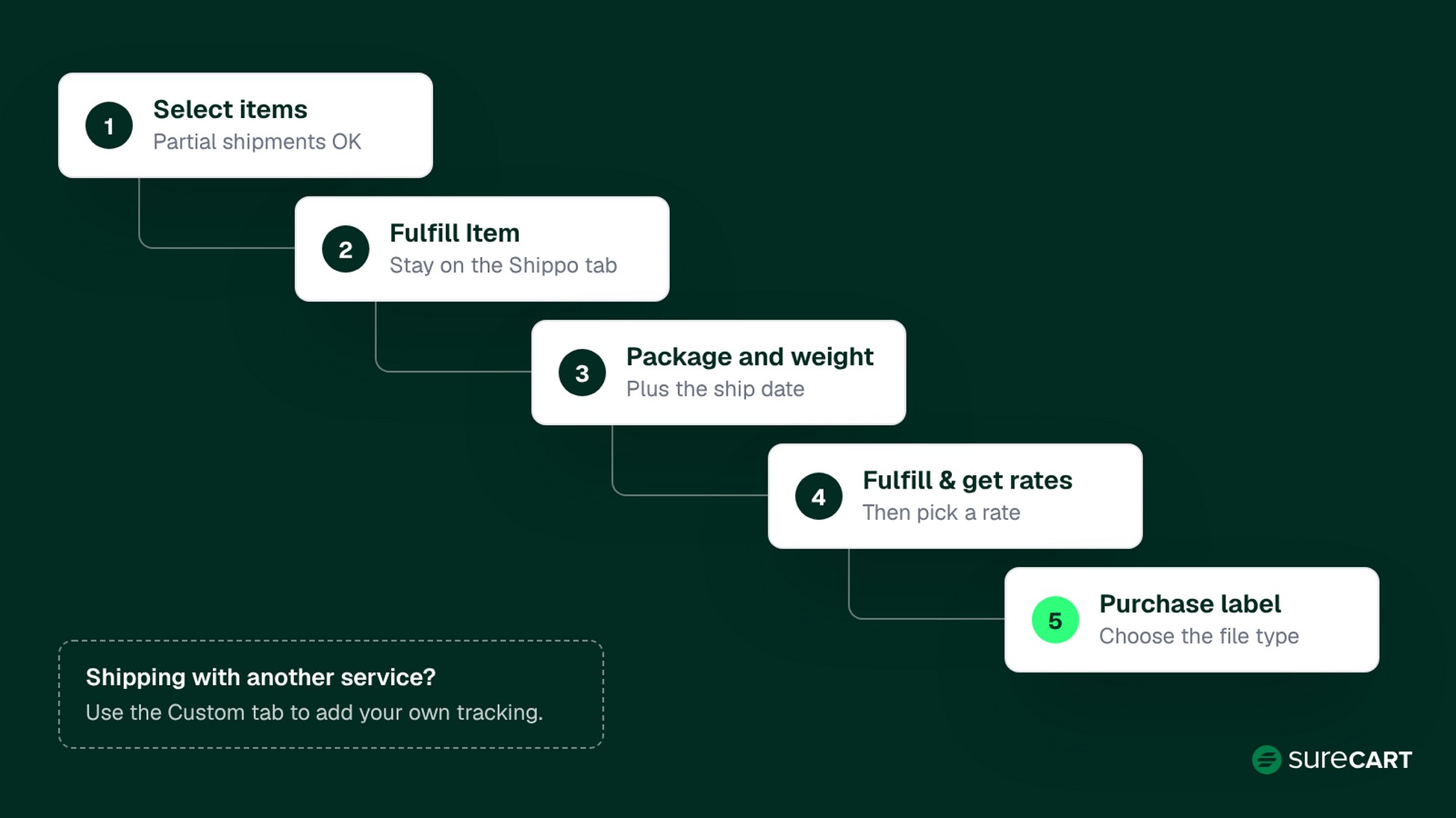
Buy a label for one order with this label flow:
- Open the order and select the items to ship. Pick some items for a partial shipment.
- Click Fulfill Item and stay on the Shippo tab.
- Set the ship date, choose a package, and confirm the weight.
- Click Fulfill & get rates, then pick a rate.
- Choose the label file type and click Purchase label.
Common mistake: trying to add a new label to a shipment that already has one. That isn’t possible. Cancel the fulfillment, create a new one, and buy a fresh label.
If you void a label, Shippo requests a refund of the label cost from the carrier.
Shipping with another service? Use the Custom tab to record your own tracking number and link instead.
Buy Labels in Bulk
Busy Mondays are where bulk labels help. Pick several orders under Orders → Shipping Labels, compare rates, and purchase labels for the selected orders in one workflow.
If Maya averages 60 orders a week and uses roughly one label per order, that’s about 260 labels a month. Shippo’s API Starter plan charges no label fee on the first 30 labels each month. After that, each label costs 7 cents.
At 260 labels, the API label fee would be about $16.10 a month ((260 − 30) × $0.07), before postage and any separately billed API services.
Packaging, processor fees, and returns cost extra too, so it isn’t a full shipping cost.
What the Customer Sees
Once you buy a label, customers see shipment tracking and status on their dashboard order page. When you change a shipping status by hand, you can also email the customer about it.
Some orders come back, though, and the numbers need watching.
Step 4: Handle Refunds and Check Store Health
Two jobs close the loop: refunds when something comes back, and reporting so you can spot trouble early.
Refund a Returned Item From the Order
When a customer emails about a damaged or returned item, you handle the refund from the order. When Maya gets a cracked jar, she follows these steps:
- Open the order under SureCart → Orders.
- In the Charge section, open the three-dot menu and choose Refund.
- Under Refund Item(s), select the item to refund.
- Choose Restock if the item can go back on the shelf. Maya leaves it off for a cracked jar.
- Choose Revoke Purchase only if you want to remove the customer’s access to the product. For a subscription product, it also cancels the subscription.
- Pick a reason, check the Refund Amount, and click Refund.
Refunds depend on your payment processor supporting them. They can take 5 to 10 days to reach the customer’s statement.
Read Pulse and the Orders to Ship Report
Pulse is SureCart’s default dashboard, the snapshot of your store’s health. You can track items purchased, revenue, and refund trends. It updates in real time, and you can compare periods.
Reports go deeper. The Orders to Ship report, in the Orders & Sales group, is worth a morning look. You can change the time range, use each report’s available filters and grouping options, and export the data as CSV.
Export When You Need a Spreadsheet
Sometimes your accountant wants a spreadsheet. Three things are worth knowing:
- Where you start. Open the Import and Export menu on SureCart’s admin list pages in WordPress.
- Where it runs. The export runs inside your WordPress dashboard and produces a CSV file.
- What you can export. Orders, customers, products and prices, refunds, subscriptions, and more.
Now let’s turn all of this into a routine you can repeat.
A Daily Store Check
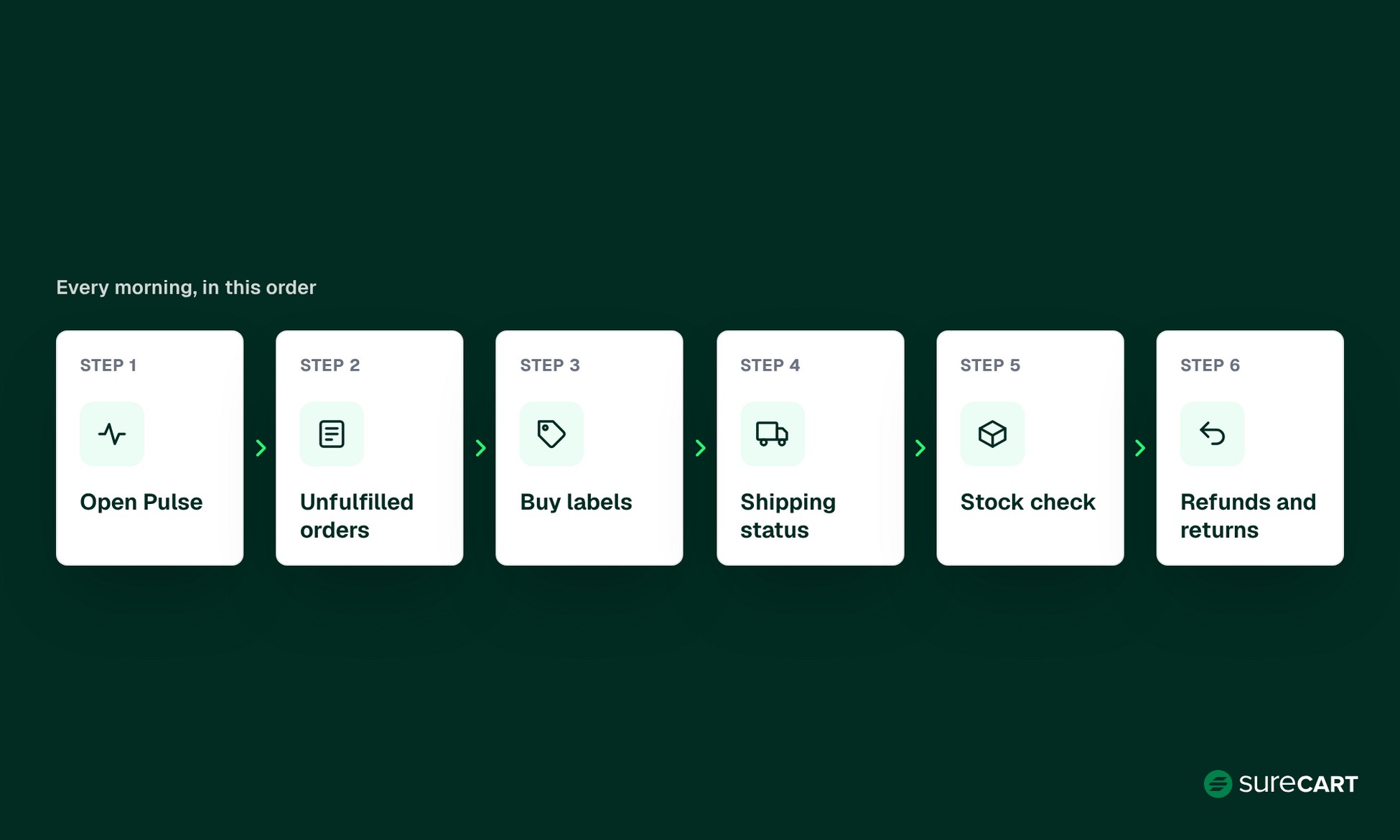
This short daily check keeps the store in view. Run it each morning, in this order:
- Open Pulse. Look at yesterday’s orders and refunds. A sudden jump in refunds is worth a closer look.
- Filter Orders by Unfulfilled. This is your packing list for the day.
- Buy labels. Use bulk labels for a busy day, or Fulfill Item for one or two orders.
- Update shipping status. Mark shipped orders and email customers if you track by hand.
- Check stock. Compare Available and On Hand for your top variants. For Maya, that’s six numbers.
- Clear refund requests. Handle any customer email about a damaged or returned item from overnight before you pack.
For a store like Maya’s, this checklist works as a quick daily health check. Actual fulfillment and customer-service time will vary with order volume.
If you’re coming from WooCommerce, you’re probably wondering how this compares.
How This Compares With a WooCommerce Setup
We built SureCart, so we are not neutral. We’ll show the data anyway.
If you run WooCommerce today, the table shows where the same tasks live. This compares SureCart with the specific WooCommerce extensions cited, not the whole WooCommerce ecosystem.
| Task | SureCart | WooCommerce (cited vendor solution) |
|---|---|---|
| Orders | Built in | Built into WooCommerce (Managing Orders docs) |
| Inventory | Built in | Built into WooCommerce (Products Settings docs) |
| Shipping labels | Available from the order through the Shippo integration | WooCommerce Shipping, a free extension for US-based stores using USD, with label buying, tracking, and fulfillment from the order admin. Postage is still paid per label |
| Tracking | Customer dashboard, plus the Custom tab for your own tracking | Saved automatically with WooCommerce Shipping. Shipment Tracking, $59/year, for other carriers |
| Refunds and returns | Item-level refunds, restocking, and purchase revocation from the order | Returns and Warranty Requests, $99/year, with customer return requests, exchanges, warranties, and RMA handling |
Extension prices are annual, as listed on each vendor’s page, and were checked on October 21, 2026. They may change. WooCommerce handles the basics well, and a US-based seller can do a lot with its free shipping extension.
The difference becomes more noticeable as you add specialized workflows. Some capabilities may need extra extensions or third-party services.
Moving over? SureCart can import your WooCommerce products of the one-time, installment, and subscription types.
The importer doesn’t bring over customers or past orders. For those, SureCart documents separate CSV imports for customers, past purchases, and active subscriptions.
Why SureCart Is Worth Considering for Ecommerce Management in WordPress
SureCart is managed ecommerce, native to WordPress.
Most of the tasks in the table above run inside SureCart, which is what makes it useful as ecommerce management software for WordPress.
You don’t need separate WordPress plugins for stock, refunds, or the SureCart-side shipping workflow. Buying labels requires a connected Shippo account.
The trade-off is real. Because SureCart is managed, your core ecommerce data is stored on SureCart’s servers rather than managed entirely in your WordPress database. If you need every record on your own server, weigh that before you switch.
Monthly Software Fees for Maya’s Store
This comparison covers SureCart’s plan and transaction fees and Shippo API label fees only. It does not estimate total fulfillment cost, postage, packaging, payment processing, labor, or returns.
| Setup | SureCart fees | Shippo API label fee (260 labels) |
|---|---|---|
| SureCart Launch (free plan) | $0 plan price + 2.9% SureCart transaction fee: about $241.28 on $8,320 in sales | About $16.10 |
| SureCart Pro, 1 store | $199 a year, about $16.58 a month, no transaction fee | About $16.10 |
SureCart plan prices and Shippo API label fees were checked on October 21, 2026. Check each provider’s current pricing before you decide.
SureCart’s pricing page lists the same features on every plan, with no feature restrictions.
Based on SureCart’s own fees alone, Pro becomes cheaper than Launch at roughly $572 in monthly sales. Payment processor fees apply separately to both plans, such as Stripe’s 2.9% + 30¢ per domestic card payment.
Treat that number as a comparison of two fee structures only. Maya’s example of about $8,320 in monthly sales is illustrative and shows where her store sits.
If you’re starting out, Launch costs nothing until you sell. For more on how SureCart’s pricing compares with hosted platforms, see our Shopify alternatives breakdown.
Run Your Store From WordPress. Explore SureCart’s free Launch plan and see how products, orders, inventory, and shipping fit into one workflow. Start selling for free
Conclusion
Good ecommerce management comes down to two habits. Know where each job lives, and do it the same way daily.
For Maya, that means Products for inventory, Orders for fulfillment and refunds, Pulse for trends, and a connected Shippo account for labels.
Set up your products first, connect Shippo once, and run the daily check. The rest gets easier from there.
Frequently Asked Questions
What is ecommerce management?
Ecommerce management is the daily work of keeping an online store running accurately. It covers products, stock levels, orders, shipping, returns, and reporting. On WordPress, that means keeping those jobs in sync across your plugins. Done well, it helps turn paid orders into shipments on time.
Can I manage orders, products, and shipping in WordPress without adding multiple plugins?
Yes. SureCart handles products, stock, orders, shipping workflows, refunds, and reports in one plugin. You’ll need a Shippo account if you want to buy labels from the order screen. Without Shippo, you can use another shipping service and record its tracking number and link on the Custom tab.
Do I need a Shippo account to print shipping labels with SureCart?
Yes. To buy labels inside SureCart, you connect a Shippo account under SureCart → Settings → Shipping. SureCart’s guide says Shippo’s API plan suits the integration. Test keys let you try the flow before you buy real labels. If you’d rather buy labels elsewhere, use the Custom tab to record tracking.
Can I buy shipping labels for many orders at once?
Yes. Pick several orders under Orders → Shipping Labels, compare rates, and purchase labels for the selected orders in one workflow. That suits busy days. For one or two orders, the Fulfill Item flow on each order works just as well, and it lets you split items into partial shipments.
How do customers track their orders in a SureCart store?
Customers can see shipment tracking and status on their customer dashboard order page after you buy a label. If you ship another way, add the tracking number and link on the Custom tab. You can also email customers when you change a shipping status by hand.
How do I track orders in WooCommerce compared with SureCart?
In WooCommerce, WooCommerce Shipping saves tracking to the order automatically for its own labels. The Shipment Tracking extension, $59 a year, adds tracking for other carriers. In SureCart, tracking comes through Shippo labels or the Custom tab, and customers see it on their dashboard.