Baymard surveyed US online shoppers about why they left an order. Among shoppers who abandoned for reasons other than simply browsing or not being ready to buy, 17% said the website had errors or crashed.
Black Friday raises the stakes. Not every bottleneck belongs to your host. Good Black Friday website performance starts with one question: which part of the load is yours to fix?
In this guide, “backend” means the systems behind the storefront: page requests, dynamic WordPress operations, orders, payments, and related jobs.
We built SureCart, so we use it as the example. The steps work for most WordPress stores.
Quick answer: Exclude checkout, cart, account, login, customer dashboard, and /wp-json/ routes from page caching, as SureCart’s docs describe. Load test your busiest product and landing pages to a target set from last year’s busiest hour. Check checkout by hand with test orders. Cap coupons and stock, set sale end times in UTC and test them, and freeze non-essential changes a week out.
The Backend Load Map: What Your Server Carries During a Spike
Most advice on how to prepare a website for Black Friday says “upgrade your hosting.” That skips the first question. What is your Black Friday server actually doing when a sale email lands?
Your store’s pages may be served by your hosting server, a page cache, or a CDN, depending on your setup. SureCart’s checkout processing and order creation run on its platform. Your WordPress site handles the page loads and REST API requests that the integration requires.
Customer records and other store data are stored on SureCart’s platform, not in your WordPress database.
Where data is stored isn’t the same as where every request runs. So the map below only shows what SureCart’s own docs confirm.
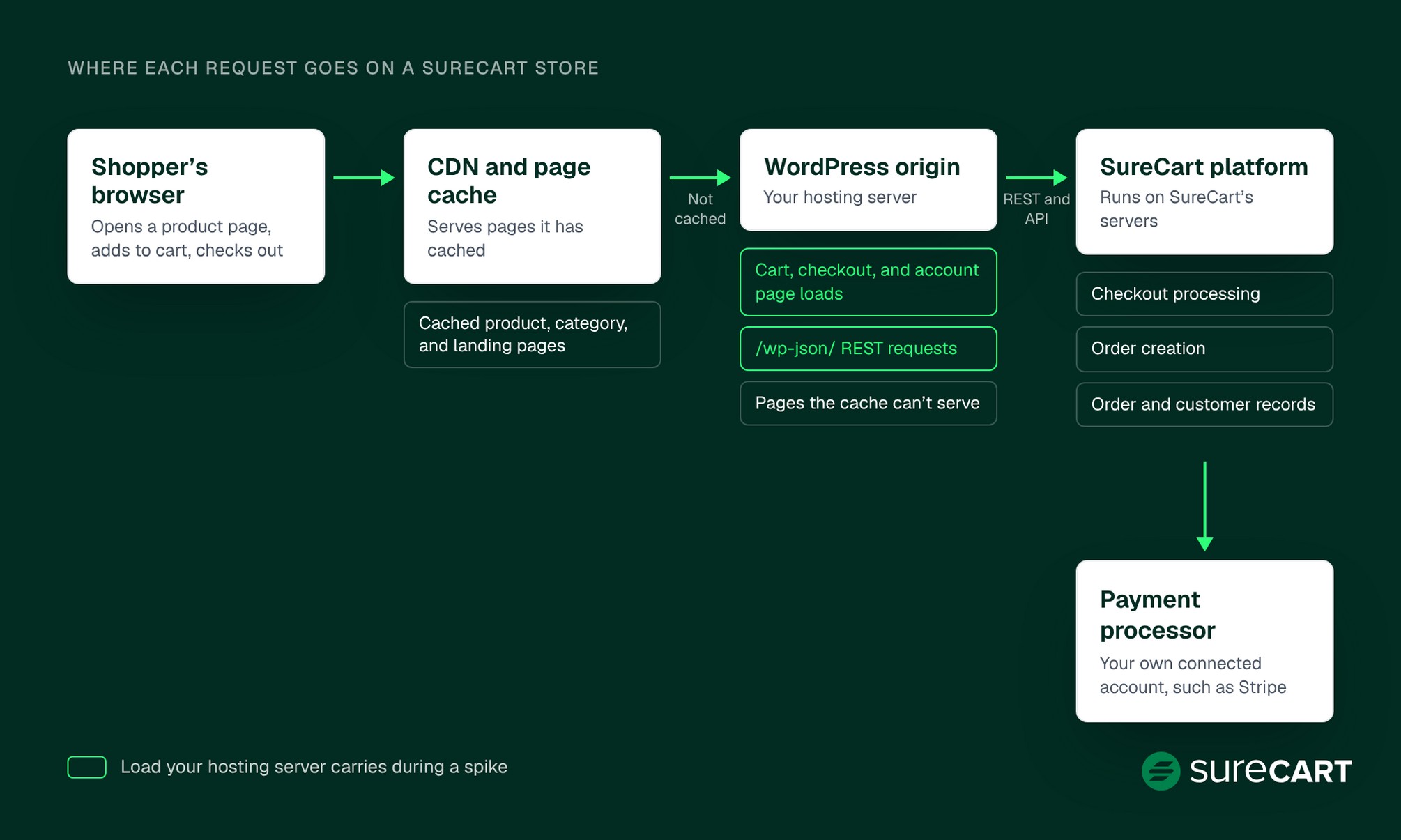
Here’s who carries each part of the load on a SureCart store:
| Component | Who carries the load | What fails under a spike | How to test | Pre-sale action |
|---|---|---|---|---|
| Product, category, and landing pages | Your host, or a page cache or CDN in front of it | Slow pages, timeouts, 5xx errors | Load test with k6 | Page cache plus CDN, trim plugins |
| Cart, checkout, and account pages | Your WordPress origin, possibly proxied through a CDN/WAF, but not served from page cache | Slow or failed page load | Include the page load in the spike test, check checkout submissions by hand | Exclude from page cache, keep the page light |
| WordPress REST requests (/wp-json/) | Your host runs them, and SureCart uses them to talk to its platform | Stale cart data if cached, errors if blocked | Add to cart, change quantity, log in | Exclude from page cache, never block |
| Checkout processing and order creation | SureCart’s platform | Not in your control | Test orders by hand | Run test orders, clear test data |
| Order and customer records | SureCart’s platform | Not in your control | Check test orders appear | Confirm orders show in SureCart |
| Payment processing | Your own connected processor account | Declines, Stripe rate limits | Test mode by hand | Expecting far more charges? Check your processor’s rate-limit guidance |
| Customer and store emails | SureCart’s platform | Missing, late, or odd sender | Test order, read the email | If you use a custom sender address, configure it and its DKIM record, then test delivery |
| Background jobs (WP-Cron) | Your host | Extra work on page loads | Check host settings | Move to a system cron unless your host runs one, confirm it runs |
The pattern is clear. Requests that aren’t served by your cache or CDN ultimately reach the WordPress origin, where they use server resources. That includes the uncached cart and checkout pages and the live REST requests.
A slow origin still means a slow checkout page load, even though checkout processing and order creation happen on SureCart’s platform.
Use the map to read your own symptoms. If product pages load fast but cart and checkout pages crawl, your cache may be doing its job while the uncached request path becomes the bottleneck.
If every page is slow, start with your cache and CDN settings before you blame the server.
The most common mistake is treating the whole store as one thing. A store owner sees a slow checkout, buys a bigger plan, and finds checkout still slow. If the cause was a heavy plugin or a cache rule, the bigger server never touched it.
Think of a page cache like a stack of printed menus. Handing one out is fast. Cooking each order to taste is the slow part, and that work never comes from the stack.
Your cart and checkout pages are the cooked-to-order part.
SureCart’s docs call the REST API the “communication channel between SureCart and your WordPress site.” That’s why the next steps focus on the pages and routes your host serves, not on order processing you can’t tune.
See What SureCart Includes. Stock tracking, coupon limits, test mode, and abandoned checkout, built into one WordPress plugin. See the features
Do the Traffic Math Before You Test
A load test needs a target. Without one, you can’t tell a pass from a fail.
Set your target from your own busiest hour. Your analytics tool shows hourly page views for last year’s Black Friday and Cyber Monday. If you have no Black Friday history, use the busiest hour of any past sale or launch.
Say Emily runs a candle store on WordPress with SureCart. She’s a made-up example, not a real store. Last Black Friday, her busiest hour had 6,000 page views across her whole site.
Here’s the formula we recommend:
- Find the average rate. 6,000 page views ÷ 3,600 seconds = 1.67 page views per second.
- Multiply by 10. That covers two planning assumptions. A burst factor of 5, because the first minutes after a sale email are busier than the hour’s average. And headroom of 2. Emily only has hourly data, so she uses the 5 as a fallback.
- Round it. 1.67 × 10 = 16.7, so Emily’s target is 17 page views per second.
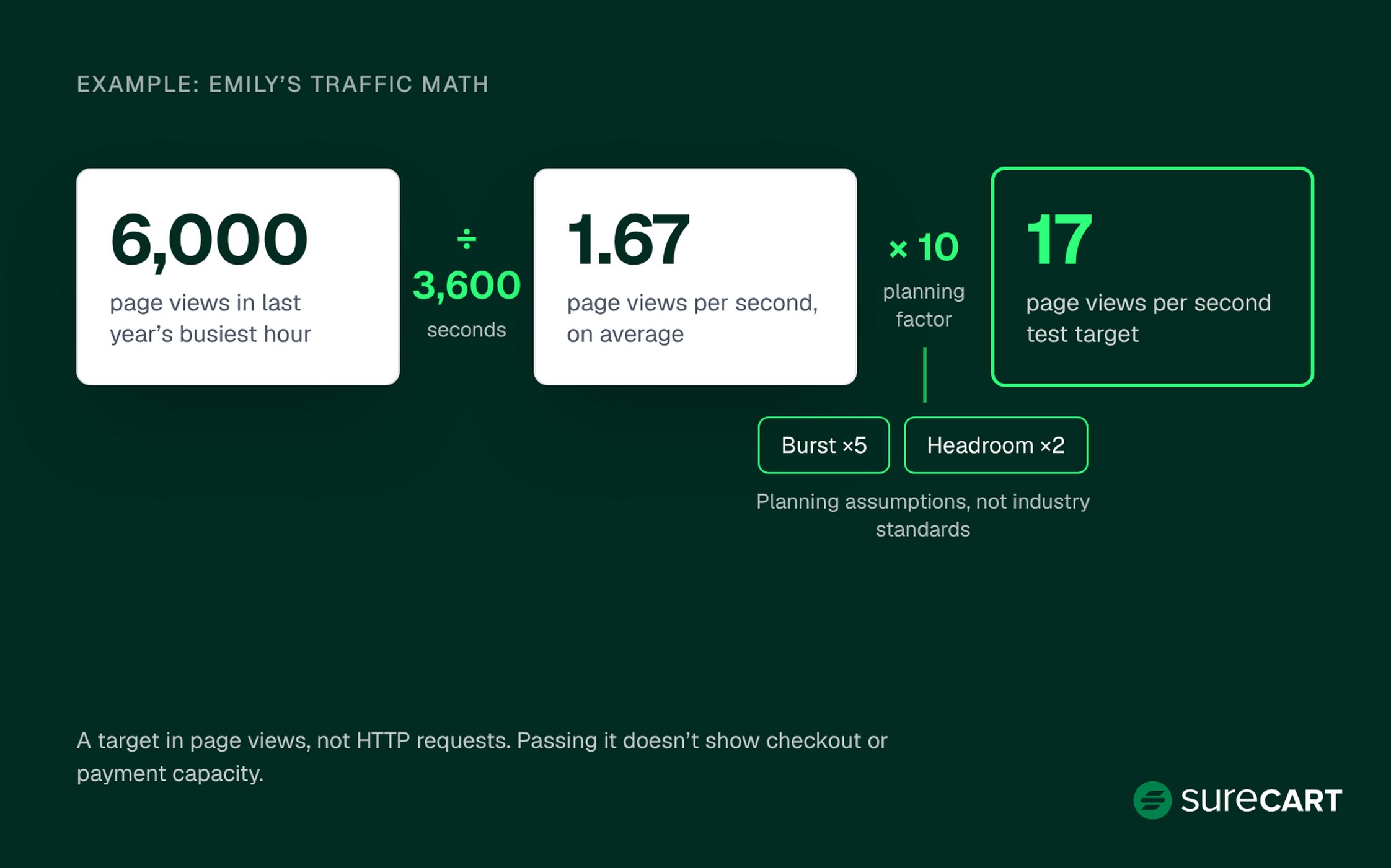
For this example, we use a burst factor of 5 and headroom of 2 as planning assumptions, not industry standards. Use the 5 only as a fallback, when all you have is hourly data.
If your analytics shows 1-minute or 5-minute page views, use your real peak instead. Divide the busiest minute’s views by 60, or the busiest 5 minutes’ views by 300. That gives you peak page views per second. Then multiply by your headroom of 2.
Be clear about what that number is. It’s a planning target based on total site page views, not a forecast of traffic to the pages you’ll test.
It’s also not 17 requests per second. One page view can trigger many HTTP requests: the HTML, images, scripts, styles, and API calls.
Each request then turns into some amount of server work. A cached page costs your server far less than a dynamic one.
And it has limits. This estimate covers page load testing only. It doesn’t model checkout or payment calls, bot traffic, ad-driven surges, or traffic from new channels.
Passing a test at this rate doesn’t show your store can handle checkout or payment demand. It also doesn’t cover the outside services each order needs. Those include tax, shipping rates, webhooks, email, and other integrations. A storefront test can pass while one of those vendors or APIs becomes the bottleneck.
Planning ads or a big email send? Start from the campaign forecast, not a guess. Estimate how many extra visits it should bring and when they’ll land. Add those page views to your peak, then apply your headroom.
Your Black Friday web traffic target is set. Next comes what to fix before you point any traffic at the site.
How to Prepare Your Ecommerce Backend for Black Friday Traffic
These seven steps run in roughly the order of the runbook further down. Start with caching, because every later test depends on it being right.
Fix Caching Rules Around Checkout, Cart, and Account Pages
Cache every page that looks the same for everyone, and nothing that doesn’t.
SureCart’s caching doc says login, registration, checkout, account, and customer dashboard pages should not be cached. It also says to exclude */wp-json/* and warns against aggressive browser caching of cart and checkout data. SureCart’s LiteSpeed guide gives the exact list to exclude:
- /wp-json/*
- /checkout/
- /login/
- /account/
- /customer-dashboard/
Use your own URLs if you renamed those pages. Caching REST endpoints “can result in outdated or broken information,” per that guide.
Keep three settings apart. Excluding a route from page cache is what the docs ask for. Blocking the REST API is never okay, because SureCart needs it.
Browser cache headers are a separate setting again.
Watch for a second cache layer nobody remembered. You exclude checkout in your cache plugin, but a CDN rule still caches every page.
Then a shopper’s cart or account data can be cached when it shouldn’t be. That can serve stale personalized data. With an incorrectly configured cache, it could even expose cached content from one shopper’s session to another.
Check every layer you have: your cache plugin, your host’s cache, and your CDN. Then test it. Log in, add to cart, change a quantity, and make sure the cart and account pages show live data.
Load Test the Pages Your Host Serves
A spike test shows whether your site holds up under a sudden rush. That’s what a doorbuster email creates.
Grafana’s k6 docs name Black Friday as an example of when to run one. k6 is open source, so it costs nothing to try.
It’s the most direct check of your Black Friday website performance on the pages your host serves.
Get your host’s permission first. Use a staging copy whenever you can. Test production only under a plan your host has approved.
Pick the product and landing pages that got the most views in last year’s sale. The test measures only those pages’ HTML. Emily runs it on staging across her ten busiest sale pages.
Staging only tells you about capacity when it closely matches your live site. That means the same server resources, cache, CDN, PHP settings, database, and key plugins. If it doesn’t, the test still checks your script and request path. It just can’t prove what production can handle.
Use k6’s ramping-arrival-rate executor. Set timeUnit to 1s and ramp to a final target of 17.
For this test, design each iteration to request one page’s HTML. That makes 17 iterations per second a practical stand-in for 17 page views per second across the selected pages.
Give k6 enough virtual users. Its rough guide is median iteration time multiplied by the rate, plus a buffer.
Say your measured median iteration time is about 2 seconds. Then a rough starting point is 34 VUs at 17 iterations per second, plus a buffer.
Measure your own iteration time. Don’t copy 34 as a fixed number.
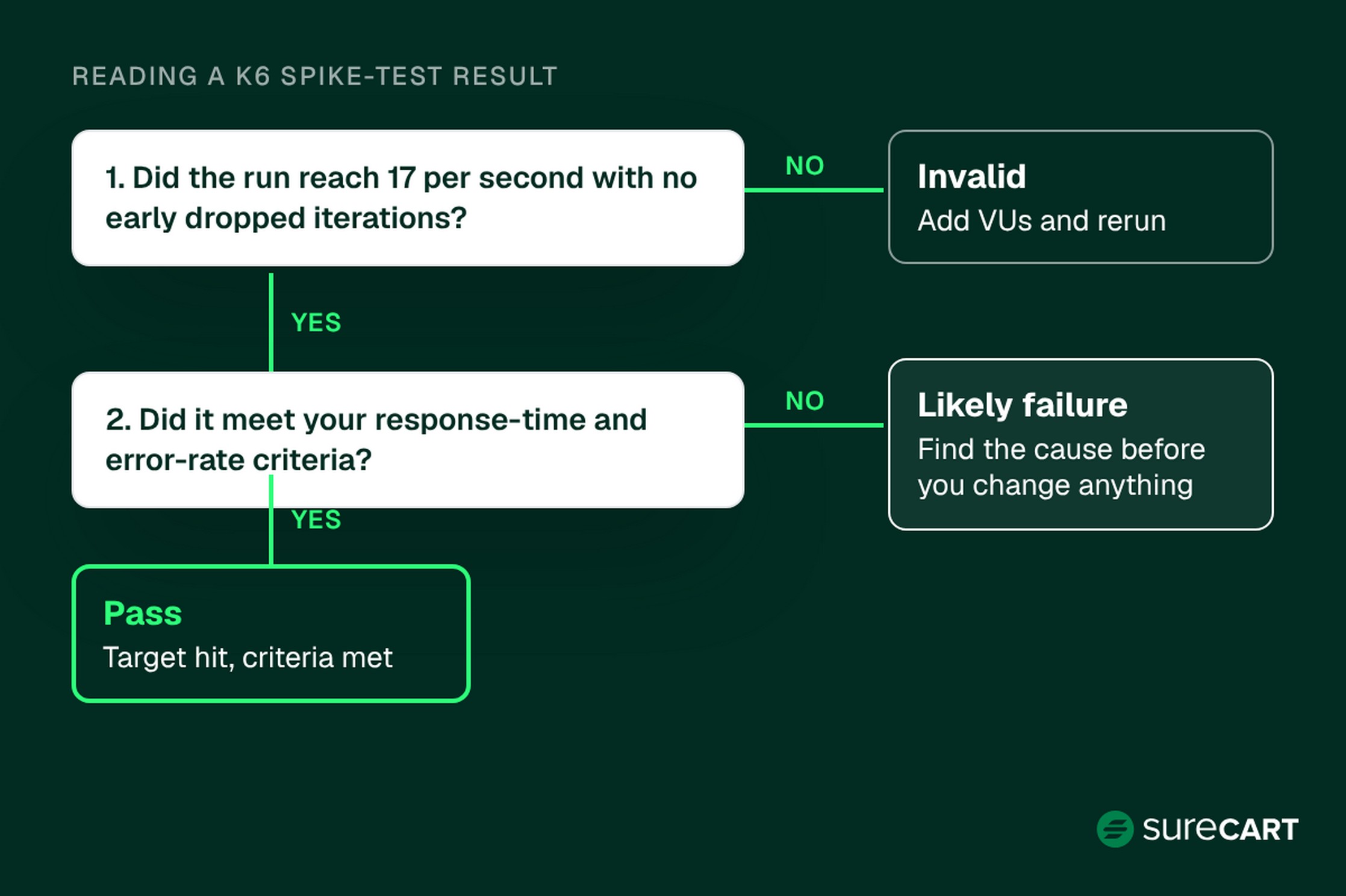
Write down your pass criteria first: the page response time and error rate you’ll accept, and how many dropped iterations you’ll allow. Then read the result:
- Invalid: the run never reached 17 per second, or dropped iterations early. With arrival-rate executors, k6 drops an iteration when no VU is free to start it. Early drops usually mean too few VUs were allocated. Add VUs and rerun.
- Pass: it hit the target with no early drops, stayed within your drop limit, and met your criteria.
- Likely failure: it missed your criteria, or drops started later in the run. Later drops often mean the site is slowing down. Each iteration takes longer, so the VUs you allocated stay busy and none are free for the next one. Find the cause before you change anything.
Slow response times? Check PHP worker saturation, database queries, plugin execution, and background jobs. Don’t assume the fix is a bigger hosting plan.
Load the Checkout Page, but Don’t Submit Checkouts at Volume
Loading the checkout page and submitting a checkout are two different things.
The checkout page and its requests still reach WordPress. So you can include the page load in your spike test, under a plan your host has approved.
Sending lots of checkouts is different. Checkout processing and order creation run on SureCart’s platform. So a flood of checkouts wouldn’t measure your host’s capacity. It would send order and payment calls to SureCart and your payment processor. Each one can also set off REST requests, emails, and outside services.
So don’t script lots of payments or orders. Check that checkout works with test orders placed by hand instead.
A high-volume submission test would also fill your store with test orders you then have to clear.
If you use Stripe, check its rate-limits docs. Stripe says it generally discourages load testing your systems with its API running in a sandbox. Its testing docs also say not to use test environments to load test your integration.
Sandbox API limits are lower than live ones, so a test can hit limits production wouldn’t. The sandbox also mocks the call to the payment gateway, so response times differ from live mode.
That guidance is about Stripe’s API rate limits, not your payment-processing capacity. It says nothing about SureCart’s capacity.
SureCart has a built-in test processor. Supported payment processors, such as Stripe, PayPal, Paystack, and Mollie, can also run in Test Mode. Confirm each sale product is back in Live Mode before launch. Run this checklist:
- Place one test order per payment method.
- Place one per coupon you’ll run.
- Place one per product type in the sale.
- Confirm each order appears, the email arrives, and stock changes.
- Click Clear Test Data when you’re done.
Test Your Checkout in Test Mode. Walk through a full order without charging a real card. Read the test payments guide
Move WP-Cron Off Visitor Requests
By default, WordPress triggers its scheduled tasks, called WP-Cron, from page loads. The WordPress Plugin Handbook explains how to hand that job to a real system task instead. Once your system cron is set up to call wp-cron.php on a schedule, you add this line to wp-config.php:
define( ‘DISABLE_WP_CRON’, true );
Why it helps: by default, a visitor’s page load can trigger WordPress to check for due tasks. During a spike, that’s extra work on the busiest pages. A system task runs on a clock instead, whatever the traffic.
Ask your host before you set up that system cron, since some hosts already do this for you. If your host already runs WP-Cron from a system scheduler, don’t add a second cron job.
After switching, confirm the task actually runs, for example by checking that a scheduled post publishes. Skip that check, and scheduled tasks can quietly stop.
Lock Stock, Coupons, and Sale End Times
The backend settings that break on sale day are the ones nobody tested: stock, coupon limits, and the clock.
Stock. In SureCart’s inventory settings, turn on Track Quantity and set Available Stock. A separate toggle, Allow Out of Stock Selling, lets you keep selling when stock runs out.
Keep it off for limited items. Otherwise, customers may be able to keep placing orders after available stock reaches zero.
The doc also notes that subscriptions or installments can push stock below zero. SureCart restricts fulfilling those items.
Coupons. SureCart coupons let you set:
- A usage limit across all customers, to cap your discount budget
- A per-customer limit
- A minimum order subtotal
- Product restrictions
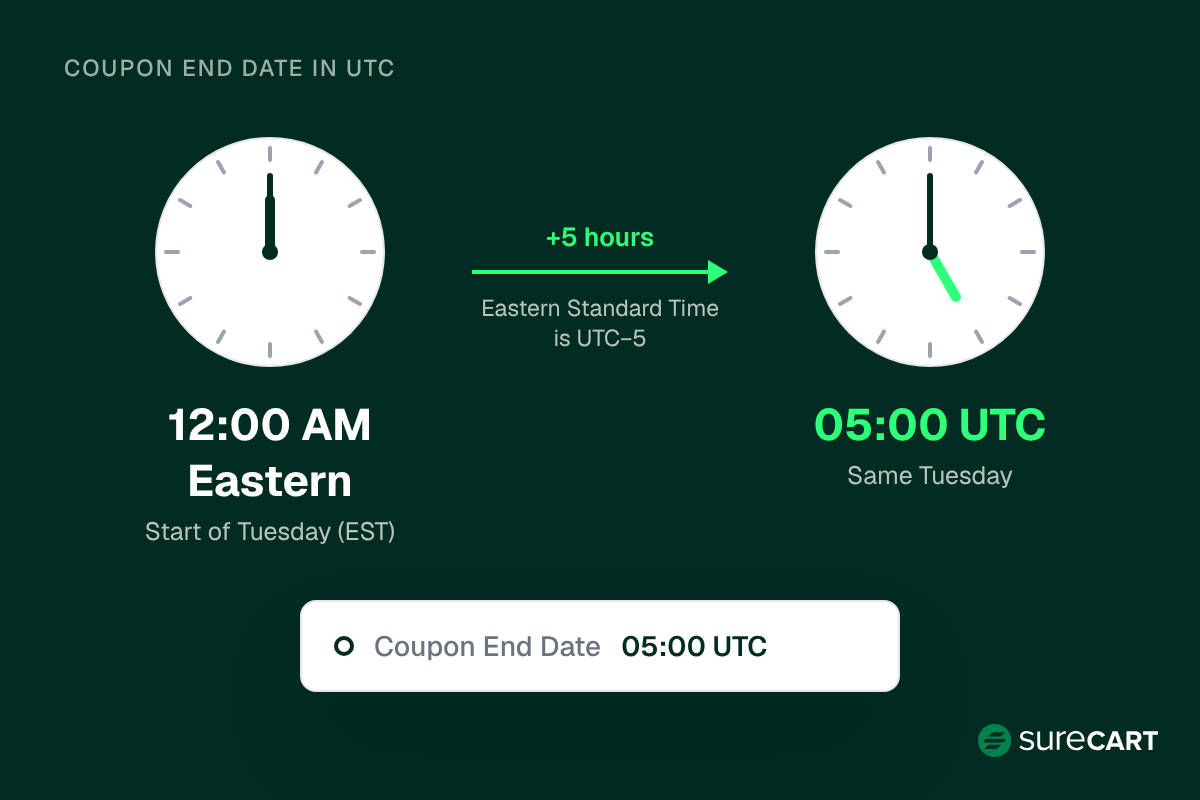
- An End Date, calculated in UTC+0
The clock. That last one catches people. Emily wants her code to stop at midnight Eastern at the start of Tuesday, December 1, 2026. Eastern Standard Time is UTC minus 5, so that moment is 05:00 UTC Tuesday.
She sets End Date to 05:00 UTC, then tests the behavior with a short test coupon.
Abandoned checkout. SureCart’s abandoned checkout sends one to three emails, the first after 1 hour by default, with an optional auto-generated discount. Coupons and abandoned checkout are on both the Launch and Pro plans.
Freeze Plugins, Themes, and Code
Freeze non-essential changes a week before the sale.
Large platforms do this too. Shopify describes feature freezes and code freezes as part of its own Black Friday prep.
The reason is simple risk math. Every update during sale week is a change you haven’t load tested. A plugin update that’s harmless on a quiet Tuesday can clash with your cache rules under real traffic.
Here’s the rule we’d follow:
- Update plugins, themes, and WordPress itself two to three weeks out.
- Test each update on staging, then run your spike test again.
- Freeze a week before the sale.
- If a security fix lands during the freeze, apply it on staging first, place a test order, then push it live.
Set Up Monitoring and a Rollback Plan
Monitoring shows how your Black Friday website performance holds up while the sale runs. Know within minutes when something breaks, and how you’ll undo it. The sooner you catch a problem, the more options you have to respond before it affects more shoppers.
An uptime monitor on your homepage, a product page, and your checkout page tells you those pages load. It doesn’t tell you an order can be completed or that payments work. For that, place a test order by hand at set times during each sale window.
Do this safely. Never switch a product that’s on sale into Test Mode. A product left in Test Mode can’t take real payments. Use a separate test product that isn’t part of the sale or linked from your store, and set that one to Test Mode. If you need to check the live payment path, place a small real order and refund it.
Before the sale, set up the rest:
- Write down what “healthy” means: page response time, error rate, and test orders completing.
- Take a fresh backup, and test that a restore works.
- Name one person on call for each sale window.
- Draft a status message you can post if something goes down.
- Decide your rollback trigger ahead of time. For example: the error rate you wrote down is passed after a change.
Deciding the trigger before the sale matters. At 9 pm on Cyber Monday, nobody wants to debate whether to roll back.
The next question is when to do each part.
Your Spike-Week Runbook
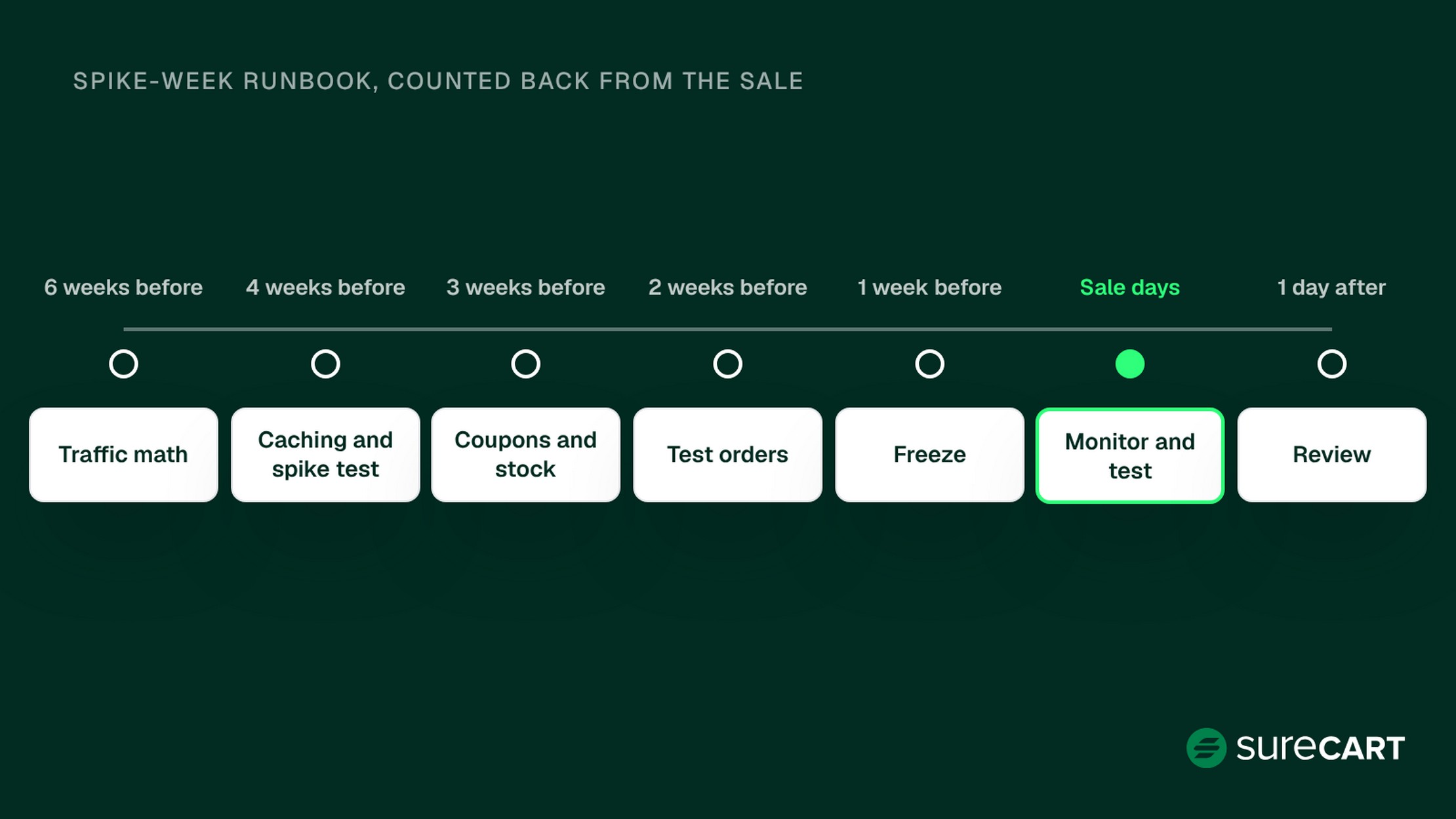
Here’s the order to do it in, counted back from the sale. On a small store, one person can own several rows. The Owner column is there so nothing is left unowned.
| When | Task | Owner | Done when |
|---|---|---|---|
| 6 weeks before | Pull last year’s busiest hour and pages, do the traffic math, ask your host for load-test permission and a staging copy. Expecting far more charges than usual? Check your payment processor’s rate-limit guidance. | Store owner | Target set, host approved |
| 4 weeks before | Fix caching rules, check dynamic routes, run the first spike test, fix what breaks | Developer or host | Valid run checked against your criteria |
| 3 weeks before | Set up sale products, stock, and coupons with UTC end dates. If you use a custom sender address, configure it and its DKIM record, then test delivery. | Store owner | Test coupon and test-order email checked |
| 2 weeks before | Test orders for every payment method and coupon, clear test data, second spike test, switch WP-Cron | Store owner and developer | Every test order completes, cron confirmed |
| 1 week before | Freeze non-essential plugin, theme, and code changes. Fresh backup. Monitoring live. Scheduled test orders set up on a separate test product, never a sale product. | Developer | Freeze in place, restore tested |
| Sale days | Watch monitors and orders, run scheduled test orders on the separate test product or as a small live order you refund | Person on call | Critical errors investigated, no unresolved checkout issues |
| 1 day after | Review errors, stock, and coupon use, then lift the freeze | Store owner | Notes saved for next year |
The six-week mark leaves room for payment planning. If you expect a big jump in payment volume, check your processor’s current rate-limit guidance well before the sale.
For example, Stripe’s docs say a flash sale might lead to rate limiting. If you need a large limit increase, they ask you to contact Stripe Support at least 6 weeks in advance.
If you can only finish part of this, protect the rows in order of what they save. Caching rules and test orders protect checkout. Coupon limits and UTC end times protect your margin.
The spike test tells you whether your current setup holds up under the tested load. It also shows whether you need to look for a capacity or configuration bottleneck.
Starting Late
Found this a week out? Do these essentials:
- Exclude checkout, cart, account, login, customer dashboard, and /wp-json/ from page caching, then check they work.
- Place test orders for each payment method and coupon.
- Cap coupons, set UTC end dates, and test one.
- Freeze non-essential changes and take a backup.
If you have time and your host agrees, run one spike test on staging.
Why SureCart Is Worth Considering for Peak Season
We built SureCart, so weigh this section with that in mind.
Checkout processing and order creation run on SureCart’s platform. Orders and customer records are stored there too, not in your WordPress database. SureCart’s post on its headless setup describes its backend as handling “inventory, payments, and order processing.”
Your WordPress site still serves the storefront pages. During a spike, your hosting setup handles the page loads and live REST requests involved in the integration. SureCart handles checkout processing and order creation on its platform.
Beyond that:
- Stock tracking prevents further normal purchases once Available Stock reaches zero, when Out of Stock Selling is disabled. Subscriptions or installments can still push stock below zero, and SureCart restricts fulfilling those items.
- Coupon usage and per-customer limits stop a code from being reused past your budget.
- Abandoned checkout emails, with an optional discount, follow up with shoppers who left mid-checkout.
- Test mode with Clear Test Data makes the hand-run checkout check easy to repeat.
One honest limit: you can’t tune SureCart’s checkout capacity yourself, and this guide doesn’t quote a traffic figure for it. What you control is your host, your cache, and your settings, which is what this guide covers.
All of these are on both Launch and Pro. Payments run through your own connected processor account, such as your own Stripe account.
Conclusion
Black Friday website performance comes down to three moves:
- Map where the load lands, so you can fix what’s yours.
- Test the right things: busy pages under load, and checkout by hand.
- Lock the settings that break quietly, like stock, coupon limits, and UTC end times.
The result is a tested traffic target, verified checkout, and sale settings that behave the way you intended.
Start Selling for Free Today. The Launch plan is free, with a 2.9% SureCart transaction fee and no credit card required. Payment processor fees are separate. Get started free
FAQ
Which performance metrics should I monitor on Black Friday?
Watch page response time and error rate from your monitoring, and check that test orders complete. Measure all three against the pass criteria you wrote down before the sale. An uptime check alone only shows a page loads. It doesn’t show checkout works, so run a test order at set times too. Use a separate test product, or a small live order you refund. Never switch a sale product into Test Mode.
When should I start preparing my store’s backend for Black Friday?
Start about six weeks out. That leaves time to set a traffic target and get your host’s OK for a load test. You can then fix what it finds and test coupons and checkout. If you have less time, use the Starting Late list above and cover caching, test orders, coupon limits, and a backup.
Should I load test my checkout?
You can load test the checkout page itself, under a plan your host has approved. The page and its requests still reach WordPress. What you shouldn’t do is send lots of checkouts. Those payments and orders call SureCart and your payment processor. They wouldn’t measure your host’s capacity either. Stripe also says not to load test in its test environments. Check that checkout works with test orders placed by hand instead.
Why can my site slow down on Black Friday even with caching?
Dynamic checkout, cart, account, and REST API operations may require live requests that can’t be served from the page cache. The exact request path depends on the route and integration. Caching is only one part of preparation. Host capacity, plugin weight, and background jobs like WP-Cron matter too.
Do coupon end times use my local time zone in SureCart?
No. SureCart calculates a coupon’s End Date in UTC+0. Say your cutoff is midnight Eastern at the start of the Tuesday after Cyber Monday. Set the End Date to 05:00 UTC that Tuesday. Then test the behavior with a short test coupon before the sale goes live.