A shopper clicks your product, likes what they see, and still leaves without buying.
The reason could be a detail your page never answered. Which size should they choose? What comes in the box? How much is delivery? Can they return it?
Every unanswered question gives them another reason to put the purchase off.
A high-converting product page helps shoppers make those decisions with confidence. It shows the product clearly, explains its value, and makes the next step easy.
In this guide, we’ll build a WordPress product page with SureCart, then improve the details that help turn interest into an order.
Start with the questions your customer needs answered
Before you choose a layout, write down what someone needs to know before buying.
A customer buying a water bottle needs different information from someone buying a design template. Your page should reflect that.
Use this as your starting point:
| Buying question | What your product page should show |
|---|---|
| What am I buying? | A clear product name, useful photos, and exactly what is included |
| Is it right for me? | Use cases, dimensions, compatibility, or other details that determine fit |
| Why is it worth the price? | Specific benefits supported by product facts or a demonstration |
| Which option should I choose? | Clearly labeled variants and payment options |
| What will I pay and receive? | Price, shipping terms, delivery information, and any ongoing charges |
| Can I trust this purchase? | Genuine reviews, clear return terms, and a way to get help |
Put the answers close to the decision they support. A size guide belongs beside the size selector. A delivery summary belongs near the price and purchase button.
Build your product page in WordPress with SureCart
You can build your SureCart product page with the WordPress Block Editor. Start there if you want to work with the tools already in WordPress.
If you’re setting up a new store, install SureCart from Plugins → Add New, activate it, and complete the setup and account connection. Our getting started guide walks you through that process.
Once your store is connected, create the product and its page.
The screenshots below come from our setup documentation and use sample products. Follow the same fields with your own product details. The editor may look slightly different with your theme and SureCart version.
1. Create your product
Go to SureCart → Products → Add New. Enter the product name and click Create.
Add the short description, product images, and pricing. Choose the payment structure that matches what you sell, such as a one-time purchase or a subscription.
For physical products, configure shipping and enter the product weight where needed for your shipping setup. For digital products, attach the download customers should receive.
Save your product when the details are ready. See our product creation guide for the full walkthrough.
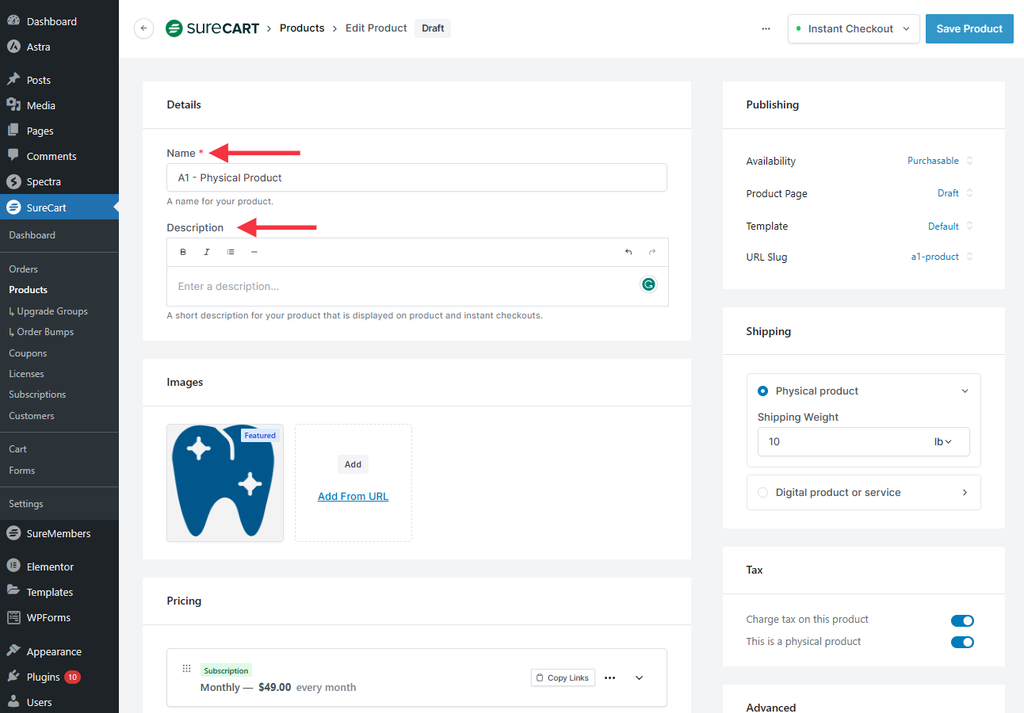
Product editor example: add the product name, short description, images, pricing, and shipping details. Source: SureCart’s product creation guide.
We’ll use an example store selling a 750 ml reusable water bottle throughout this guide. Its product details and policies are illustrative, so replace them with facts that apply to your store.
2. Arrange the product template
Open the product and find Template in the right sidebar. The controls can differ between Classic and Full Site Editing themes.
Theme Layout lets the product page follow your theme’s structure. Use it when the page should match your theme or when an Elementor or Bricks product template controls the layout.
SureCart Layout uses SureCart’s page structure and can be useful with a Classic theme. If your builder template or long description does not appear, check whether Theme Layout is selected.
For this walkthrough, click Edit Product Template to arrange the product blocks in the WordPress Block Editor. Our page layout guide explains these options.
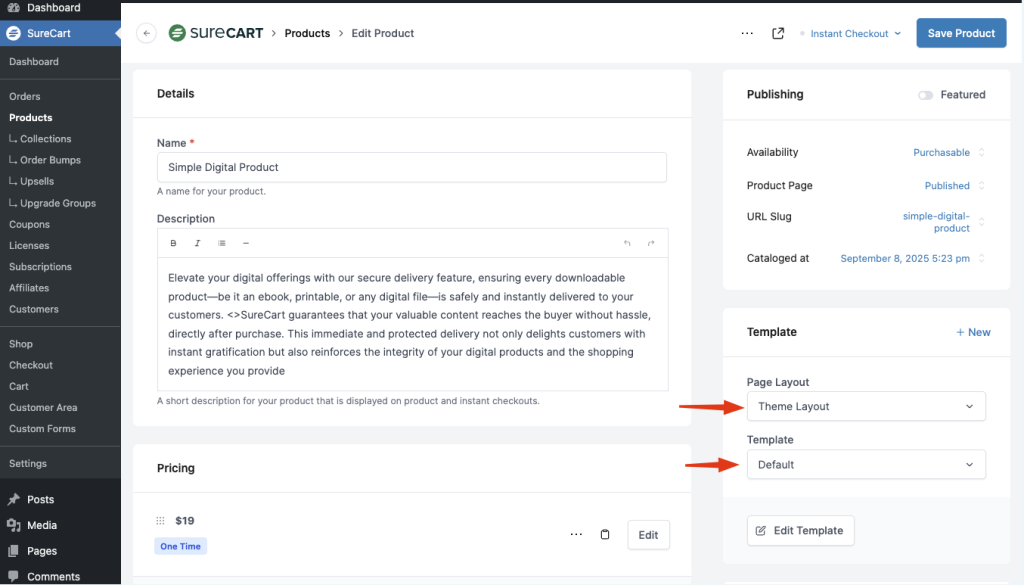
Template settings example: Page Layout controls the theme structure, while Template chooses the product layout you edit. Source: SureCart’s Product Pages Guide.
Arrange the images, product information, price, options, and purchase button in an order that makes buying easy. SureCart also lets you create separate templates for products that need different layouts.
Check which products share the template before saving. A template change affects every product assigned to it. Use a separate template when a layout change should apply to one product or product type.
Our product page guide explains the template workflow.
Use a clear order for the page sections
For the example bottle, start with the gallery beside the product name, price, color selector, and purchase button. Put a short shipping and returns summary below the button.
Follow that with the product’s benefits, dimensions and care instructions, customer reviews, and FAQs. This gives shoppers a quick way to buy while keeping the detail available for anyone who needs it.
Treat this as a starting layout. A product that needs a detailed demonstration may need that demonstration earlier in the page.
3. Add the details specific to this product
Use the short description for a quick introduction to the product’s value.
For the longer explanation, open the product’s Content section and click Open Content Designer. Here, you can build sections with WordPress blocks for product details, images, demonstrations, and FAQs.
Make sure the product template includes the content block where you want those sections to appear. Keep product-specific copy in that product’s content, especially when several products share a template.
Follow our product content guide if you need help adding or positioning it.
4. Publish the product page and check its live URL
Return to the product editor. In Publishing, set Availability to Purchasable and Product Page to Published, then click Save Product. Review the URL Slug before sharing the page.
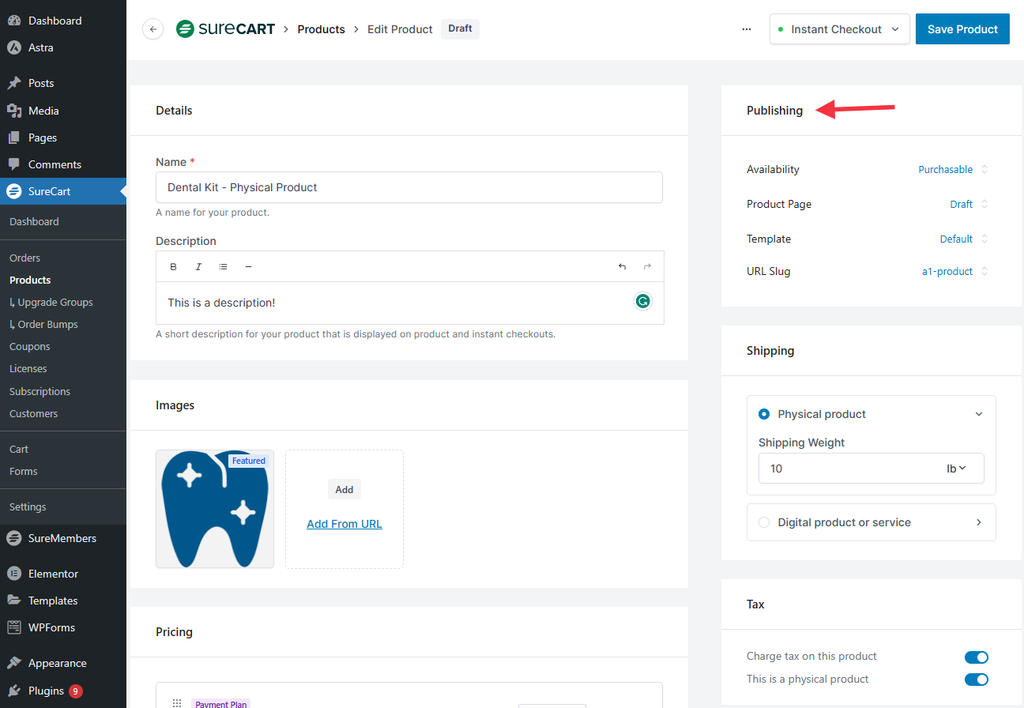
Publishing controls in the product editor. Change the sample’s Draft page status to Published and save when your page is ready. Source: SureCart’s product creation guide.
Open the product’s frontend page and copy its URL from the browser address bar. Open that URL in a private or logged-out window. Confirm that visitors can see the page, choose the correct variant, and add the product to the cart. Check the shop listing too if the product should appear there.
Keep the checkout in Test Mode while placing test orders. Publishing a product page and accepting live payments are separate steps; complete the purchase checks later in this guide before switching checkout to Live Mode. Our product availability guide explains published, draft, and archived products.
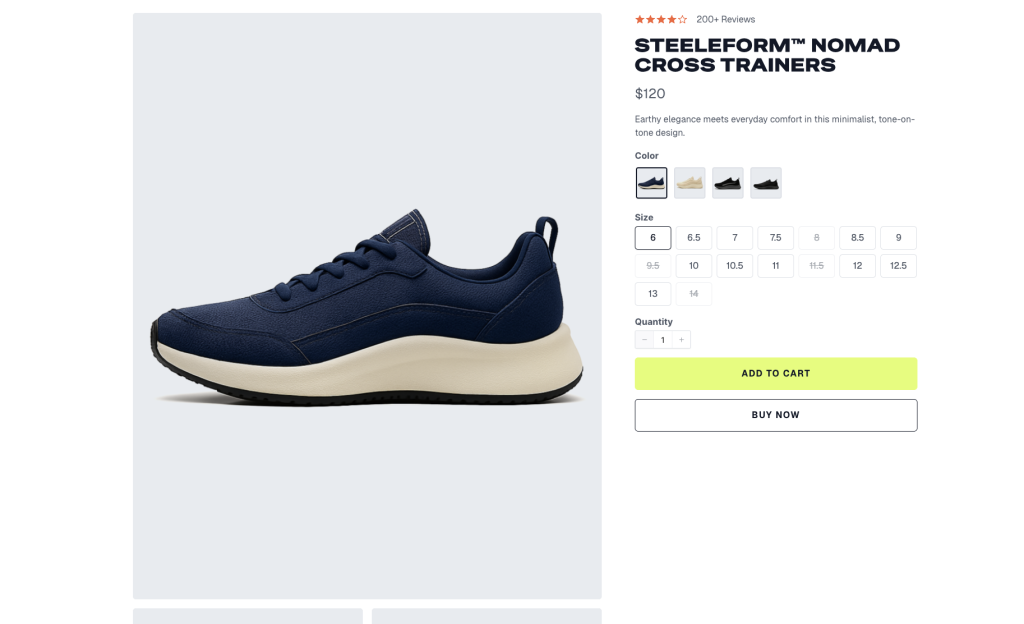
Finished frontend example from SureCart’s Product Pages Guide. This footwear demo shows the gallery beside the title, price, variants, quantity, and purchase buttons. Use the bottle details below for our illustrative copy example.
Make the first screen worth reading
The first screen should give shoppers enough information to understand the offer and start choosing.
For our example bottle, that means showing:
- A clear photo of the bottle.
- A descriptive product name.
- A short line explaining its everyday use.
- The price.
- Available colors.
- The purchase button.
- A brief delivery and returns summary.
A simple opening could read:
Illustrative product-page copy
750 ml Stainless Steel Water Bottle
A reusable bottle for your desk, commute, and daily routine.
$29
Choose your color: Forest Green or Black
Purchase button: Add to cart
The photo, product details, and supporting sections should then show what makes that offer worth considering.
Avoid filling this area with a long brand story or several competing promotions. Give the product room, make the price easy to find, and keep the options beside the button.
On mobile, check how much space the gallery takes. Shoppers should be able to reach the product details without scrolling through several full-screen images.
Use product images to answer real questions
Choose each image for the information it adds.
For the bottle, a useful gallery could include a full product view, a close-up of the lid, a photo showing its size in someone’s hand, and a view of the opening.
Those images help shoppers judge the product in ways a studio photo alone cannot.
For clothing, show the fit and relevant measurements. For a digital template, show readable sample pages. For a tool, show it completing the task someone is buying it for.
Keep colors and proportions accurate. A helpful photo creates a realistic expectation of what will arrive.
SureCart lets you link images or videos to specific variants. When a shopper chooses a color, the matching media can appear. Our variant media guide shows how to set this up.
To connect a photo to a color, open the product’s media gallery and edit that image. In the media details, find Variation, select the relevant option, and click Done. Preview the product and choose that color to check the result.
Keep general photos, such as a shared size guide, available across the relevant options.
A short demonstration can also answer a difficult question. If shoppers need to understand how a lid opens or how a template works, show that action clearly.
Write descriptions that help shoppers choose
Words such as “premium,” “innovative,” and “best-in-class” leave the customer to work out what they mean.
Use details they can evaluate.
For our bottle, that could mean its capacity, dimensions, weight, materials, cleaning instructions, and what comes with it. Explain why a feature matters when the benefit is supported by the product.
For example, a wide opening may make a bottle easier to clean. Show the opening and provide the cleaning instructions alongside that explanation.
Here is how the same example product could become more specific:
| Vague copy | More useful copy |
|---|---|
| A premium bottle for every lifestyle | A 750 ml stainless steel bottle for your desk, commute, and daily routine |
| Available in beautiful colors | Choose Forest Green or Black |
| Everything you need in one purchase | Includes one 750 ml bottle and one screw-top lid |
Use the short description to introduce the main reason to consider the product. Put the full specifications and care instructions further down, under headings shoppers can recognize.
Organize the longer description around practical questions:
- Everyday use: Where and how would someone use it?
- Size and fit: What measurements or requirements should they check?
- What is included: What will they receive?
- Care or setup: What will they need to do after buying?
Use short paragraphs and clear headings so readers can find their answer quickly.
Include meaningful limits, too. If the lid needs handwashing, say so. If a digital product requires particular software, name it before purchase.
Read support questions and return reasons when writing this section. A question customers keep asking is a strong candidate for information your page needs.
Make product options easy to understand
A shopper should be able to tell what each option changes.
In SureCart, open the product’s Variants section to add options such as size or color. Use descriptive option names and values because customers see those labels on the page.
You can manage details such as SKUs and stock for variants. Variant price overrides are available when the product has a single price; products with multiple prices do not support those overrides. See our variants guide for the setup.
For the bottle, label the choice Color and show Forest Green and Black. If you sell several capacities, make the capacity choice just as clear.
Preview every combination. Check that the selected option, image, price, and availability agree, and that the same selection reaches the cart.
For subscriptions, explain what changes between plans. Put the billing frequency, contents, and any minimum commitment beside the choice.
For example, if you sell a monthly refill, show the price and frequency together: $18 every month. Explain the quantity in each delivery, whether shipping is included, and how cancellation works.
If you offer an installment plan, show the number of payments and the total payable. Three payments of $20 should be explained as $60 total, with any additional charges made clear.
Explain the cost and delivery before checkout
A $29 product with an unknown delivery charge leaves the buying decision unfinished.
Baymard’s product-page usability research found that shoppers looked for shipping costs while evaluating products. Requiring them to add an item to the cart just to discover that cost created extra work.
Give customers the information available before they reach checkout.
If your example store offers $5 domestic shipping and free shipping on domestic orders of $50 or more, say that near the purchase area. Make the eligible region clear.
For a customer ordering one $29 bottle, $5 shipping makes the total $34 before any applicable tax. Showing that relationship helps them judge the purchase before entering their address.
Check the free-shipping boundary too. In this example, “$50 or more” includes an eligible order totaling exactly $50; “over $50” does not. Use the wording that matches your configured checkout rule, then test orders just below, exactly at, and above the threshold.
When rates depend on the address or order, explain how they are calculated and show any reliable estimate with its conditions. Check that the final checkout amount matches your configured rules.
Also explain:
- Where you deliver.
- How long processing takes.
- The estimated delivery window after dispatch.
- Where customers can read the full shipping policy.
Keep processing and transit time separate. “Dispatches in two business days” does not mean “arrives in two business days.”
For digital products, explain when and how access is delivered instead.
Put the important return terms within reach
A short return summary can help someone judge the purchase.
For example, “Returns accepted within 30 days for unused items” is more useful than a vague reassurance. Link to the full policy and explain who pays return shipping.
Use the policy your store actually offers. Keep the wording consistent across the product page, policy page, and checkout.
Put genuine customer feedback on the product page
Reviews give shoppers another way to assess whether a product suits them.
A review about daily use, sizing, or setup can answer questions your description has missed. Place the rating near the product information and make the detailed feedback easy to reach.
With SureCart, go to SureCart → Settings → Reviews, enable Product Reviews, and save. Add the relevant review blocks to your product template if they are missing.
Existing templates may need those blocks added manually. You can also enable the Verified Buyer badge for reviews from customers who purchased that exact product.
SureCart’s review request emails can be scheduled after an order is marked as fulfilled. Choose a delay that gives customers time to use the product. Our reviews setup guide covers these settings.
If the product is new, use clear demonstrations and complete product information while you collect genuine feedback. Avoid filling the gap with invented ratings or testimonials.
Give shoppers one clear purchase action
Use a button label that describes what happens next.
Add to cart suits a store where customers are likely to browse and buy several items. Buy now can suit a focused purchase where someone is ready to proceed directly to checkout.
SureCart supports both actions, and you can customize their wording in the product template.
Choose one as the main action. Make it easy to distinguish from nearby links and secondary buttons.
If your page needs a purchase button after a long description, repeat the same primary action. Keep the product, selected options, and price consistent.
Then follow the button through to checkout. Confirm that the shopper sees the product and variant they chose, the expected quantity, and the correct total.
Keep checkout focused on completing the order
Review every field and ask what you need it for. A physical order needs delivery details; a digital download has different requirements. Keep the fields needed for payment, tax, delivery, and your actual business process.
Make sure the payment methods you display are connected and working. Check that an invalid entry produces a helpful message, and that correcting it lets the customer continue.
Any extra offer should be easy to understand and easy to decline.
Check the mobile page and loading speed
Open the product page on your phone and complete the steps a customer would take.
Read the description, change a variant, inspect the gallery, and reach checkout. Check whether buttons are easy to tap and whether banners or chat widgets cover useful information.
Also try the form with the phone’s keyboard open. Check whether the active field and error message remain visible, and whether the customer can reach the next step.
Test with a longer product name and several variant choices. A layout that looks clean with short demo text may become cramped with your real catalog.
Pay attention to the first product image. Large files can add loading time, so compress images and serve them at suitable dimensions. Use modern formats such as WebP or AVIF where your setup supports them.
If the main image is the page’s largest visible element, avoid delaying it with lazy loading. Images further down the page can load later.
Google’s Largest Contentful Paint guidance recommends loading the main content within 2.5 seconds for at least 75% of visits. Use PageSpeed Insights to investigate the page, and check real visitor data when it is available.
After changes to image optimization or caching, test the gallery, variant selection, cart, and checkout again.
Help the right shoppers find the page
Use the words customers would use to describe the product.
A title such as “750 ml Stainless Steel Water Bottle” gives readers more information than an internal model name on its own. Keep the product URL descriptive and write an accurate meta description.
SureCart includes fields for the product’s SEO title and meta description. You can set these while editing the product.
Check the page’s Product structured data too. It gives search engines product information in a format they can read, including the price, currency, availability, and eligible reviews or aggregate ratings. These details should match the product and genuine reviews visible on the page.
SureCart includes product structured data. After publishing or changing a template, run the live product URL through Google’s Rich Results Test. Check the detected Product and Offer details, fix critical errors, and investigate any conflicting markup from another plugin. A valid result helps establish eligibility; Google decides whether to show an enhanced result.
See Google’s product markup guidance for the requirements that apply to a page where customers can buy the product.
Write original descriptions around the actual product and its uses. Keep dimensions, compatibility details, and other important specifications as selectable text so visitors can search and copy them.
Link to relevant guides when they help someone choose or use the product. Keep those links close to the question they answer.
Test the whole purchase journey
Previewing the layout is only the first check.
Before sending traffic to the page, place a test order and follow it through confirmation and delivery or access. SureCart’s Test Mode lets you test transactions without processing real payments.
Use this checklist:
- The product name, images, and description match.
- Each variant shows the right details and reaches the cart correctly.
- The price and billing frequency are clear.
- Shipping and tax calculations match the store’s settings.
- The main button leads to the expected next step.
- The order confirmation and customer email show the correct information.
- A physical order has the details needed for fulfillment.
- A digital purchase provides the promised file or access.
- The journey works on mobile.
- The checkout is in Live Mode when the store is ready to take real payments.
Test a failed payment as well. Check whether the customer gets a clear message and can try again without losing the information they need.
Measure where shoppers stop
Once the page is live, measure the steps between a product view and a purchase.
A useful sequence is:
- Product viewed.
- Product added to cart.
- Checkout started.
- Purchase completed.
Google Analytics supports ecommerce events for these actions, including view_item, add_to_cart, begin_checkout, and purchase. See Google’s ecommerce measurement guide when configuring or checking them.
First, check which events your current integration sends. SureCart’s Google Analytics setup guide covers add-to-cart and purchase tracking, plus additional event setup through Google Tag Manager. Connecting Analytics alone does not prove that every step in this funnel is measured.
Before trusting the report, run these checks:
- Verify the events in DebugView. Enable debug mode using your Google tag or Tag Manager preview, then view a product, add it to the cart, start checkout, and complete a test purchase. Open each event in GA4 DebugView and inspect its parameters and items array. Confirm the event names, product, quantity, value, and currency match the action.
- Keep product IDs consistent. Choose a stable product or variant identifier for item_id and send that same value across view_item, add_to_cart, begin_checkout, and purchase. Include item_name and item_variant where relevant. A name change should not make the same product appear as a new item in the funnel.
- Count each order once. Send a non-empty, unique transaction_id for each order and reuse it if the same completed order is reported again. Make sure a built-in integration, plugin, and GTM tag are not all sending the same purchase. Reload the confirmation page during testing and check that it does not create another order count.
A purchase button click does not confirm successful payment. Compare the purchase event with the actual order record and payment status, including failed or pending payments. Follow Google’s ecommerce validation guide when checking the implementation.
Use the drop-off to choose what to investigate.
If shoppers view the product but rarely add it, review the offer, product information, options, and traffic relevance. If they reach checkout and leave, inspect the final costs, payment experience, and technical errors.
Treat these as leads to investigate. The numbers alone do not tell you why someone left.
For a consistent product-page conversion measure, divide sessions that viewed and then purchased that same product by sessions that viewed it, then multiply by 100. Keep the product ID, date range, session definition, and sequence consistent when comparing results.
This is a custom measure. It may require a GA4 exploration, custom report, or an analysis of exported data that links the product view and purchase within the same session. A user-based funnel, item purchase count, or sitewide session conversion rate answers a different question. Ask whoever manages your analytics to confirm the report’s scope and calculation before using it to compare product pages. Google’s custom funnel guide explains how explorations and funnel reports fit together.
For example, suppose 1,000 sessions viewed the bottle and 25 of those sessions purchased it. That gives a 2.5% conversion rate under this definition. These are example figures, not a target every store should meet.
A useful first test might be adding a delivery summary beside the button. Keep other major changes on hold while you assess it, and note changes in traffic sources or promotions.
If you have enough traffic, compare versions with a properly run A/B test. A before-and-after comparison is less conclusive because the visitors and conditions can change.
Start with one meaningful change, such as adding missing dimensions or clarifying delivery costs. Compare similar traffic and device groups, and avoid drawing conclusions from a handful of visits. Watch revenue and returns alongside purchase conversion.
Start with one product page
Choose a product that already gets relevant traffic. Open its page on your phone and work through the questions a first-time buyer would ask.
Fix the most important missing answer, check the purchase journey, and measure what changes.
With SureCart, you can build the product page, present its options, collect reviews, and connect the purchase to checkout in your WordPress store.