You bring on a part-time packer to ship orders a few afternoons a week. One quick way to give them access to the Orders screen is to give them an Administrator account.
But that same account can also edit coupons, change store settings, and deactivate plugins. One wrong click there, and the mistake shows up at checkout, not in the back office.
That’s why it pays to customize your WordPress admin dashboard around the people who run your store, not just around how it looks. We recommend a simple order: decide who sees what first, then shape what you see, and brand it last.
We built SureCart, so we’ll show the WordPress, WooCommerce, and SureCart options where they differ.
Quick answer: To customize your WordPress admin dashboard for an online store, give each person a store role so they see only the screens they need. Then turn off admin features you don’t use, set up your sales reports, add store-specific columns and widgets, and brand the admin last.
What this guide covers: Here, “admin dashboard” means the WordPress back end where you and your team run the store. It doesn’t mean the customer dashboard (often called My Account), where buyers see their orders, subscriptions, and downloads. If that’s the one you want to change, see our guide to building a customer dashboard in WordPress.
Why Ecommerce Stores Need a Different Admin Setup
A blog’s admin often serves one person who writes and publishes. An ecommerce admin dashboard can also serve a packer, a support agent, or a bookkeeper, each with a different job.
That changes what “customizing” means. Your packer needs orders and fulfillment. Your support agent needs customer records and refunds. Neither needs payment settings, tax rules, or the Plugins screen.
So the first job is deciding which screens each person can open. Hiding widgets and changing colors can wait until that’s settled.
Step 1: Set Up User Roles Before You Touch the Layout
A role decides what someone can do. Hiding a menu only decides what they see. That’s why we recommend starting here: the right role removes risky screens before you hide anything.
WordPress and WooCommerce Roles
WooCommerce adds two roles, Customer and Shop Manager, and gives the Administrator role store capabilities on top of its existing ones. A Shop Manager can manage products, orders (including refunds), coupons, and customers, view all reports, and change all WooCommerce settings. They also get WordPress editor capabilities, like editing posts and pages.
That’s a lot for someone who only ships orders. WooCommerce doesn’t include a lighter store role, so for a packer you’d create a custom role (more on that below).
SureCart Store Roles
SureCart adds three store roles for staff when you install it, plus a Customer role for buyers. According to the SureCart roles documentation:
- SureCart Shop Worker handles day-to-day store work: orders and fulfillment, products, customers, subscriptions, coupons, promotions, and refunds. It can’t view reports or change store settings.
- SureCart Shop Accountant has the same store access as a Shop Worker, plus viewing and exporting reports.
- SureCart Shop Manager adds store settings, sensitive customer data, reports and exports, and assigning store roles.
WordPress’s Administrator role, which SureCart doesn’t add, keeps sole access to SureCart account settings and test data.
SureCart checks refunds with its own capability, separate from order editing. If you don’t want a Shop Worker issuing refunds, remove the publish_sc_refunds capability from that role with a role editor plugin like Members.
What Each Store Role Can Access
These roles aren’t equivalent across platforms. The table compares documented capabilities for common store tasks, so you can match a role to a job.
| Store task | WordPress Administrator | WooCommerce Shop Manager | SureCart Shop Worker | SureCart Shop Accountant | SureCart Shop Manager |
|---|---|---|---|---|---|
| View orders | Yes | Yes | Yes | Yes | Yes |
| Update fulfillment and shipping | Yes | Yes | Yes | Yes | Yes |
| Issue refunds | Yes | Yes | Yes | Yes | Yes |
| Create and edit products | Yes | Yes | Yes | Yes | Yes |
| Create coupons or promotions | Yes | Yes | Yes | Yes | Yes |
| View reports | Yes | Yes | No | Yes | Yes |
| Export report data | Yes | Not documented | No | Yes | Yes |
| Change store settings | Yes | Yes, all WooCommerce settings | No | No | Yes, SureCart store settings |
| Assign roles | Yes | Not documented | No | No | Yes, store roles |
| Plugins, themes, and account settings | Yes | No: editor-level WordPress access | No | No | No: Administrator only |
Sources: WooCommerce roles and capabilities, SureCart user roles, and the capabilities SureCart’s plugin code assigns to each role, checked October 2026.
Once roles are set, tell your team what changed. A missing menu can look like a bug to someone who used to see it.
Creating a Custom Role
No-Code Option
If no built-in role fits, create one. Plugins like Members or User Role Editor let you tick capabilities without code.
Code Option
If you prefer code, this snippet creates an Order Packer role for a WooCommerce store. Add it with a code snippets plugin or your child theme’s functions.php file, and test it on a staging site first.
// Creates an "Order Packer" role that can view and update orders.

  // Runs once: the role is stored in the database after the first load.

  add_action( 'init', function () {

      if ( get_role( 'order_packer' ) ) {

          return;

      }

      add_role( 'order_packer', 'Order Packer', array(

          'read'                    => true,

          'view_admin_dashboard'    => true,

          'read_shop_order'         => true,

          'edit_shop_order'         => true,

          'edit_shop_orders'        => true,

          'edit_others_shop_orders' => true,

      ) );

} );
What it changes: adds one role that can view and update orders. The view_admin_dashboard capability lets the packer into the admin; without it, WooCommerce sends anyone with no store capabilities to the My Account page.
Who should use it: store owners comfortable adding PHP, or their developer.
What could break: on its own, this role can also issue refunds from the order screen, because WooCommerce checks the same order-editing capability for refunds. Add the refund guard below. In our test environment on WordPress 7.1.2 and WooCommerce 11.1.2 with HPOS, the packer could open and update orders, while settings, reports, products, coupons, plugins, and users all returned an access error, even by direct URL. Recheck after major WooCommerce updates.
Keep refunds with store managers. Add this alongside the role snippet. It blocks refunds for anyone who can’t manage WooCommerce settings, while Shop Managers and Administrators can still refund from the order screen:
// Blocks order-screen refunds for users who can't manage WooCommerce settings.

  add_action( 'wp_ajax_woocommerce_refund_line_items', function () {

      if ( ! current_user_can( 'manage_woocommerce' ) ) {

          wp_send_json_error( array( 'error' => 'Refunds are limited to store managers.' ) );

      }

}, 1 );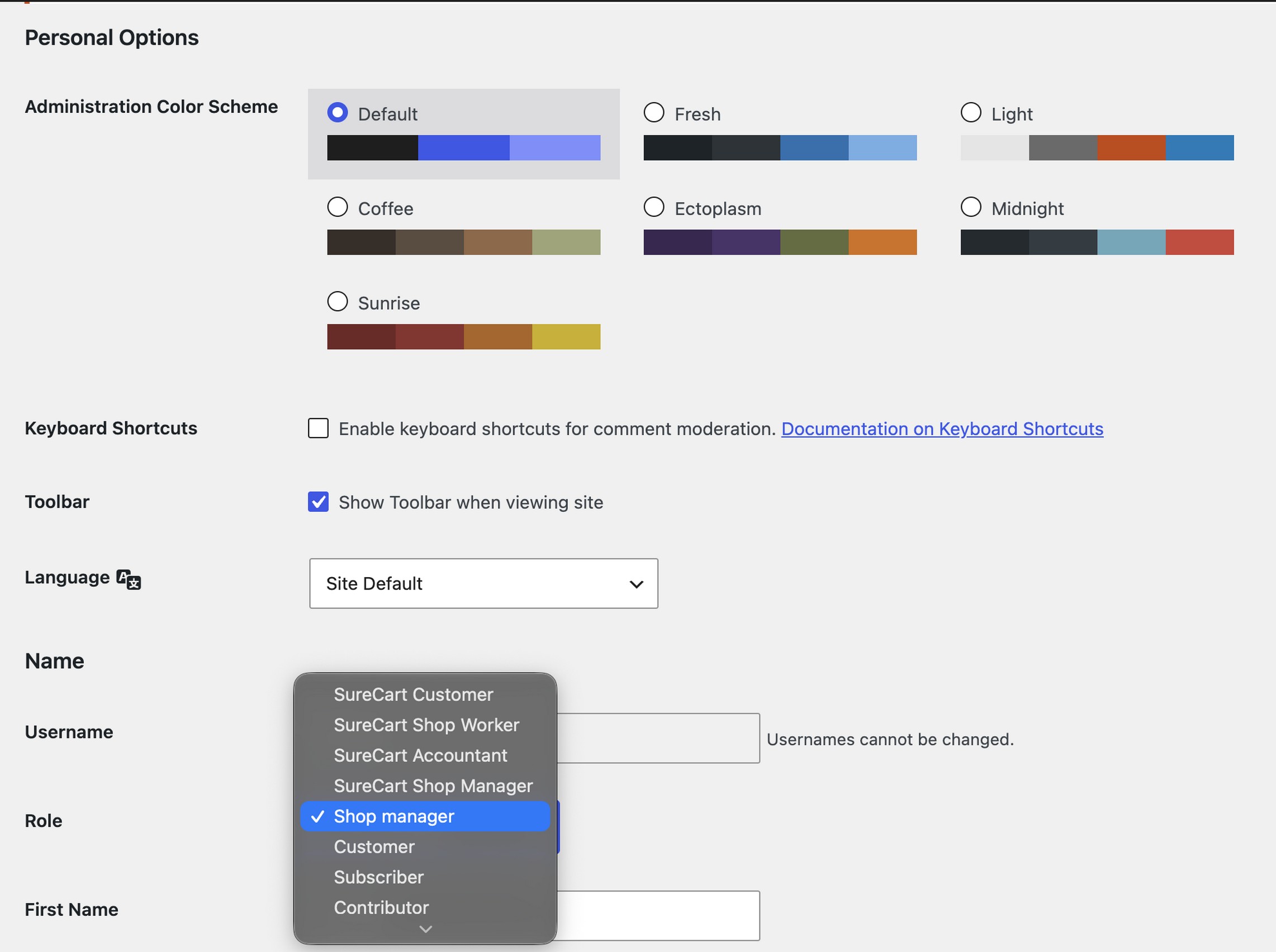
Step 2: Customize Your WordPress Admin Dashboard With Built-In Options
WordPress already gives each user a few layout controls, no plugin needed.
- Screen Options: the tab at the top right of most admin screens. Untick the dashboard widgets or list columns you don’t use. On list screens like orders, you can also set how many rows show per page.
- Drag and drop: on the main Dashboard screen, drag widgets into the order you want, so the ones you check daily sit at the top.
- Color scheme: under Users > Profile, each person can pick an admin color scheme. If you manage several stores, a different scheme per site makes it obvious which one you’re in.
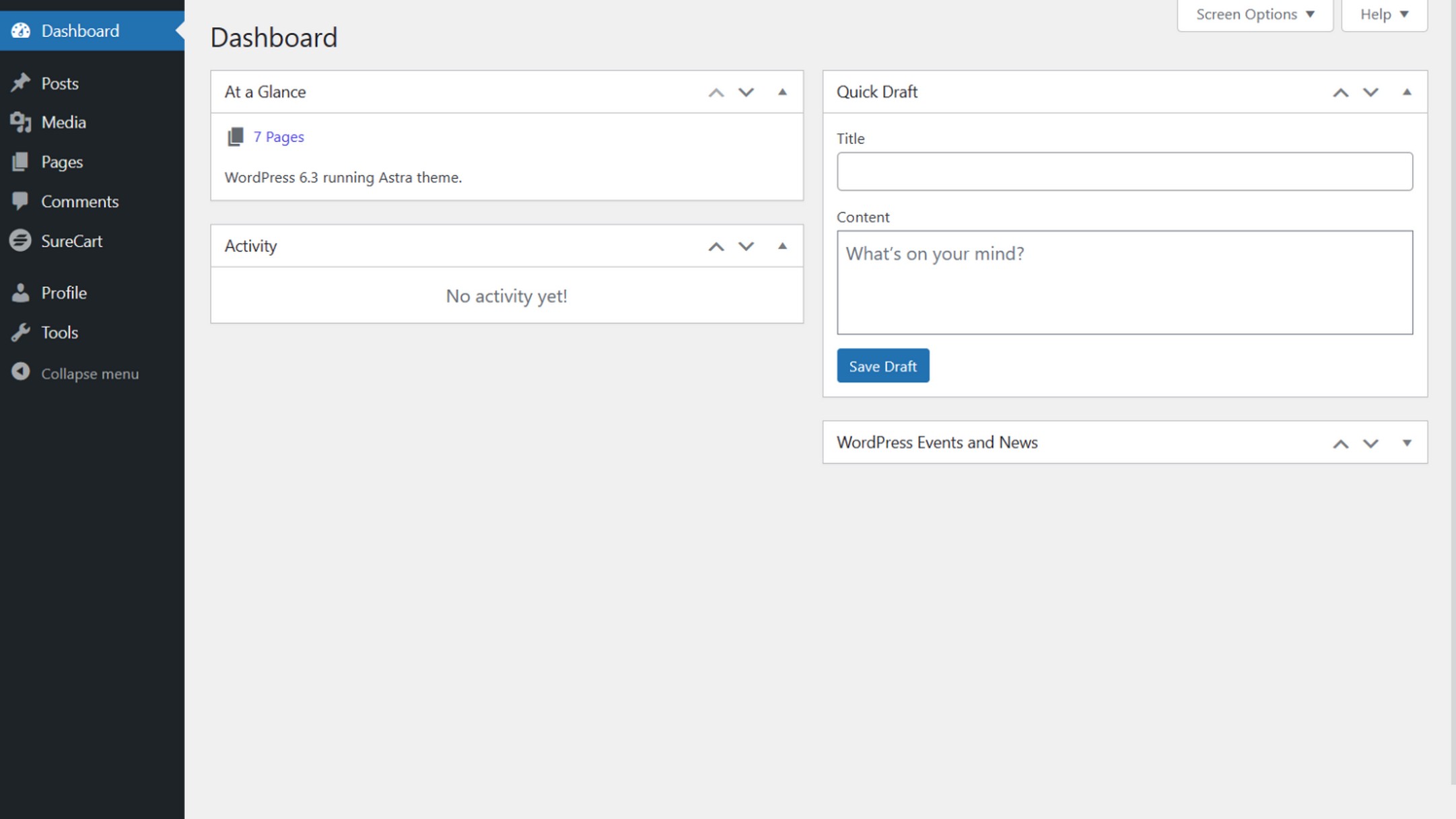
These settings are saved per user, so each team member sets up their own view.
Step 3: Turn Off Admin Features and Notices You Don’t Use
Once roles are set, trim what’s left. This step is optional, so only remove features your store doesn’t use.
WooCommerce Features You Don’t Use
WooCommerce has already cut some admin noise on its own. Version 10.9 removed the task list reminder bar from most Woo admin pages and kept setup guidance on the Woo dashboard.
No-Code Option
Plugins like Disable Bloat offer toggles for WooCommerce admin features in their paid versions. Since WooCommerce 11.1 changed how some of these features are switched off, confirm a toggle still works after you turn it on.
Code Option
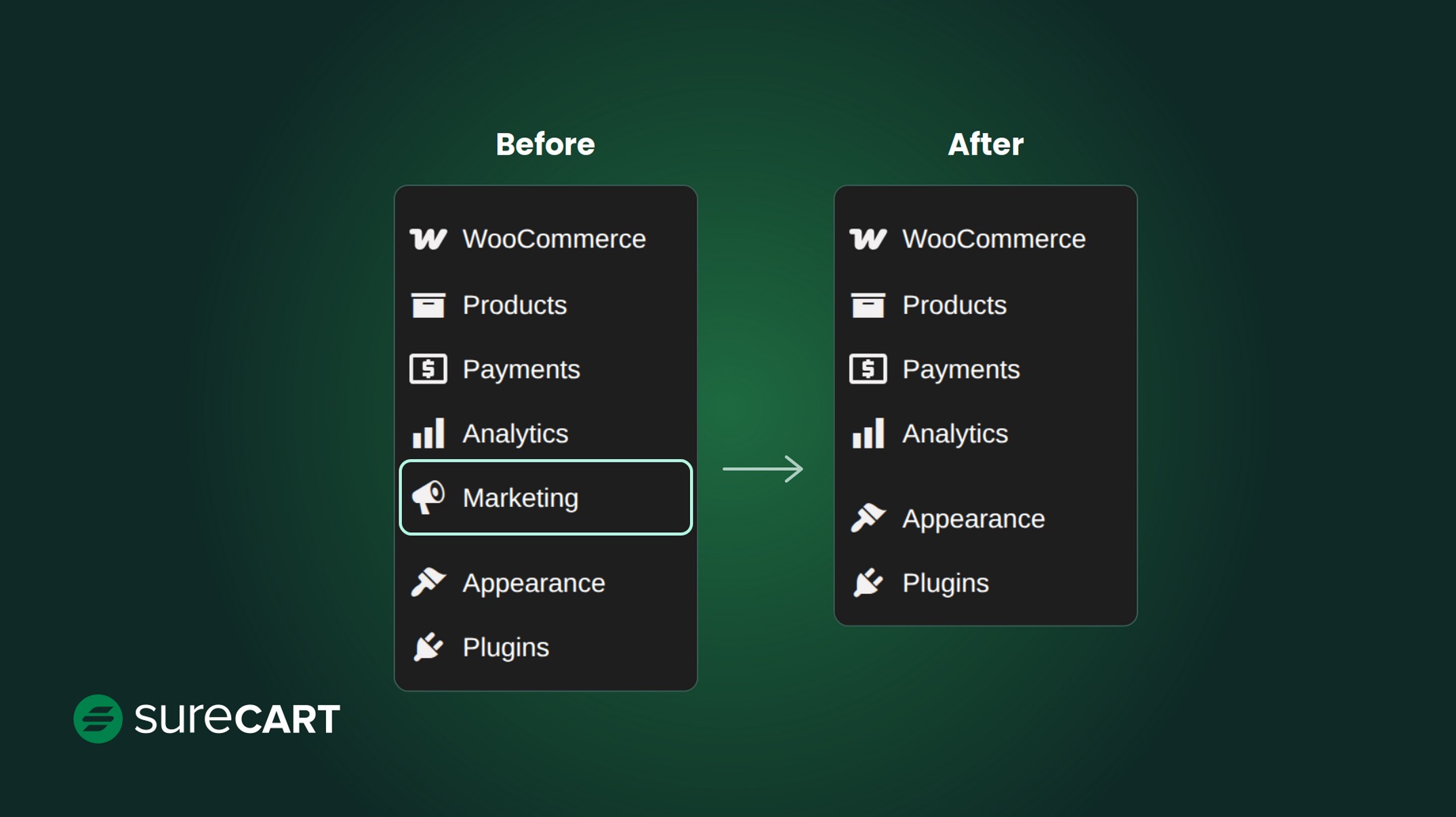
Older guides hide the Marketing hub with the woocommerce_admin_features filter. WooCommerce 11.1 deprecated that switch for Marketing, and in our test on 11.1.2 the menu stayed visible. On current versions, remove the menu item instead:
// Hides the WooCommerce Marketing menu. Test on a staging site before deploying.

  add_action( 'admin_menu', function () {

      remove_menu_page( 'woocommerce-marketing' );

}, 999 );
What it changes: removes the Marketing menu for everyone.
Who should use it: stores that don’t use WooCommerce’s marketing tools.
What could break: nothing in our test; Shipping settings and Analytics kept working. The Marketing page still opens by its URL, because hiding a menu doesn’t block access.
Hide Menu Items by Role
For menus added by other plugins, hide what each role doesn’t need.
No-Code Option
Admin Menu Editor lets you hide menu items and set a minimum capability for each one from a settings screen.
Code Option
Use remove_menu_page():
// Hides Tools and Comments from everyone who can't manage site options.

  add_action( 'admin_menu', function () {

      if ( current_user_can( 'manage_options' ) ) {

          return;

      }

      remove_menu_page( 'tools.php' );

      remove_menu_page( 'edit-comments.php' );

}, 999 );
One caution from the WordPress developer handbook: removing a menu doesn’t stop someone from opening that screen by its URL. Hiding tidies the view, while roles from Step 1 control access.
Step 4: Customize Your Sales and Reporting View
Your reports screen should answer the questions you ask every morning, like yesterday’s orders or this month’s net sales. WooCommerce gives you built-in controls for shaping its Analytics view, and SureCart has its own Dashboard page, covered below.
WooCommerce Analytics Dashboard
The Analytics Overview has three sections: Performance, Charts, and Leaderboards. According to WooCommerce’s analytics documentation, each section has a three-dot menu where you can:
- Toggle which stats appear, such as net sales, orders, average order value, or returns.
- Rename the section or move it up or down.
- Remove the section entirely. A plus icon at the bottom lets you add it back.
Two more settings are worth a look under Analytics > Settings. The default date range sets what loads first (Month to Date out of the box). Excluded statuses decide which order statuses count toward your totals.
On individual reports, you can also hide table columns you don’t need. WooCommerce saves those choices to each user’s preferences.
The SureCart Dashboard
SureCart includes a real-time Dashboard page inside the WordPress admin, on every plan. It’s a ready-made overview rather than a layout you configure: you switch between Revenue, Orders, and Average Order Value charts, pick a date range and interval, and compare against the previous period. A Recent Orders list shows each order’s customer, total, payment status, and fulfillment status. Unlike WooCommerce Analytics, you can’t rearrange or hide its sections; the setup guide is the one part you can dismiss.
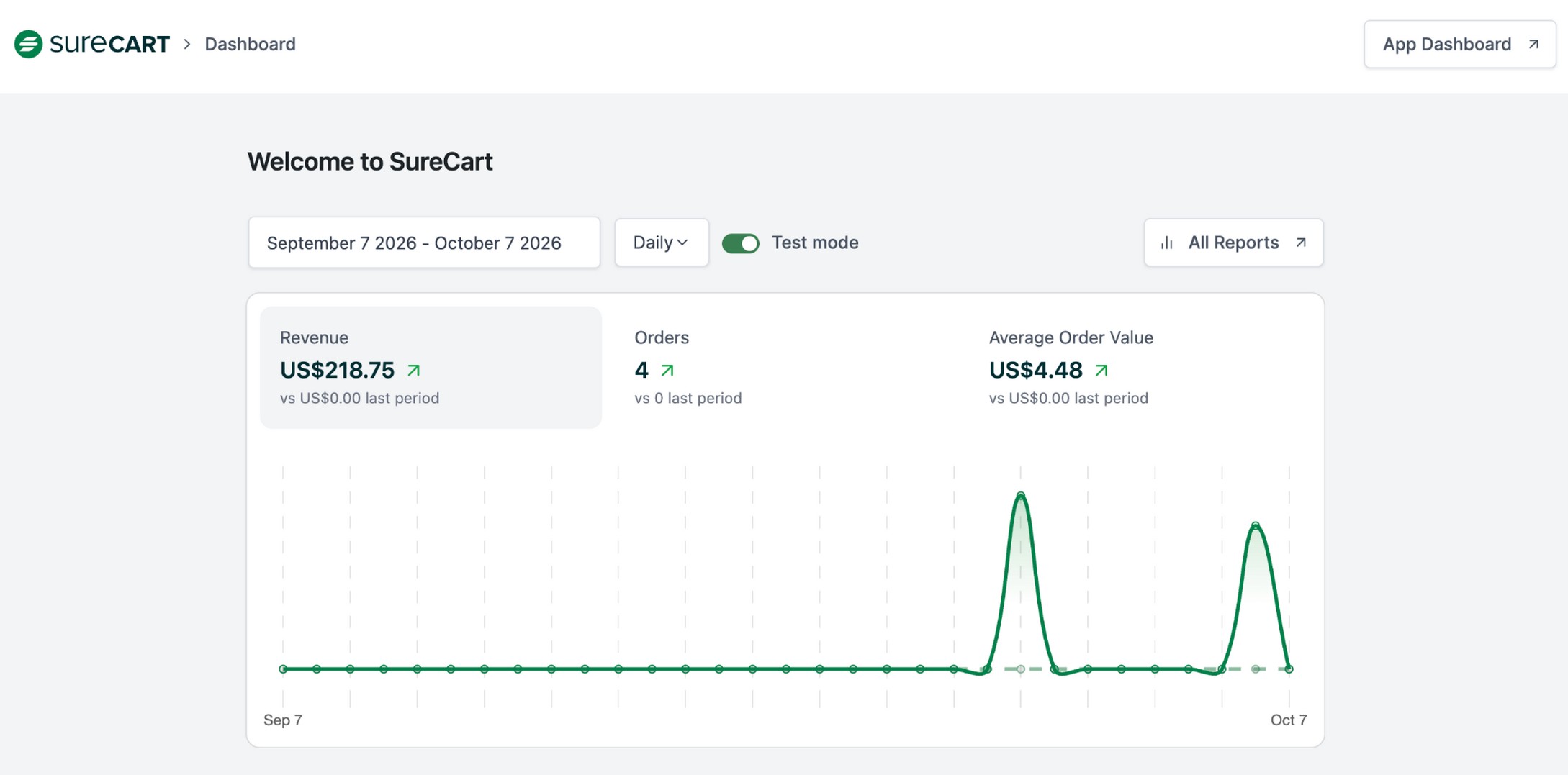
For day-to-day work, SureCart’s admin list pages now use WordPress’s modern DataViews layout, which SureCart extended to the rest of its admin pages in version 4.8.0. Version 4.9.1 grouped Import and Export into one menu on those list pages, with exports running right inside the dashboard.
Step 5: Add Store-Specific Columns and Widgets
This is where an ecommerce admin dashboard starts to save real time. A packer who sees what to pick in the orders list doesn’t need to open every order.
Each snippet below goes in a code snippets plugin or your child theme’s functions.php file. Test them on a staging site first, since heavy admin customization can slow the back end.
Add a Custom Dashboard Widget
wp_add_dashboard_widget() adds a box to the main Dashboard screen. This one shows how many WooCommerce orders are waiting to ship, for anyone who can edit orders:
// Adds an "Orders to Ship" widget for users who can edit orders.

  add_action( 'wp_dashboard_setup', function () {

      if ( ! current_user_can( 'edit_shop_orders' ) ) {

          return;

      }

      wp_add_dashboard_widget( 'orders_to_ship', 'Orders to Ship', function () {

          $ids = wc_get_orders( array(

              'status' => 'processing',

              'limit'  => -1,

              'return' => 'ids',

          ) );

          printf( '<p>%d orders are waiting to ship.</p>', count( $ids ) );

          printf(

              '<p><a href="%s">View orders</a></p>',

              esc_url( admin_url( 'admin.php?page=wc-orders&status=wc-processing' ) )

          );

      } );

} );
What it changes: adds one widget; nothing else moves.
Who should use it: stores with a fulfillment team.
What could break: on stores with very high order volume, counting every processing order on each Dashboard load adds work, so cache the count or limit the query.
Add Columns to Order and Product Lists
No-Code Option
Admin Columns Pro adds WooCommerce product and order columns from a settings screen. The free version covers posts, pages, users, comments, and media.
Code Option
WooCommerce turns on High-Performance Order Storage (HPOS) by default for new stores that have no orders and no incompatible plugins. HPOS has its own column hooks. WooCommerce uses these same hooks for its own fulfillment columns. This snippet adds an Items column so packers see what to pick:
// Adds an "Items" column to the WooCommerce orders list (HPOS).

  add_filter( 'manage_woocommerce_page_wc-orders_columns', function ( $columns ) {

      $columns['order_items'] = 'Items';

      return $columns;

  } );

  add_action( 'manage_woocommerce_page_wc-orders_custom_column', function ( $column, $order ) {

      if ( 'order_items' !== $column ) {

          return;

      }

      $lines = array();

      foreach ( $order->get_items() as $item ) {

          $lines[] = esc_html( $item->get_quantity() . ' x ' . $item->get_name() );

      }

      echo implode( '<br>', $lines );

}, 10, 2 );
Stores still on legacy order storage use the manage_edit-shop_order_columns hooks instead.
Extend SureCart Admin Screens
According to SureCart’s developer docs, its admin lists, such as Orders, Products, and Invoices, accept custom columns through the standard WordPress hooks. We checked these hook names against SureCart’s public plugin source. The page value from the URL (like sc-products) goes in the hook name, as shown in the SureCart developer docs:
// Adds a column to the SureCart products list.

  add_filter( 'manage_sc-products_columns', function ( $columns ) {

      $columns['product_ref'] = 'Reference';

      return $columns;

  } );

  add_action( 'manage_sc-products_custom_column', function ( $column_name, $data ) {

      if ( 'product_ref' === $column_name ) {

          // $data is the model for the current row. Swap in the field you need.

          echo esc_html( $data->id );

      }

}, 10, 2 );
For more than one column, SureCart’s Admin UI API lets developers add their own boxes to the main area or sidebar of the Orders, Products, Customers, and Affiliates pages. You register them with window.surecart.registerAddon() in a client-side React build, so plan on a developer for this one.
Step 6 (Optional): Brand the Admin for Client Stores
If you build stores for clients, a branded admin makes the handover feel finished. Most of the value comes from a few small swaps:
- Replace the WordPress logo in the admin bar with the client’s logo.
- Change the admin footer text to your agency’s name and support link.
White Label CMS and WP Adminify both handle these from a settings screen. Keep it light, though. A familiar WordPress layout is easier for new staff to learn than a heavily restyled one.
When Native Controls Aren’t Enough: Plugins Compared
We recommend reaching for a plugin only when roles, your store platform’s settings, and a small code change don’t cover what you need. Each plugin below focuses on a different part of admin customization, and the free versions have different limits, so check them against the task you’re solving.
| Plugin | Best for | Free version covers | Paid from | Role-based controls |
|---|---|---|---|---|
| Admin Menu Editor | Renaming, reordering, and hiding admin menus | Menu editing and a minimum capability per item | $49/year, 1 site | Pro: per-role menu permissions |
| Adminimize | Hiding menus, toolbar items, and dashboard widgets by role | All listed features are in the free plugin | Free | Free |
| Ultimate Dashboard | Replacing default dashboard widgets | Custom widgets and custom CSS | $58/year, 1 site | Pro: restrict admin pages by role |
| Dashboard Widgets Suite | Adding notes, feeds, and system widgets | Pre-built widgets with role visibility | Free plugin | Free: per-widget role limits |
| Admin Columns | Custom columns on list screens (WooCommerce columns are Pro) | Columns for posts, pages, users, comments, and media | $79/year | Pro: column sets per role |
| White Label CMS | Admin and login branding | Logo, login page, and menu hiding | Free plugin | Check vendor |
| WP Adminify | Admin UI templates and branding | UI templates, colors, and logo swaps | $79/year, 1 site | Check vendor |
| Disable Bloat | Turning off unused WordPress and WooCommerce features | WordPress admin cleanup (WooCommerce toggles are PRO) | $29/year, 1 site | Check vendor |
Prices are each vendor’s starting annual price for one site, checked on October 5, 2026. Admin Menu Editor raised its prices on May 24, 2026; renewals for existing licenses weren’t affected.
How SureCart Handles the Store Admin
We built SureCart, so here’s how we approached the store admin.
Store roles come built in. A Shop Worker handles daily store work, a Shop Accountant adds reports, and a Shop Manager runs the store, so a packer doesn’t need an Administrator account. See SureCart’s roles guide for the full list.
List screens are built for daily work. SureCart’s admin list pages use WordPress’s DataViews layout, with Import and Export options grouped under one menu.
Developers can extend it. Custom list columns and the Admin UI API let you add store-specific views without forking the plugin.
Payments, subscriptions, and checkout processing run on SureCart’s cloud platform, not on your server. The SureCart features used in this guide are available on Launch, which charges a 2.9% transaction fee on top of payment processor fees; Pro removes that fee.
Final Thoughts
When you customize your WordPress admin dashboard for a store, the order matters more than the tools. Set roles first, so each person can only reach the screens their job needs. Then turn off what you don’t use, shape your reports, and add the columns and widgets that save clicks. Branding comes last, if at all.
If you’d like store roles and a commerce-focused admin from day one, start selling with SureCart for free, no credit card required.
FAQ
How do I customize my WordPress admin dashboard?
Start by giving each person a role that matches their job. Then use Screen Options to hide widgets and columns, hide menus you don’t use, set up your sales reports, and add store-specific columns or widgets. Brand the admin last if you build stores for clients.
Where is the WordPress admin dashboard?
It’s at yoursite.com/wp-admin once you log in. Store menus, like WooCommerce or SureCart, appear in the left sidebar alongside Posts, Pages, and Settings.
Can I limit what my store staff sees in the WordPress admin?
Yes. Assign a role with only the capabilities the job needs, such as WooCommerce Shop Manager, a SureCart store role, or a custom role. Then hide any menus that person doesn’t use, to simplify their view.
Is it safe to hide admin menus, and can I undo it?
Yes, hiding a menu doesn’t delete anything, and Screen Options and most plugin settings can be reset. Keep in mind that hiding changes what people see, while roles control what they can do. WordPress notes that a removed menu can still be opened by its URL.
How do I customize the WooCommerce analytics dashboard?
Go to the Analytics Overview and open the three-dot menu on any section. From there, you can choose which stats show, rename or move the section, or remove it. A plus icon at the bottom adds removed sections back.
How do I customize the WordPress login page?
A login customizer plugin or White Label CMS lets you swap the WordPress logo, colors, and background without code. Keep the layout simple, so staff recognizes it.