According to Baymard Institute, 42% of US online shoppers abandoned an online purchase within the last three months because “I was just browsing / not ready to buy.” That number explains why shoppers leave, not how many a wishlist brings back. A wishlist does something simpler: it lets shoppers who aren’t ready save products and find them again on their next visit.
If you’ve been looking up how to add a wishlist to WordPress, SureCart introduced its built-in Saved Items feature in version 4.12. It puts a heart on your products, lets signed-in shoppers sort saves into named lists, and adds save for later to the cart.
We built SureCart, so we’re not neutral here. We tested the main Saved Items workflows on a live SureCart store, signed in and signed out, and checked the remaining details, such as the 100-item limit, against SureCart’s settings and blocks.
Quick answer: To add wishlist functionality to WordPress with SureCart, check that Enable Saved Items is on under SureCart > Settings > Design & Branding. It’s on by default. On a classic theme, select the menu where the heart icon should appear. On a block theme, add the Saved Items Icon block to your header using the Site Editor. With SureCart’s default templates, product pages and the slide-out cart show save buttons automatically. If your shop page doesn’t show hearts, add the Save for Later Button to its product cards.
What a Wishlist and Save for Later Do in SureCart
A wishlist lets shoppers save products they want to come back to. Save for later moves an item out of the cart without losing it. In SureCart, both feed the same saved items, so a product saved from a product page and one saved from the cart end up in the same place.
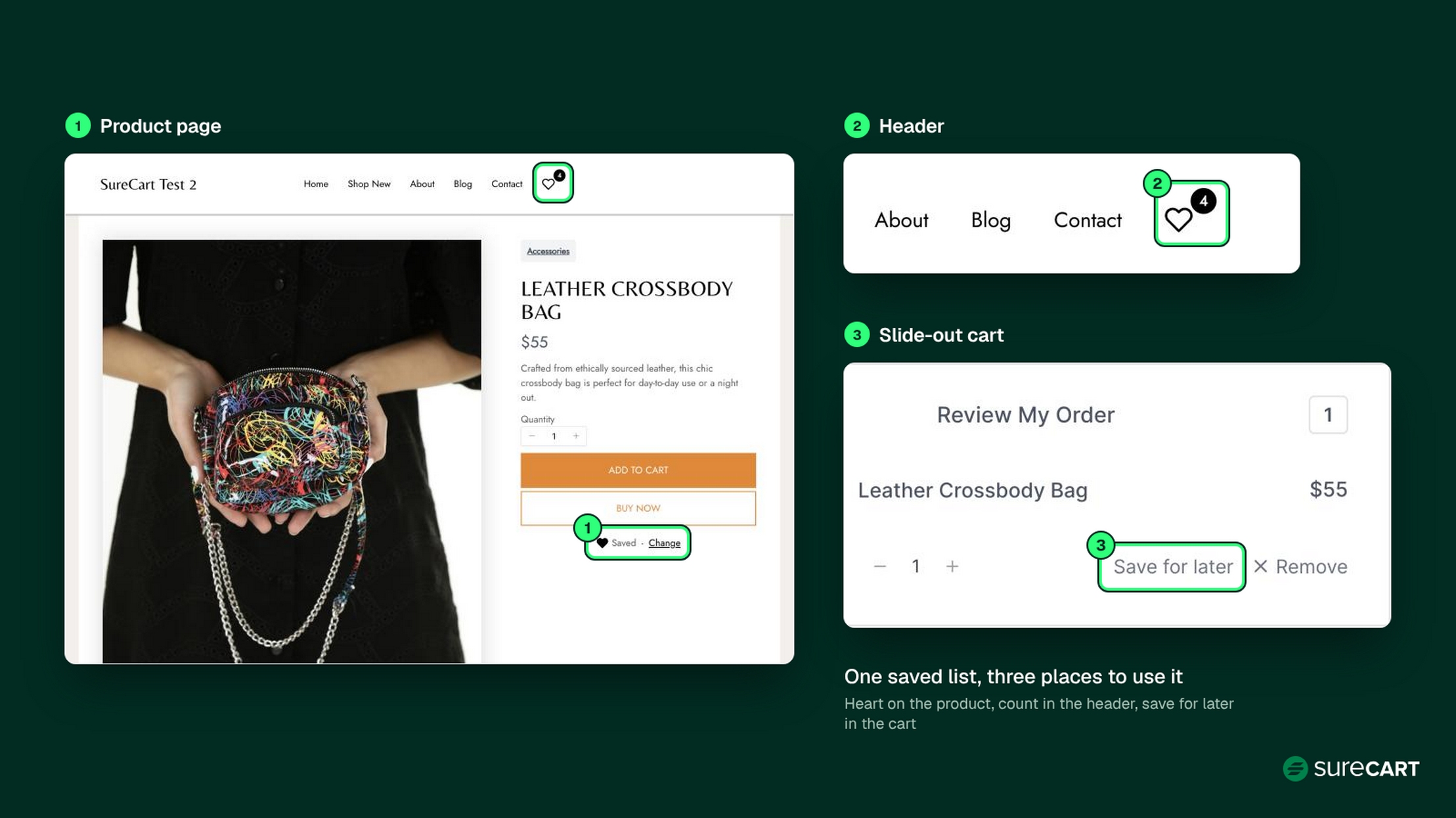
For signed-in shoppers, each save goes to the default list first, named “Saved for later” unless the store owner changes it in the settings. Shoppers can choose another list or create a new one, such as “Gift ideas.” Each shopper can keep up to 20 lists, including the default, with up to 100 items in each. Signed-out shoppers save to one list stored on their device, without a list picker.
Saved Items is built for personal saving: lists are private to each shopper, with no share link, so it isn’t a gift registry.
The Saved Items Setup Map
Take Emily, a representative example. She runs a candle shop on WordPress with SureCart, and her store was set up before SureCart 4.12. Shoppers browse her gift sets, then leave before buying. Here’s where Saved Items shows up, and which spots need a block from her.
| Where | Automatic or manual | What to do |
|---|---|---|
| Product pages | Automatic | Nothing, with SureCart’s default product template |
| Slide-out cart | Automatic | Nothing, with SureCart’s default cart template |
| Save to list dialog | Automatic | Nothing |
| Saved Items page | Automatic | Nothing; SureCart creates it at /saved-items/ |
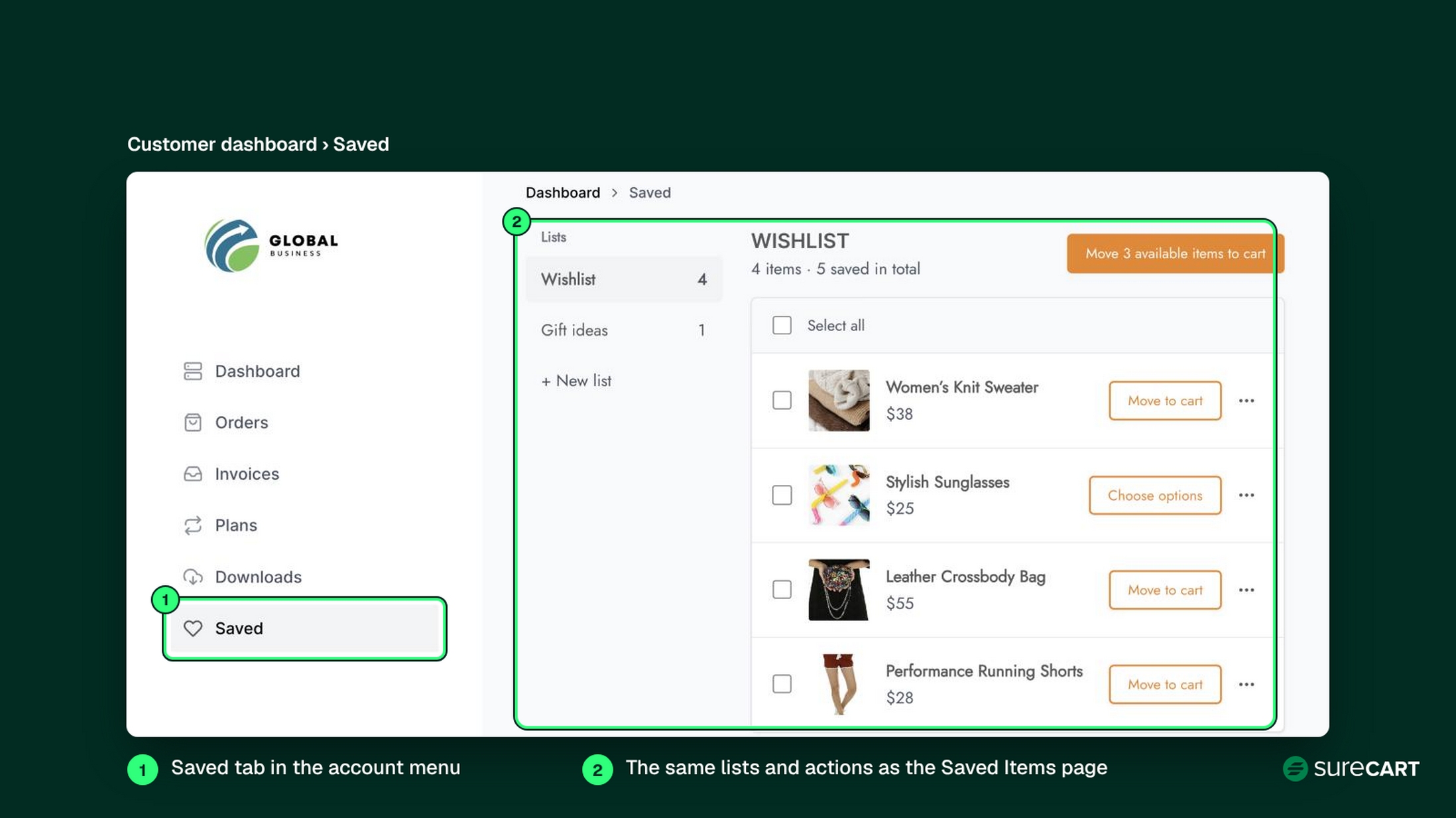
| Customer dashboard | Automatic | Nothing; signed-in shoppers get a “Saved” tab |
| Header heart, classic theme | Setting | Choose a menu in the Saved Items settings (Step 2) |
| Header heart, block theme | Manual | Add the Saved Items Icon block to your header (Step 2) |
| Shop page product cards | Depends on the page | Add the Save for Later Button if hearts are missing (Step 3) |
| Quick Add popup | Manual | Add the Save for Later Button to its template part (Step 4) |
We tested the main workflows on SureCart 4.13.2, on a store set up before 4.12 running Astra, and verified the header icon in Twenty Twenty-Five.
How to Add a Wishlist to WordPress With SureCart
You need SureCart 4.12 or later. The video below covers the same steps.
Step 1: Check That Saved Items Is On
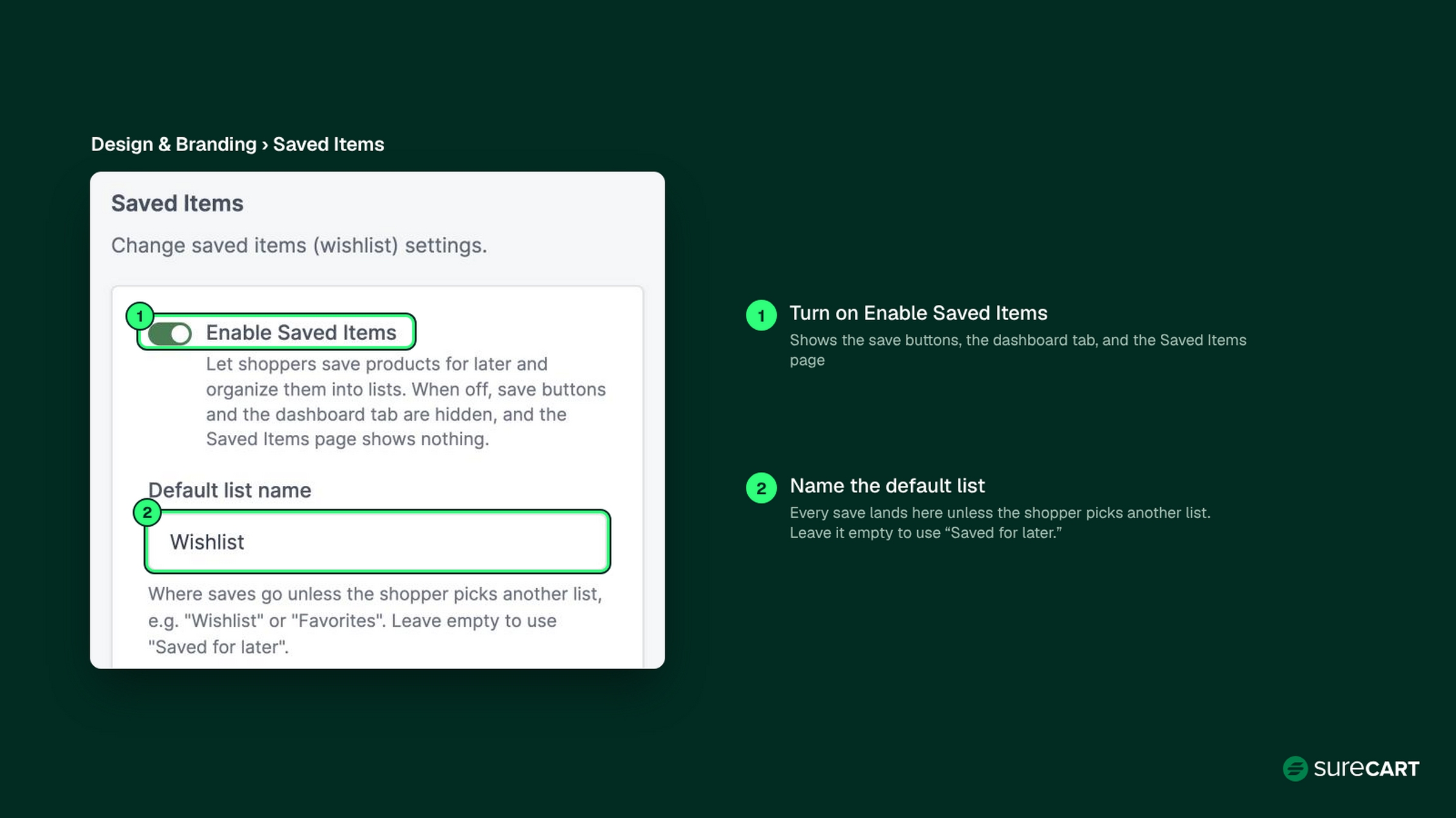
Saved Items is on by default. To confirm, go to SureCart > Settings > Design & Branding and scroll to the Saved Items section, where Enable Saved Items should be on. The setting’s description explains what turning it off does: “save buttons and the dashboard tab are hidden, and the Saved Items page shows nothing.”
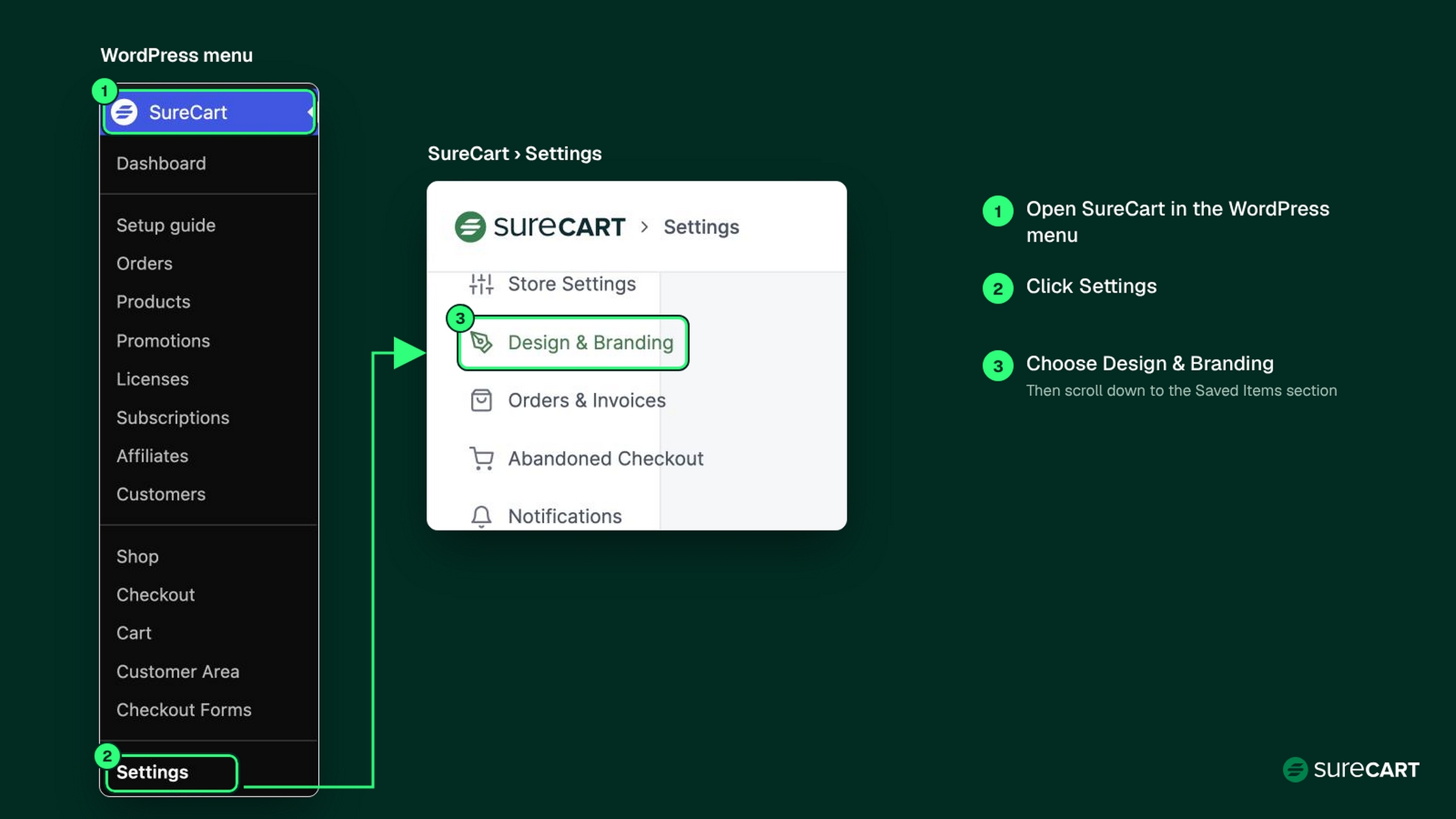
Below it, Default list name sets the name of the list that receives each save unless the shopper picks another list. Leave it empty and SureCart uses “Saved for later.” Emily types “Wishlist,” since that’s the word her shoppers already use.
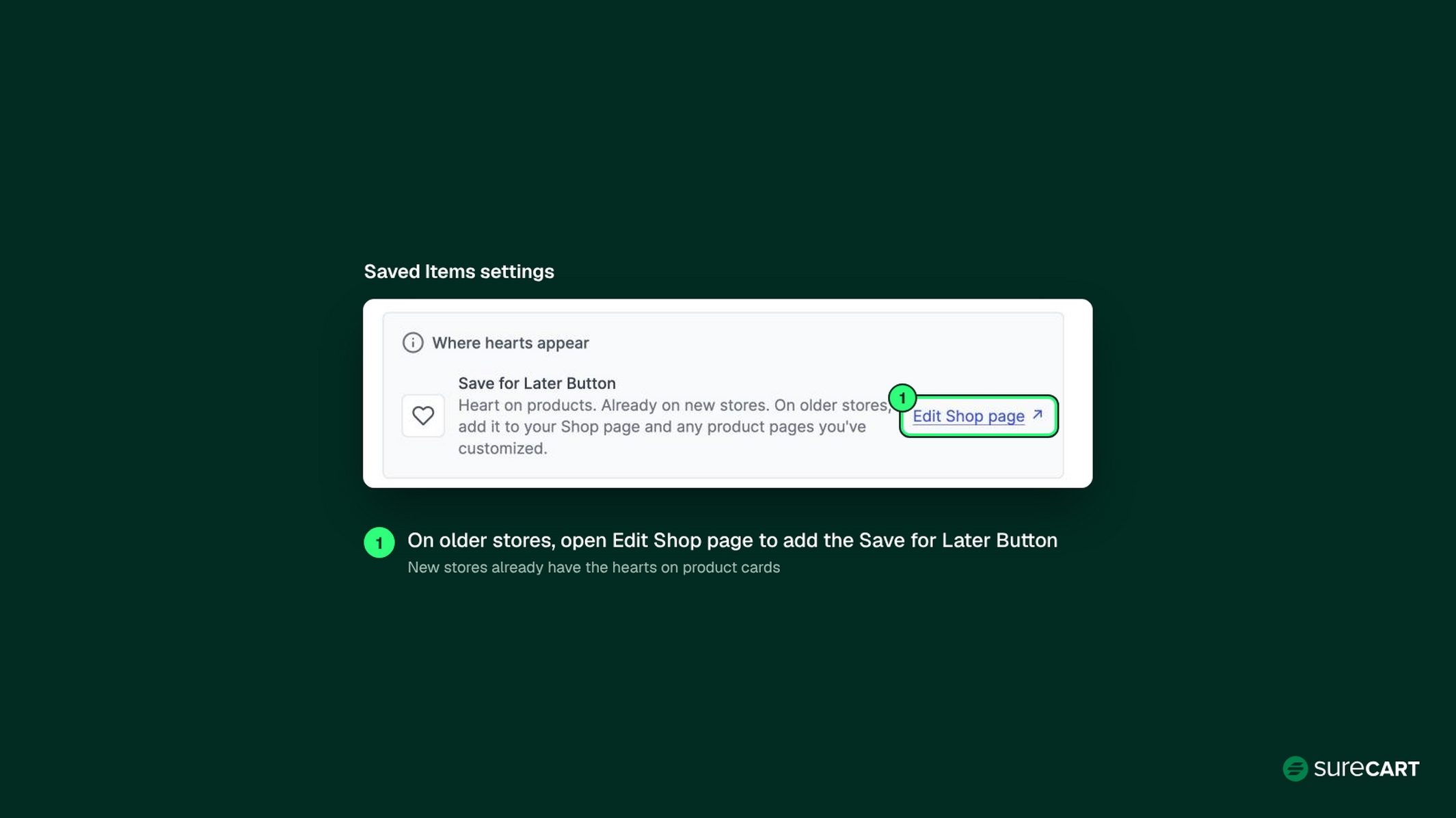
Since SureCart 4.12.1, this screen also notes where to add the Save for Later Button on older stores, with an Edit Shop page link.
Step 2: Add the Heart Icon to Your Header
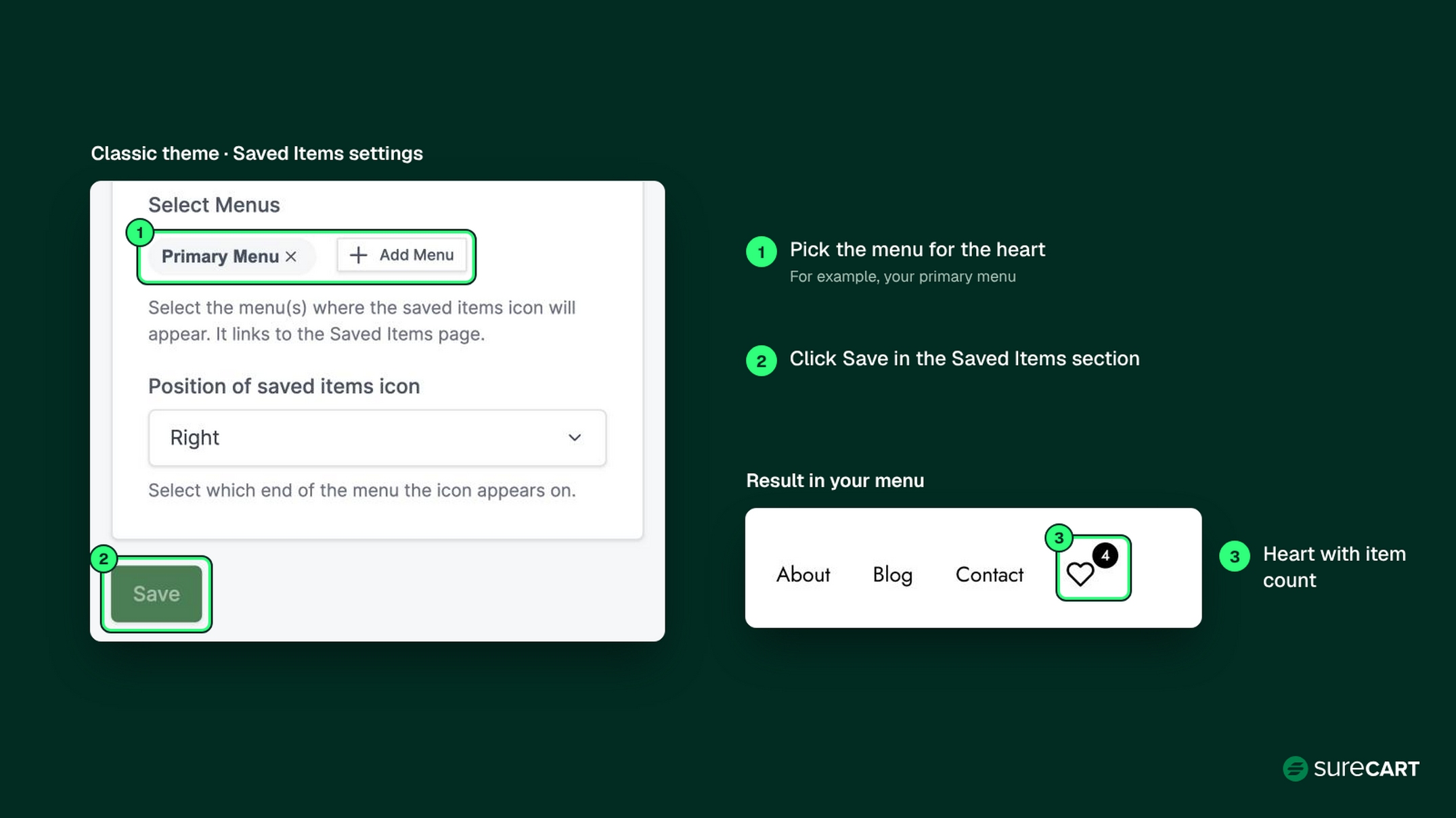
On a classic theme, use the Select Menus setting in the same section to choose where the saved items heart appears, such as your primary menu. Click Save in the Saved Items section to apply the change.
On a block theme, open the Site Editor and add the Saved Items Icon block to your header. Save your changes in the Site Editor.
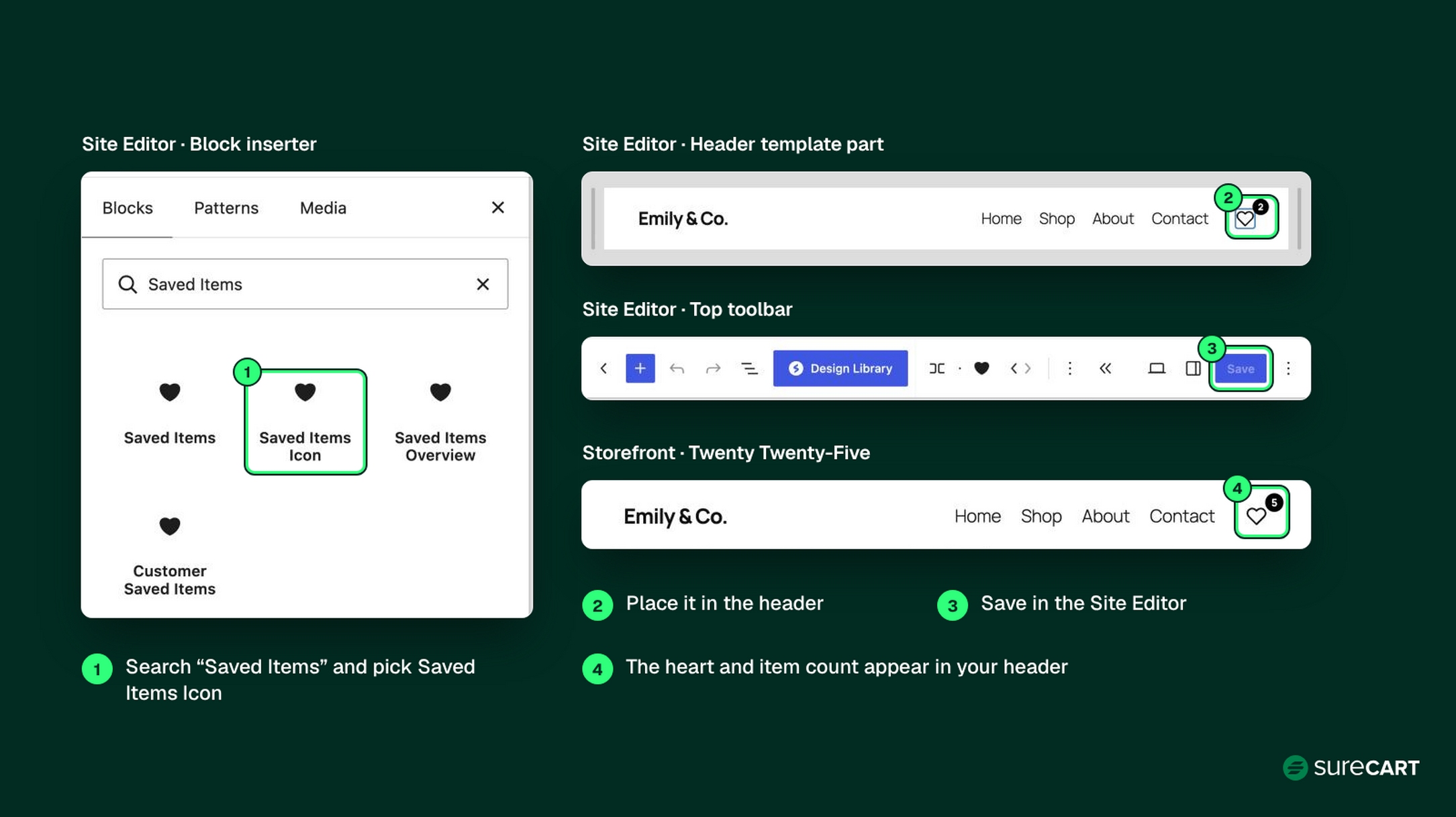
Either way, the heart links to the Saved Items page and shows how many items the shopper has saved.
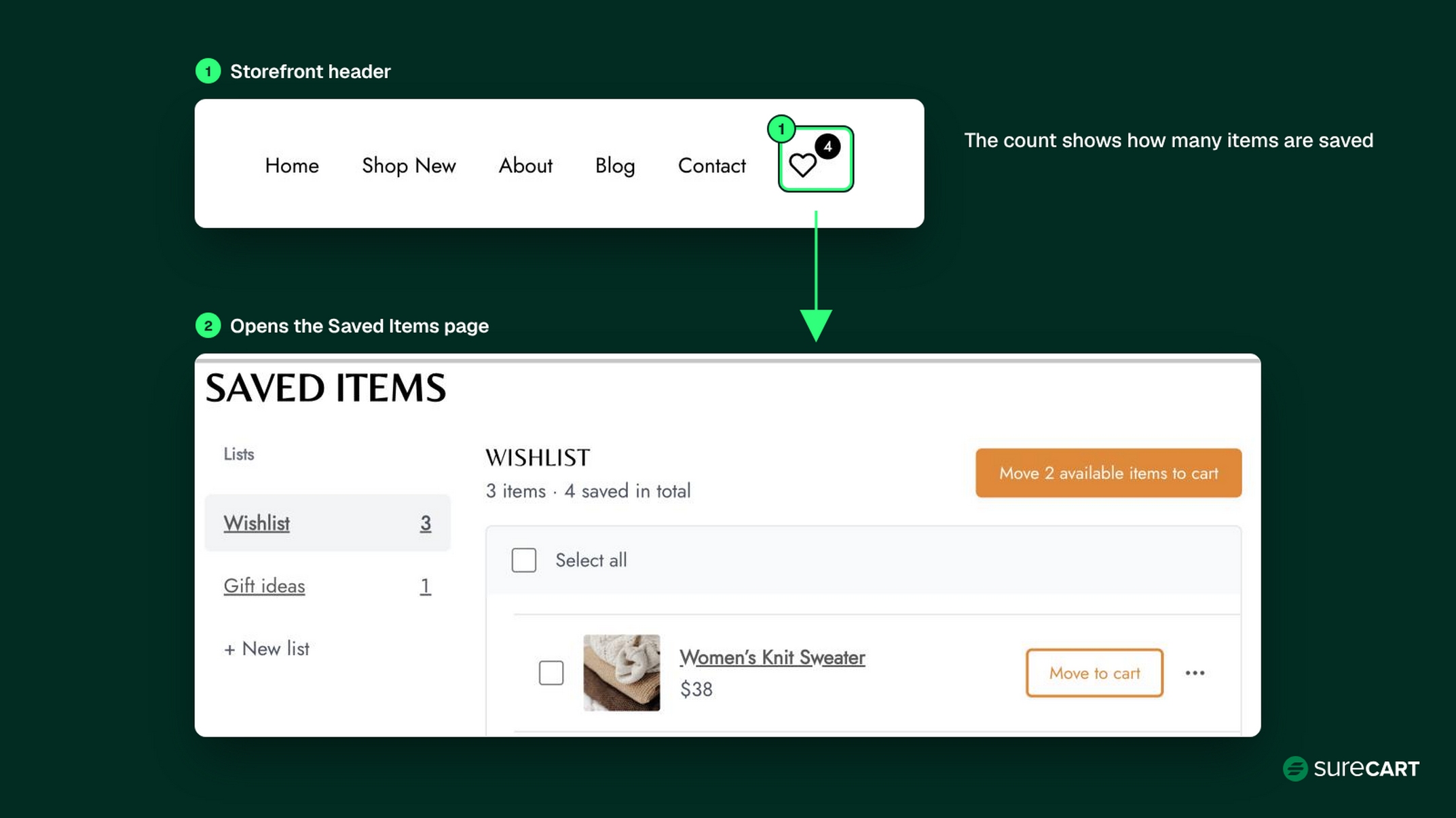
Step 3: Add the Save for Later Button to Your Shop Page
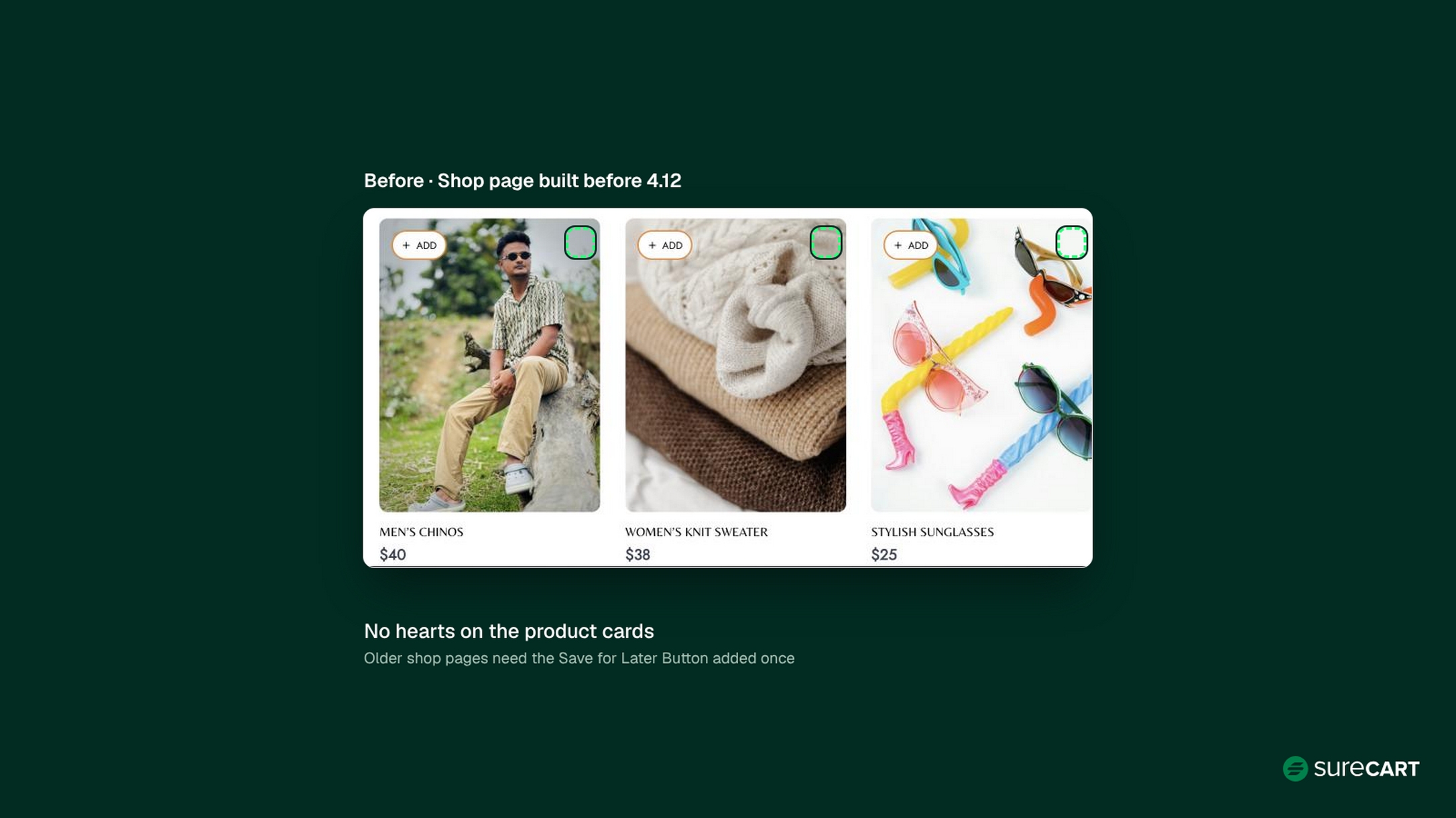
If your shop page was built before SureCart 4.12, or from a product list pattern that doesn’t include the button, its product cards won’t show hearts. Our test store’s older shop page had none.
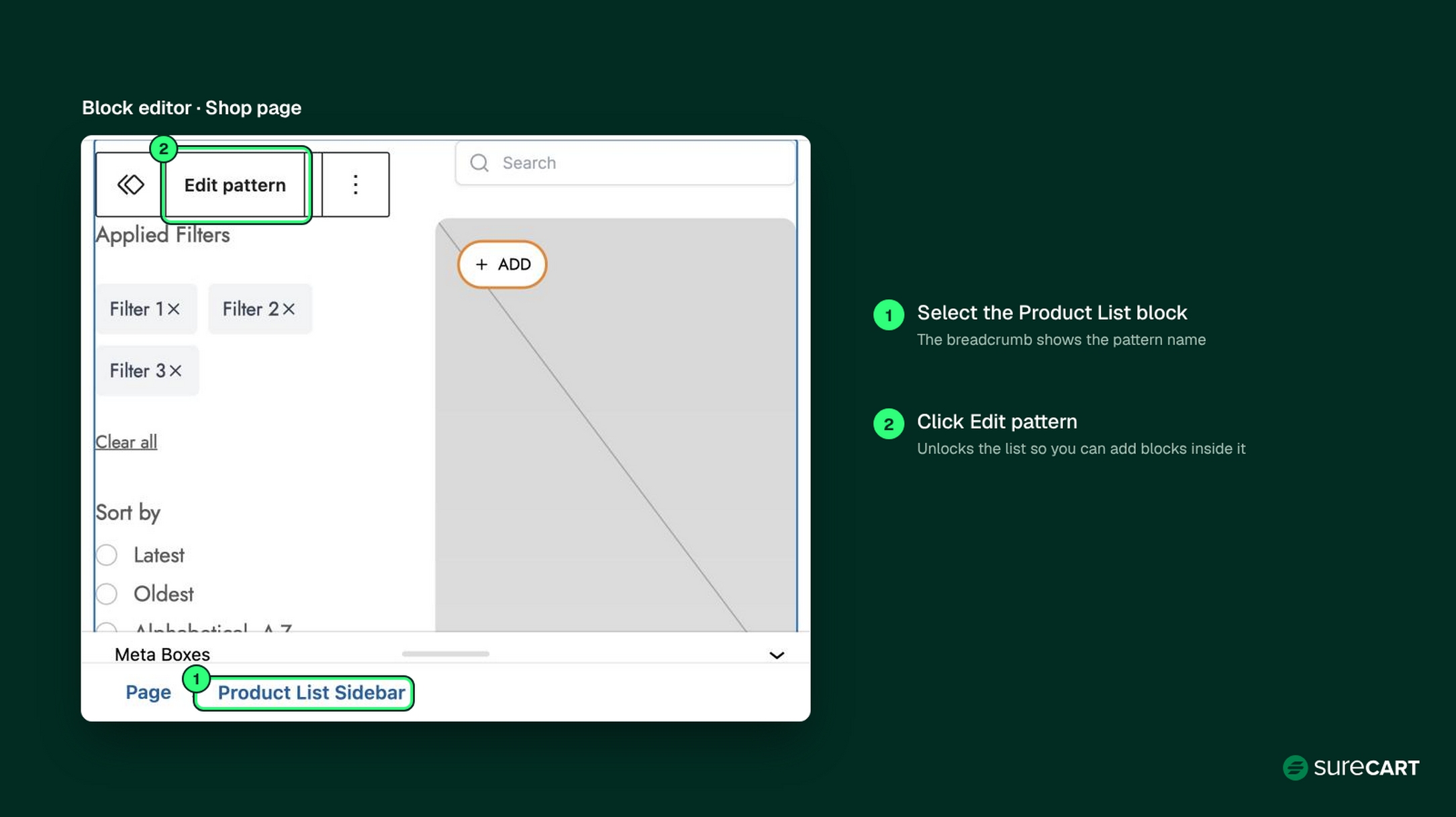
To fix it, open the page with the Edit Shop page link in the settings. If the Product List is part of a locked pattern, select the Product List block and click Edit pattern in its toolbar first.
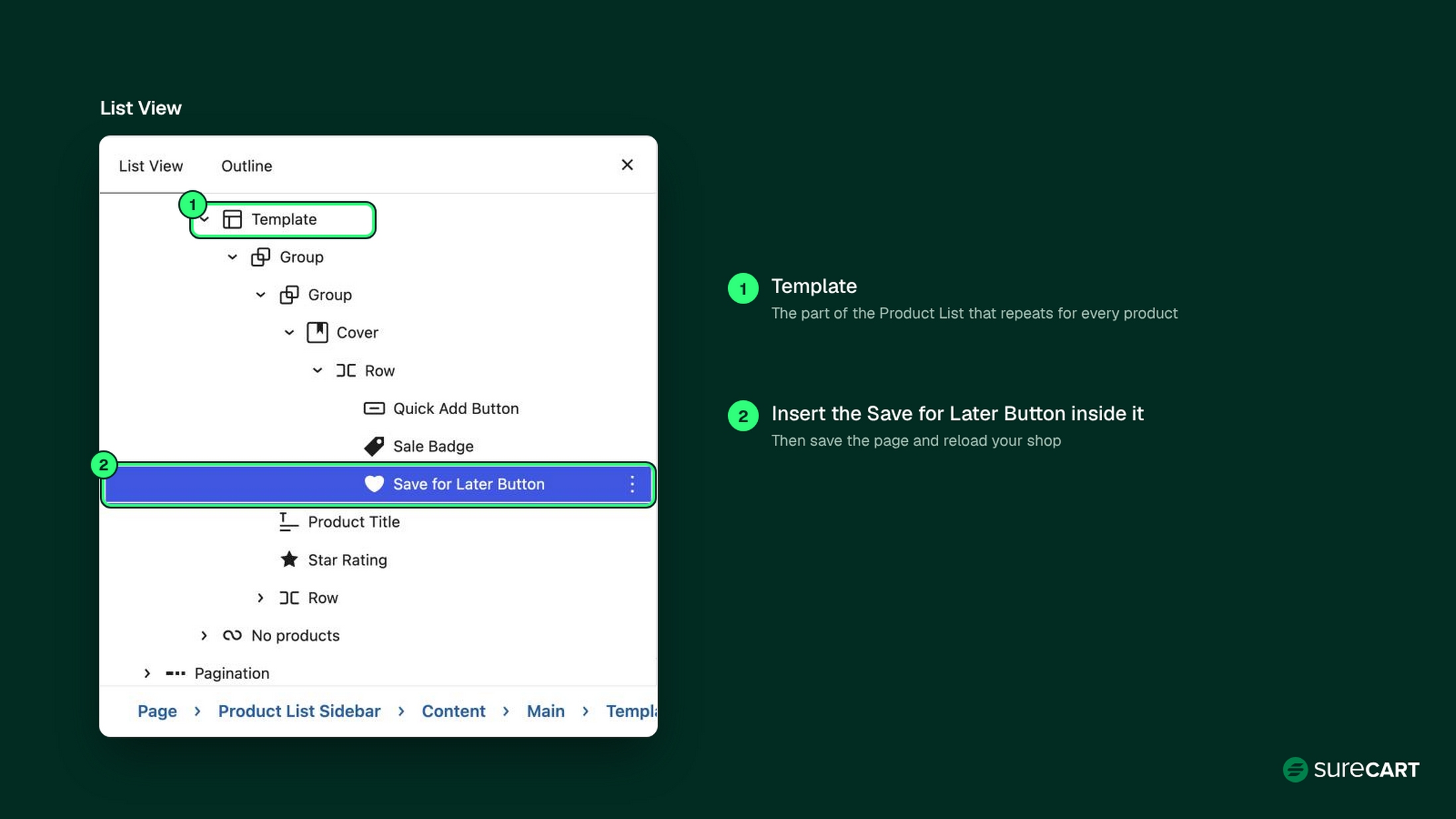
Then open List View and select the Template block inside the Product List, the part that repeats for every product. Insert the Save for Later Button block inside it, then save and reload your shop.
Each product card in the list now shows a Save for Later heart, so shoppers can save straight from the shop page.
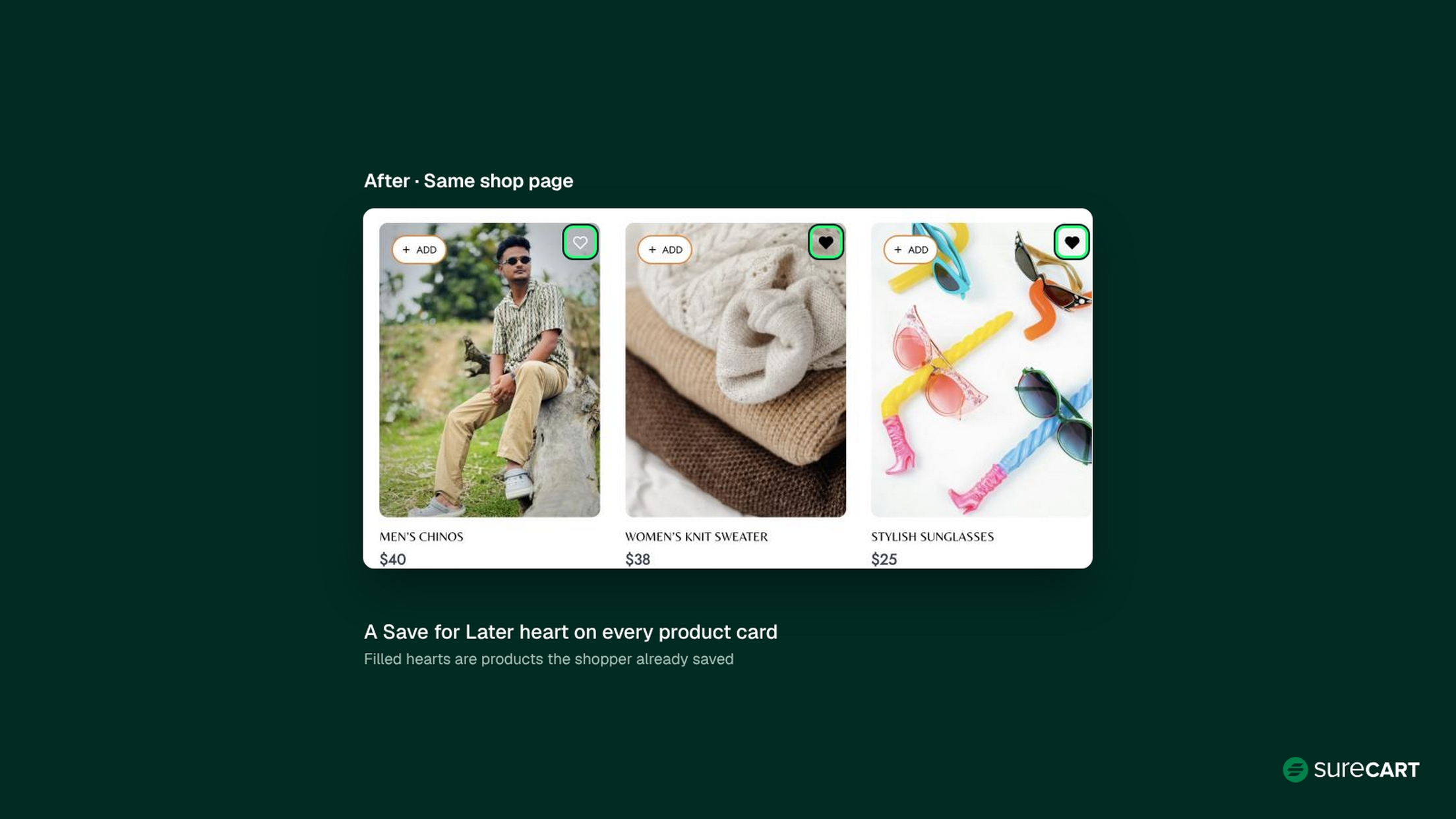
Starting a new shop page? The Classic Product List, Product List Sidebar, and Product List with Variants patterns already include the button. Classic Product Carousel, Staggered Product List, Product Bento, and Simple Product Row don’t. The Product List guide covers the shop page in more detail.
Step 4: Check Your Product Pages, Cart, and Quick Add
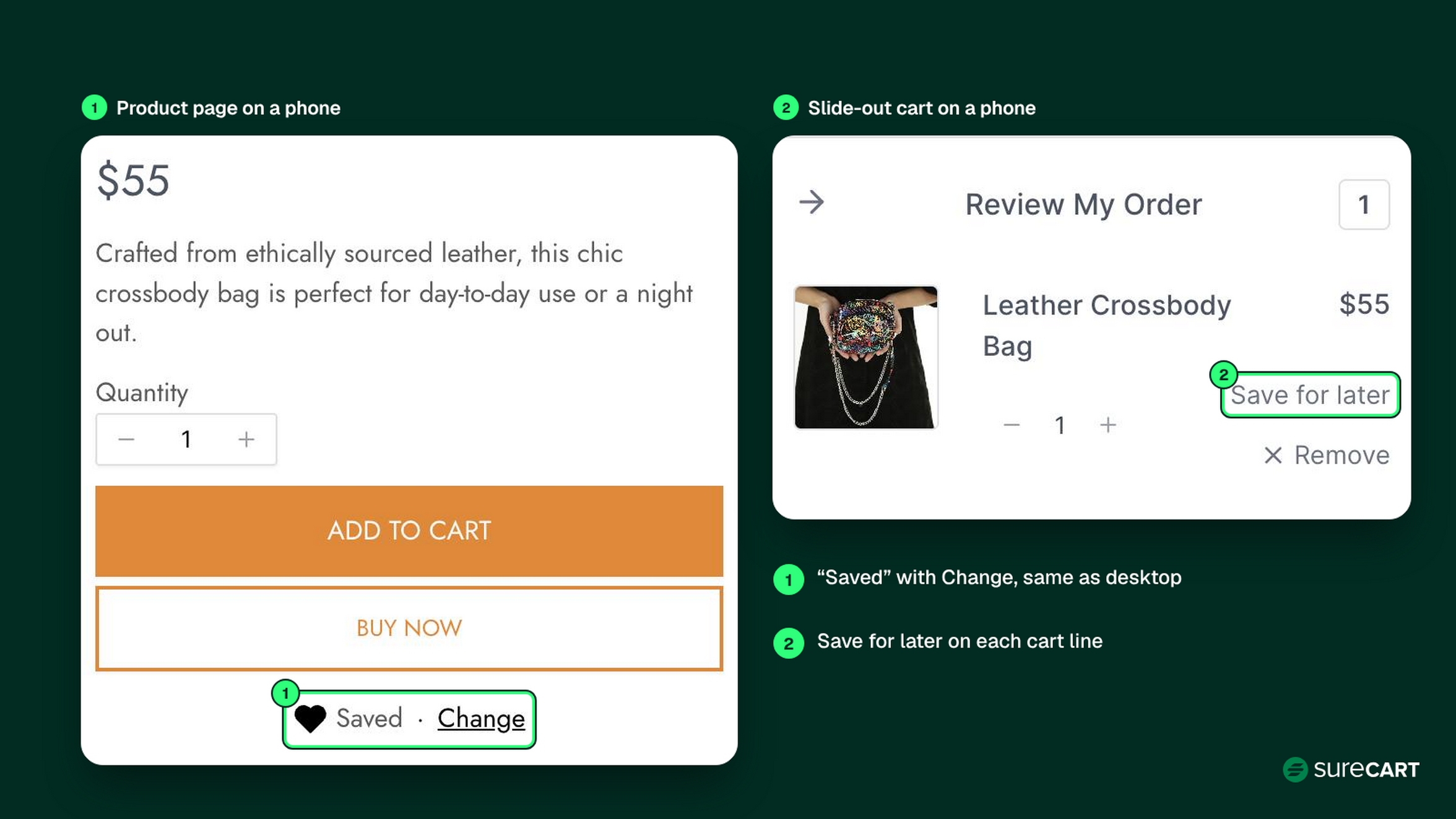
With SureCart’s default templates, product pages show a “Save for later” heart under the buy buttons, and every line in the slide-out cart gets a “Save for later” link. You don’t need to add anything.
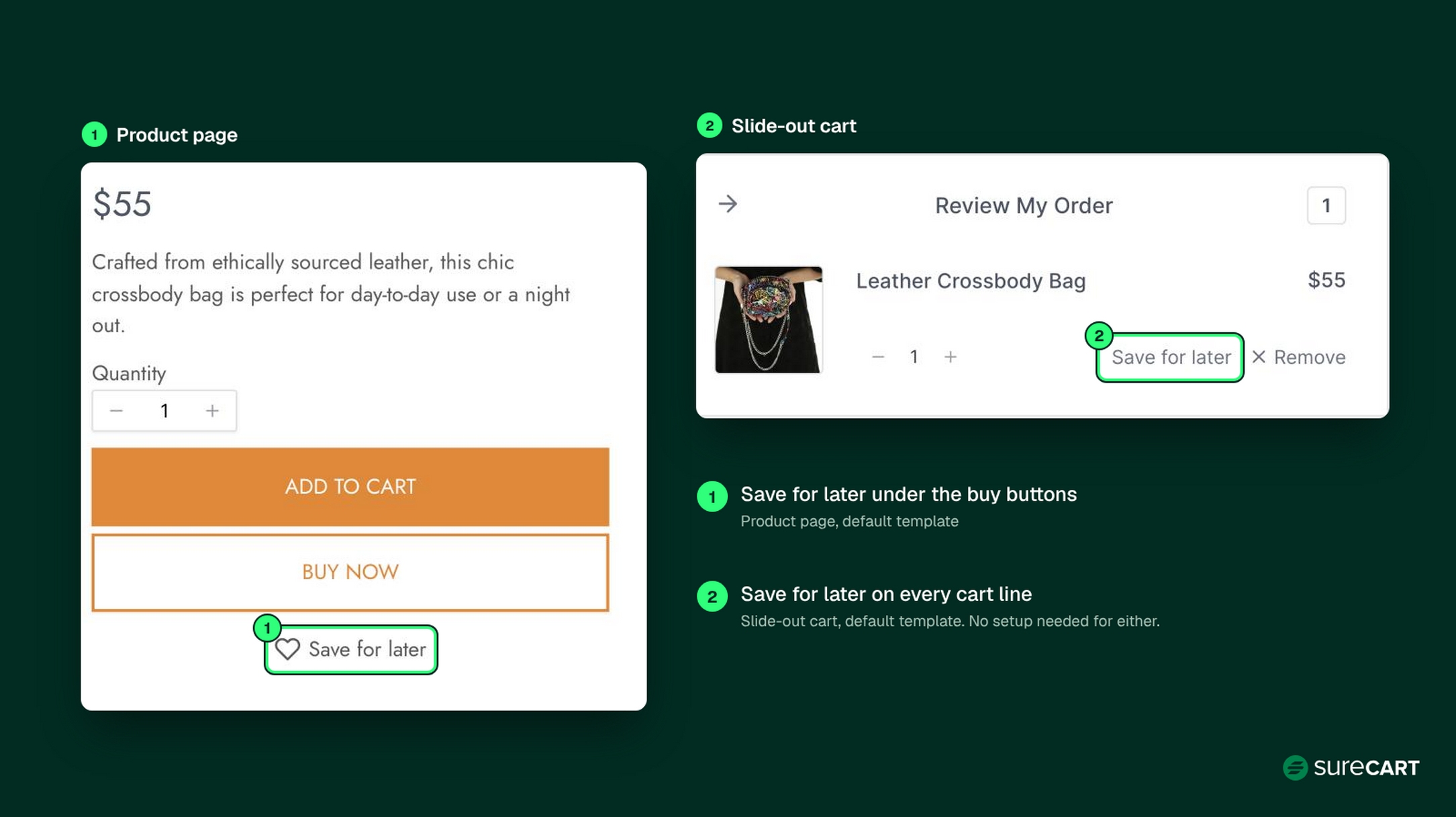
If you’ve customized either template, check it. Add the Save for Later Button to a custom product template, or the Line item save for later block to a custom cart template.
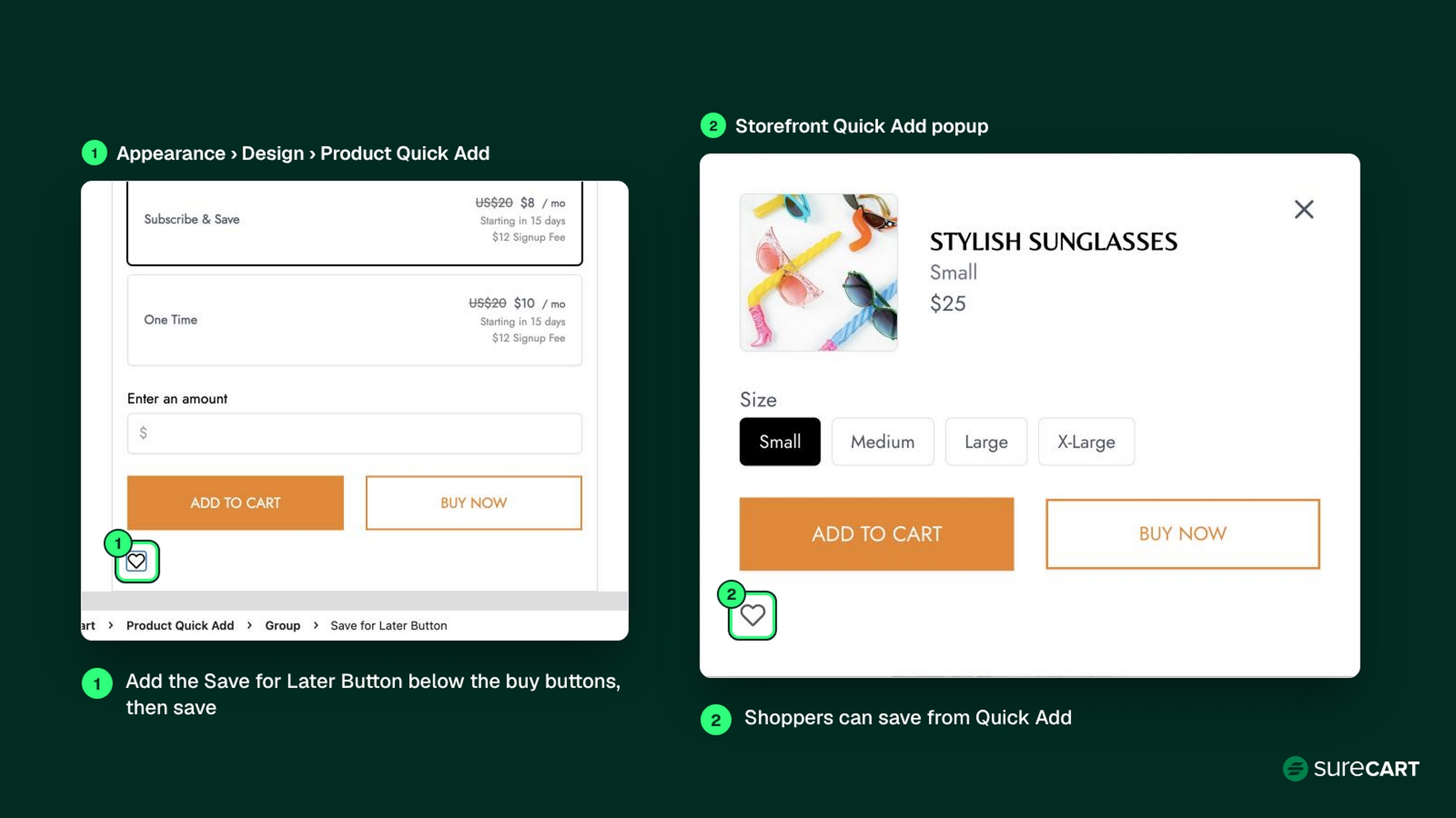
The Quick Add popup, which opens from the Add button on product cards, is the exception: its default template has no button. On a block theme, go to Appearance > Editor > Patterns and open Product Quick Add under Template parts. Add the Save for Later Button below the buy buttons, and save. On our Astra store, the same template part was under Appearance > Design > Patterns > All template parts.
Step 5: Check the Saved Items Page and Customer Dashboard
SureCart creates the Saved Items page at /saved-items/.
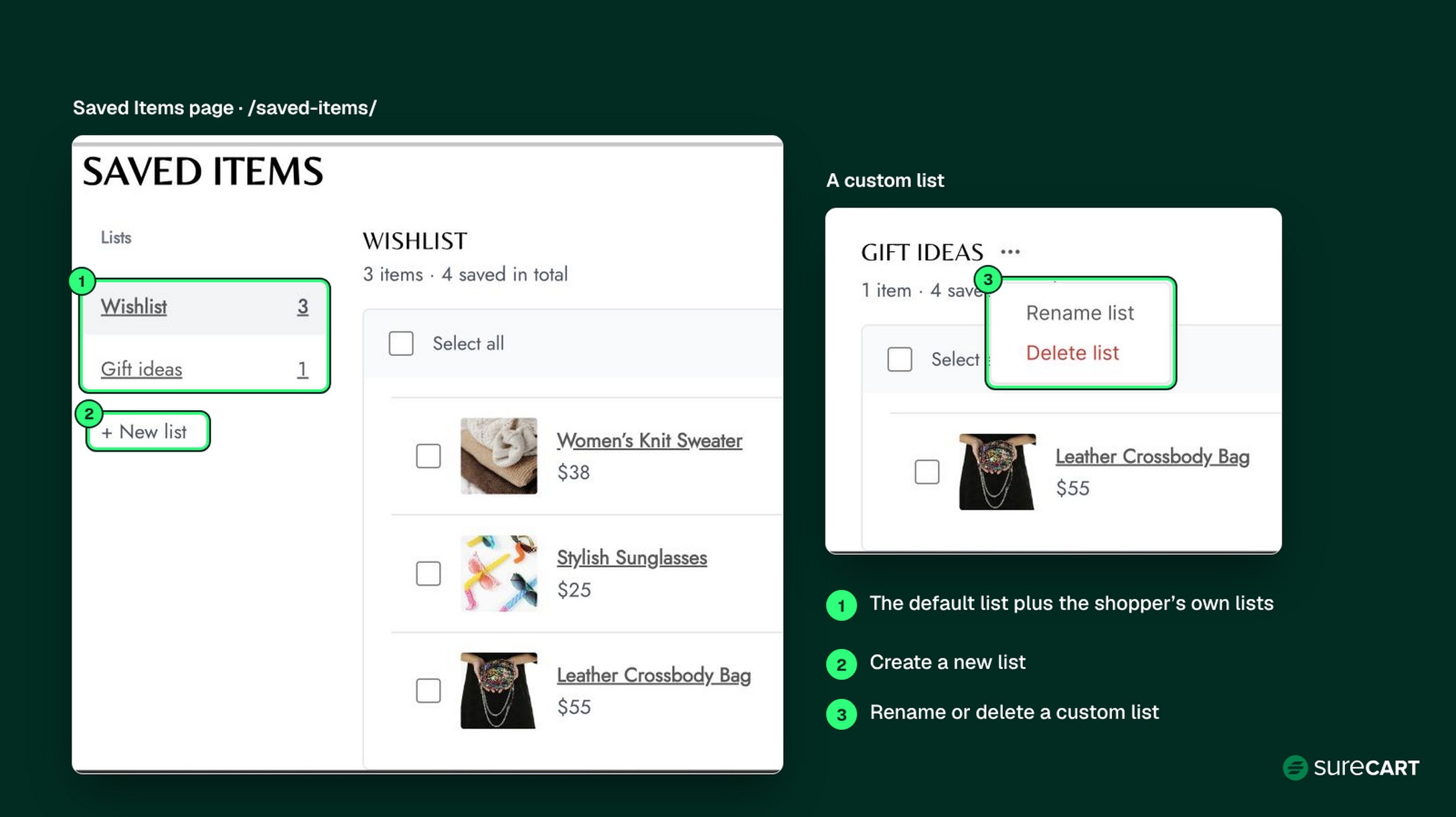
Signed-in shoppers also get a “Saved” tab in the customer dashboard. Open it while signed in to check.
Saved Items arrived in SureCart 4.12. Already using SureCart? Update it from your WordPress dashboard.
How Shoppers Save, Sort, and Move Items Back to the Cart
Saving Products to Lists
Here’s what one of Emily’s signed-in shoppers sees. She taps the heart on a gift set, and a message confirms “Saved to Wishlist.” The button now reads “Saved,” with a Change button beside it.
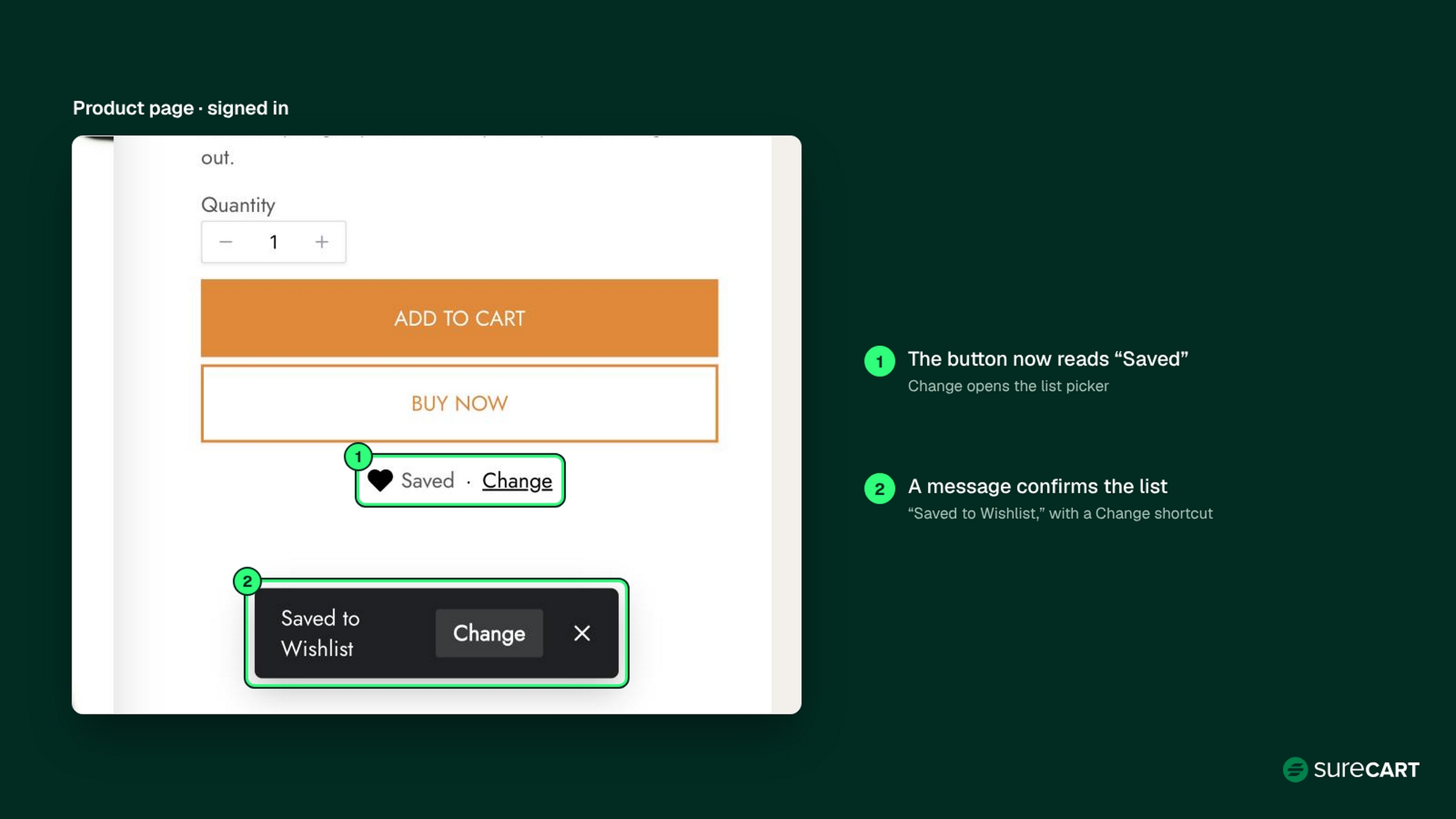
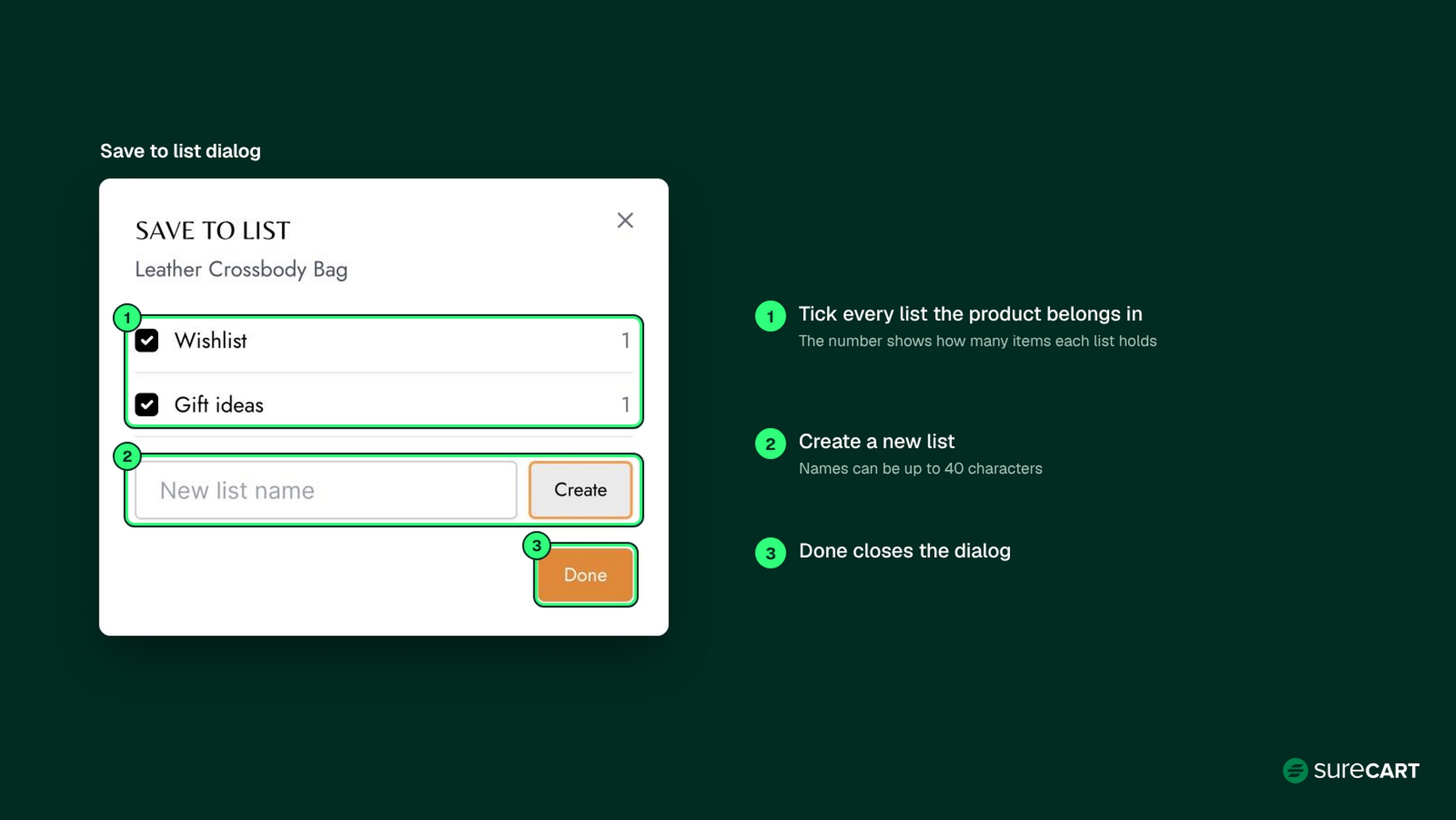
Change opens the Save to list dialog, where she ticks lists or types a new list name of up to 40 characters. She creates “Gift ideas,” so the gift set sits in both lists. On products with options, the button reads “Save these options.”
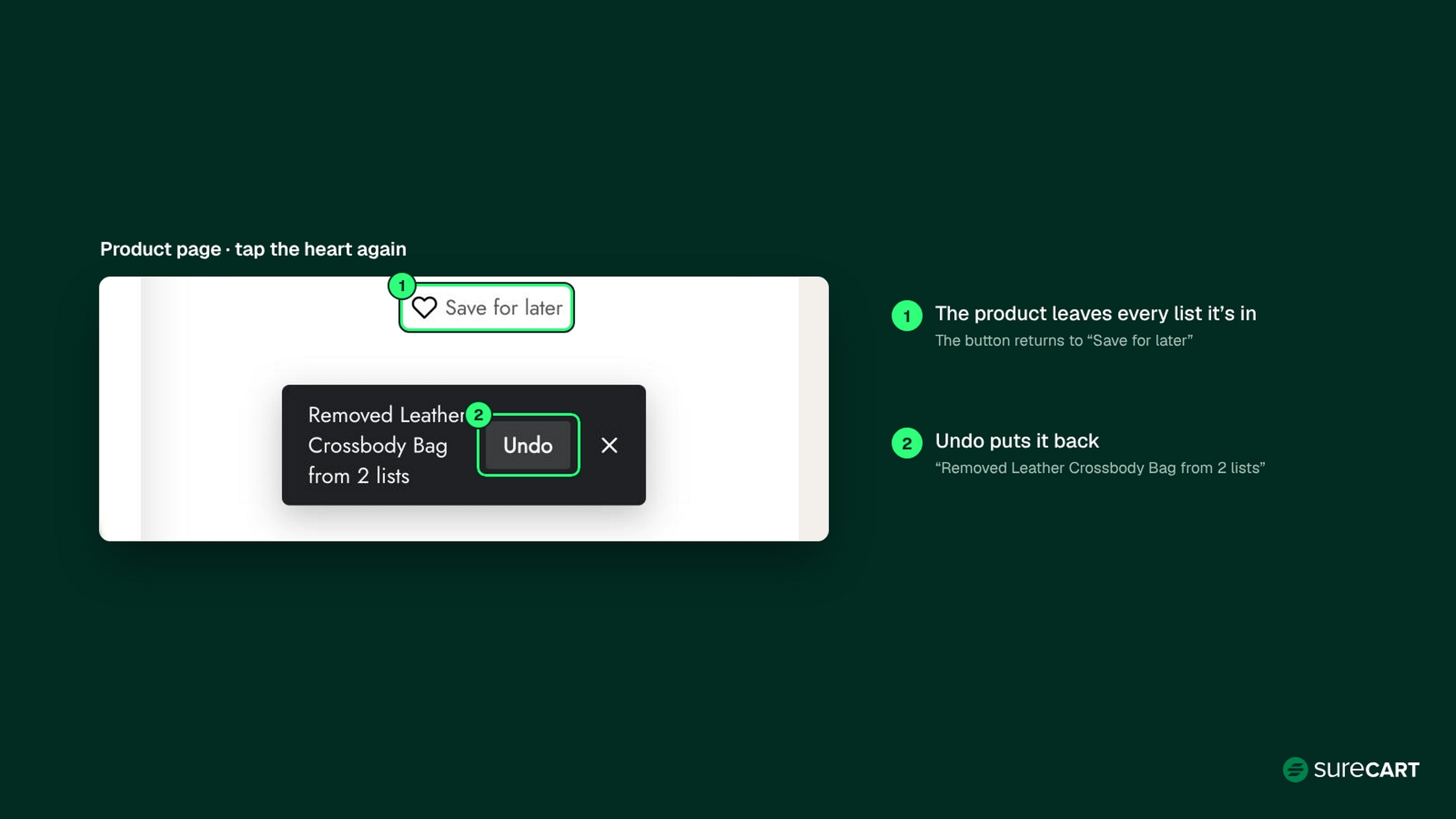
Tapping the heart again removes the product from every list it’s in and offers Undo, which puts it back. On a product with options, it removes only the selected options, and the message confirms the product’s other options are still saved. Later, she taps “Save for later” on a candle in her cart, and it moves into her saved items.
Managing Saved Products and Moving Them to the Cart
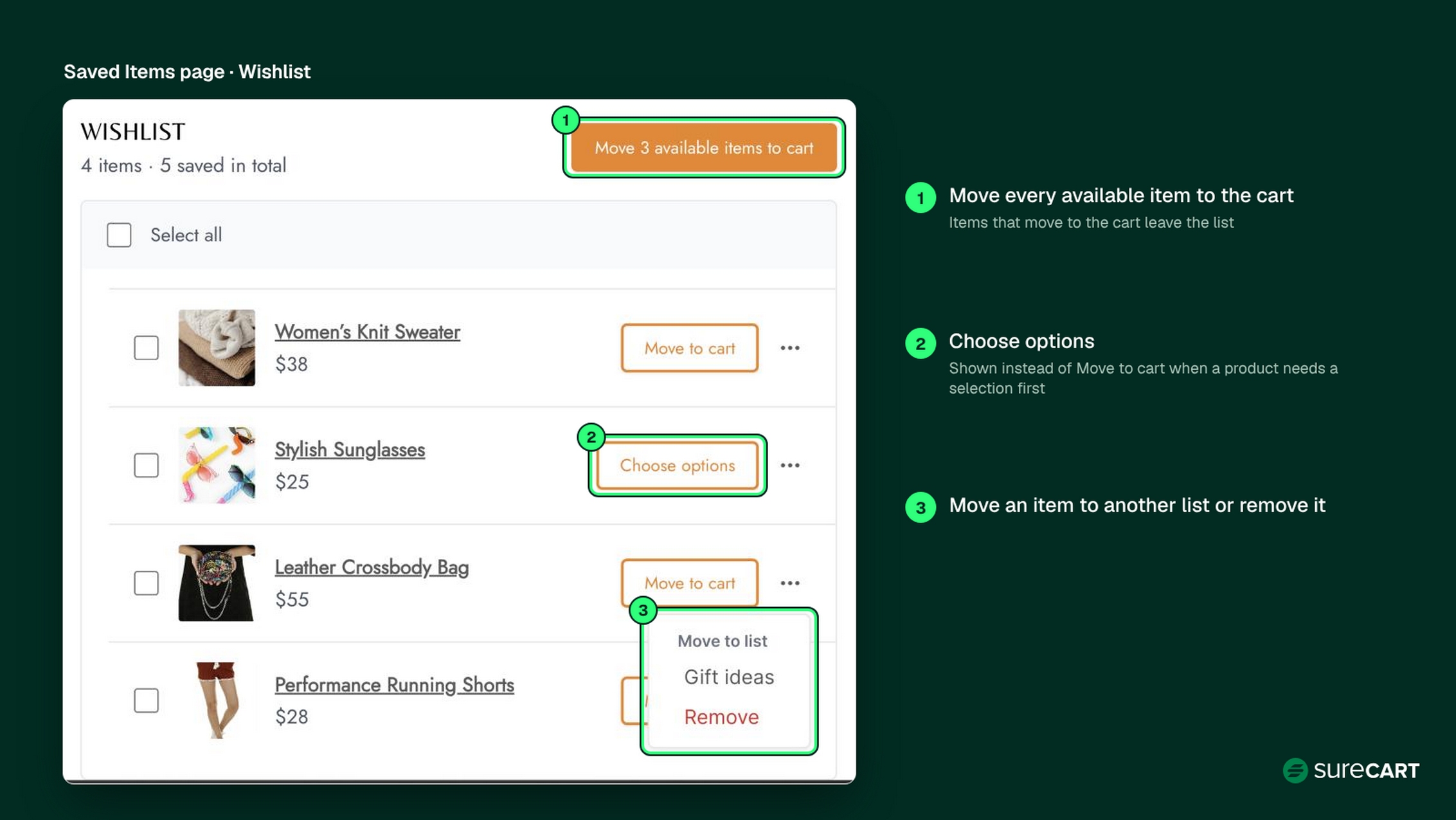
On the Saved Items page, she can create, rename, and delete lists. Each item has a Move to cart button and a menu for moving it to another list or removing it. For products that need a selection first, such as a size or amount, Move to cart is replaced by Choose options. One button moves every available item in a list into the cart at once, and items that move to the cart leave the list.
Saving doesn’t reserve stock or lock in a price. If a saved product changes before she returns, the page labels it. Sold out items show View product instead of Move to cart. Price changed items show Choose options, which opens the product page at the current price. Products you archive show as Unavailable. These items stay in the list, and the move-all button skips them.
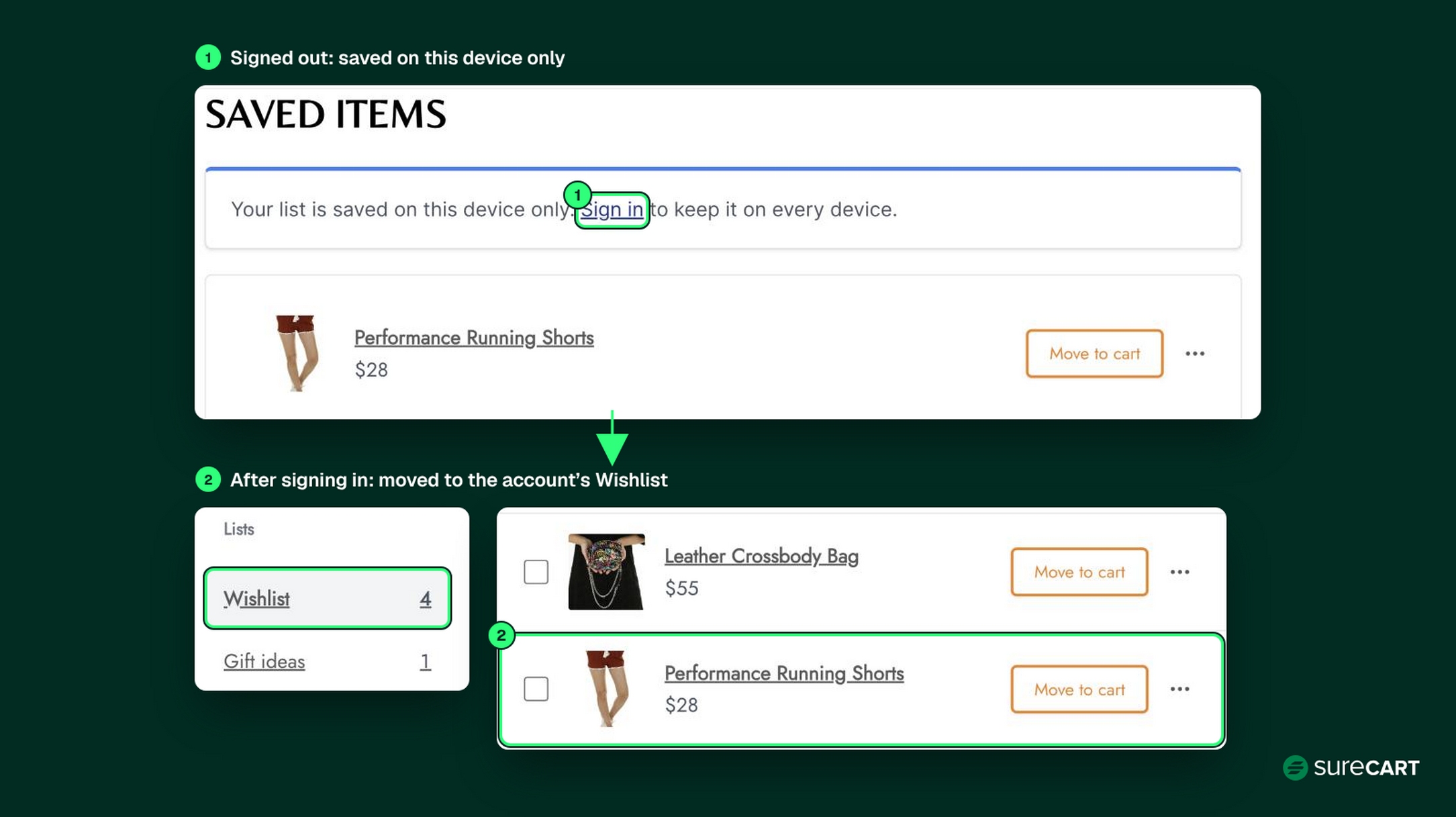
Signed-out shoppers can save too, on that device only. The page tells them, “Your list is saved on this device only. Sign in to keep it on every device.” When they sign in, SureCart moves those items into their account’s default list. It shows a message if any can’t be added.
Test Your Wishlist as a Shopper
Before you tell customers about it, test the feature as two shoppers: one signed in and one signed out. A private browser window works for the second.
| Test | What to do | What should happen |
|---|---|---|
| Product page, signed in | Tap the heart | A message reads “Saved to [your default list name],” and the button reads “Saved” with a Change button beside it |
| List dialog, signed in | Tap Change, create a list, save the product to it | The dialog shows the new list and its item count |
| Remove, signed in | Tap the heart again on that product, then tap Undo | The product leaves every list it was in, and Undo puts it back in the same lists |
| Slide-out cart, signed in | Tap “Save for later” on a line | The item leaves the cart and appears in saved items |
| Header icon | Click the heart | It opens the Saved Items page |
| Saved Items page and dashboard | Move one item, then a whole list, to the cart | Lists and items appear; moved items land in the cart and leave the list |
| Signed out, private window | Tap a heart, open the Saved Items page, then sign in | A “Saved for later” message with View appears; the page shows the “saved on this device only” note; after sign-in, the item is in your account’s default list |
| Mobile | Repeat tests 1 and 4 on a phone | Same results as on desktop |
What Does It Cost to Add Wishlist Functionality to WordPress?
This comparison covers platform and wishlist costs only. It leaves out hosting, your theme, payment processor fees (Stripe, PayPal), and other extensions.
| Setup | Platform subscription or software cost | Wishlist plugin cost | SureCart transaction fee | Guest saving | Named lists and save from cart |
|---|---|---|---|---|---|
| SureCart Launch | $0 | $0 (built in) | 2.9% of sales | One device-only list; its items move to the shopper’s account when they sign in | Up to 20 lists of up to 100 items for signed-in shoppers, plus save for later from the cart |
| SureCart Pro, 1 store | $199 a year, or $699 one-time for Lifetime | $0 (built in) | None | Same as Launch | Same as Launch |
| WooCommerce + a free wishlist plugin (YITH WooCommerce Wishlist or TI WooCommerce Wishlist) | $0 (core plugin) | $0 for the free version; paid upgrades available | Not applicable | Depends on the plugin and plan | Depends on the plugin and plan |
| WooCommerce + WooCommerce Wishlists | $0 (core plugin) | $89 a year | Not applicable | Guest lists, moved to the account at login or registration | Unlimited lists, plus save for later from the cart |
SureCart still has costs: Launch charges a 2.9% transaction fee on sales, Pro is a paid plan, and processor fees apply on every plan. Prices come from SureCart’s pricing page, the WooCommerce plugin listing, the YITH WooCommerce Wishlist and TI WooCommerce Wishlist listings, and the WooCommerce Wishlists page.
WooCommerce stores can add a wishlist for free with YITH WooCommerce Wishlist or TI WooCommerce Wishlist, and the paid WooCommerce Wishlists extension allows unlimited lists, compared with SureCart’s 20. Either way, it’s a separate plugin to install and keep updated. In SureCart, Saved Items is part of the commerce platform.
Give Shoppers a Way to Save Products for Later
That’s how to add a wishlist to WordPress with SureCart. Check that Saved Items is on, put the heart in your header, and add the Save for Later Button wherever your shop page is missing it. Then test it signed in and signed out.
For Emily, shoppers who aren’t ready to buy can now save a gift set and find it again on their next visit. For shoppers who stall at the cart, see these ways to reduce cart abandonment. For what to offer once they’re back, read our guide to increasing average order value.
No credit card required to start.
FAQ
Can I follow these steps on WooCommerce or Easy Digital Downloads?
No. WooCommerce and EDD stores add a wishlist through a separate plugin with its own settings.
Why don’t I see heart icons on my shop page?
Your shop page was probably built before SureCart 4.12, or from a pattern without the button. Add the Save for Later Button inside the Product List’s Template block (Step 3).
Can shoppers save items without an account?
Yes. Signed-out shoppers can save to one list kept on their device. When they sign in, SureCart moves those items into their account, where they can use named lists on any device.
Can shoppers share a wishlist or use it as a gift registry?
No. Saved lists are private to each shopper, with no share link.
Is there a limit on how many lists a shopper can create?
Yes. Each signed-in shopper can have up to 20 lists, including the default list, with up to 100 items in each. List names can be up to 40 characters long.
Does Saved Items work with my theme or page builder?
Saved Items works with WordPress blocks, and SureCart also includes Elementor and Bricks elements, so you can add the save button to product layouts built in either builder. We tested it with Astra and SureCart’s default templates, and verified the header icon in Twenty Twenty-Five. On other setups, test the buttons before making the feature available to customers.
Do I need a separate wishlist plugin with SureCart?
No. Saved Items is built into SureCart and works on the free Launch plan. Our test store ran it with no wishlist add-on installed.