Subscriptions have fundamentally changed how businesses grow online.
Instead of relying entirely on one-time purchases, more businesses are building predictable recurring revenue through memberships, digital products, SaaS, premium communities, subscription boxes, and ongoing services. According to recent subscription economy market research, the industry is projected to grow significantly over the coming years as recurring revenue models become a larger part of modern ecommerce.
The appeal is obvious: subscriptions create more predictable revenue, improve customer lifetime value, and make growth easier to forecast through metrics like MRR, renewals, and churn.
And if your website already runs on WordPress, you’re closer to launching a subscription business than you think.
WordPress already powers a massive portion of the web, which means many businesses are only one plugin away from launching a full subscription business. Unlike fully hosted ecommerce platforms, WordPress gives you ownership over your store, your SEO visibility, your customer data, and your checkout experience, while keeping costs manageable as you scale.
Traditionally, selling subscriptions on WordPress meant stitching together multiple plugins while relying on your website to handle critical subscription operations.
Modern subscription platforms separate billing from the storefront, so renewals, payment retries, and subscription events continue running even if your WordPress site goes offline.
In this guide, we’ll show you exactly how to sell subscriptions online on WordPress including setting up recurring billing to free trial to launching your first subscription product.
What selling subscriptions online actually involves
Selling subscriptions online is more than charging customers automatically every month.
A modern subscription business needs systems that manage the entire customer lifecycle: from the first checkout to renewals, failed payments, upgrades, cancellations, and everything in between.
That’s why subscription platforms today focus just as much on retention and customer management as they do on recurring billing itself.
At a minimum, your subscription setup should support:
- Recurring billing on flexible schedules (weekly, monthly, yearly, or custom intervals)
- Free trials, setup fees, and automatic proration when customers switch plans
- A self-service billing portal where customers can update payment methods, switch plans, view billing history, and cancel subscriptions.
- Automatic failed payment recovery (dunning) to reduce involuntary churn
- Subscription analytics like MRR, renewals, failed payments, and churn tracking
- Multiple payment processors and localized payment methods
- Automated subscription emails for renewals, failed payments, trial endings, and cancellations
Traditionally, setting all of this up on WordPress meant combining several different plugins and external tools together.
While a WooCommerce page builder plugin can help to design product pages, checkout flows and other store pages, modern ecommerce platforms for subscriptions, like SureCart, now handle these features natively inside WordPress, which makes subscriptions significantly easier to launch, manage, and scale.
Here’s how to set all of that up on WordPress.
How to Sell Subscriptions Online on WordPress
To sell subscriptions online on WordPress, you need three things working together properly: recurring billing, subscription management, and a checkout experience customers actually trust.
In this guide, we’ll use SureCart to set all of that up directly inside WordPress, including recurring payments, free trials, billing portals, failed payment recovery, proration, and automated subscription emails.
The process is surprisingly straightforward, and by the end, you’ll have a fully functional subscription system ready to accept recurring payments on your WordPress site.
Here’s how to get it running.
Step 1: Install the SureCart plugin on WordPress
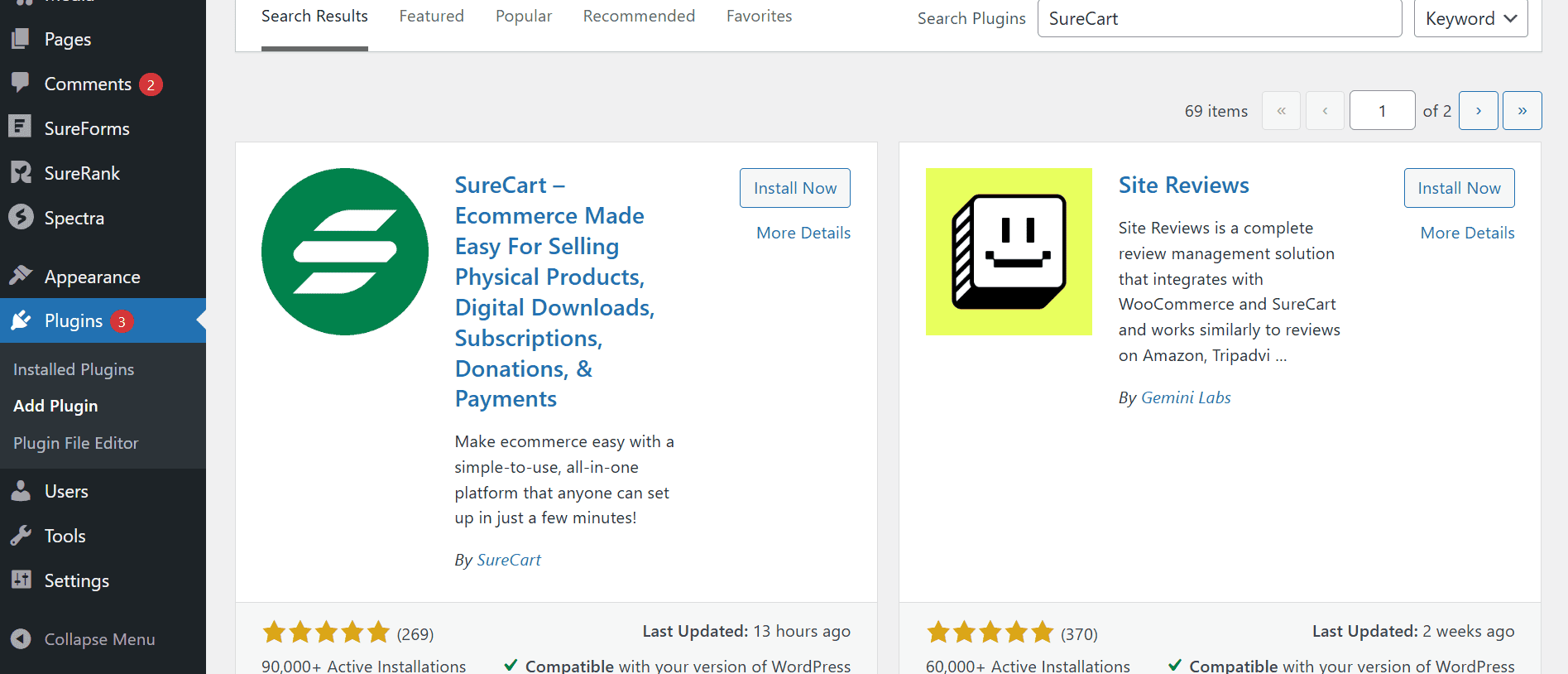
From your WordPress dashboard, go to Plugins → Add New and search for “SureCart.” Install and activate it.
After activation, the setup wizard walks you through creating a SureCart account (or connecting an existing one) and linking it to your WordPress site. Once connected, you’ll see a SureCart menu in your WordPress sidebar. That’s your gateway to everything that follows.
Step 2: Connect a payment processor
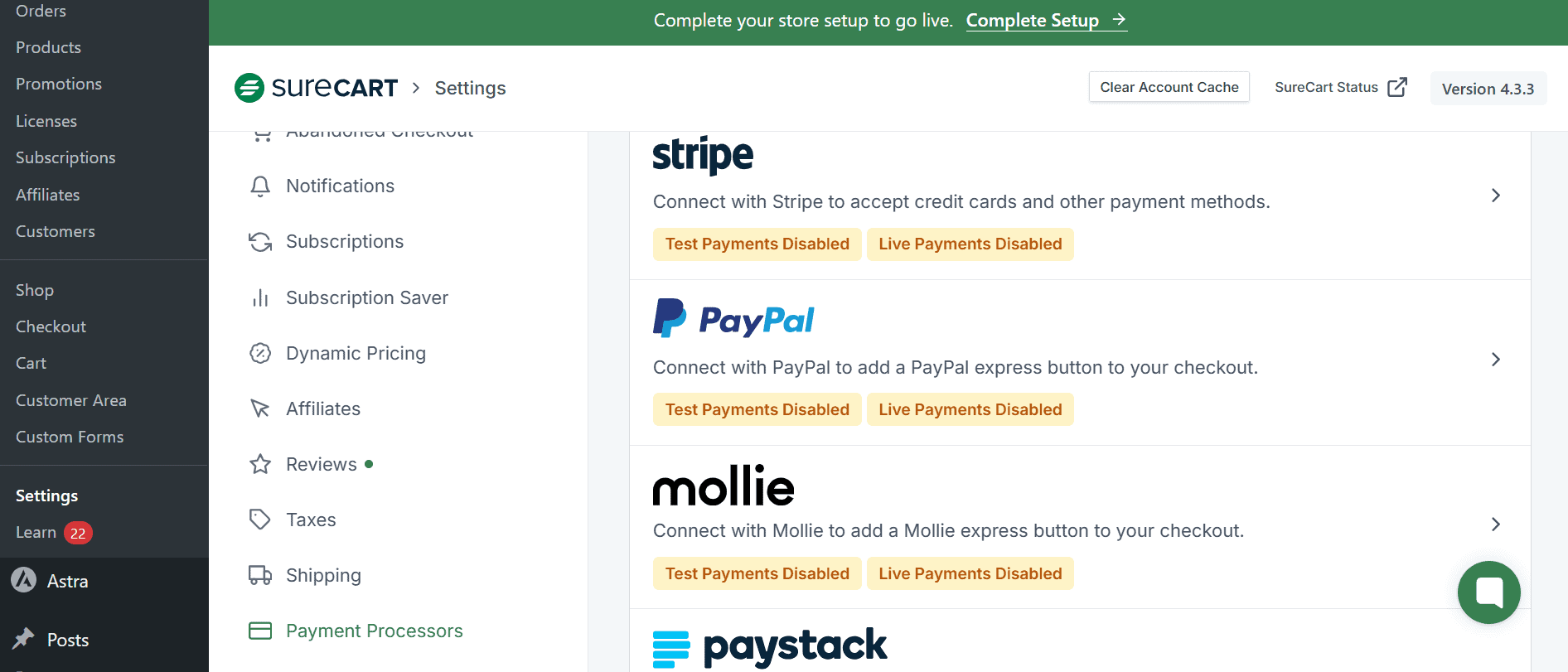
From your WordPress admin, go to SureCart → Settings → Payment Processors. SureCart supports five processors for recurring billing:
- Stripe
- PayPal
- Mollie
- Paystack
- Razorpay
The exact connection flow depends on the processor, but SureCart walks you through setup from the Payment Processors screen. You can connect more than one, giving your customers a choice of how they pay at checkout. Which combination you offer is up to you and your audience.
Step 3: Create your subscription product
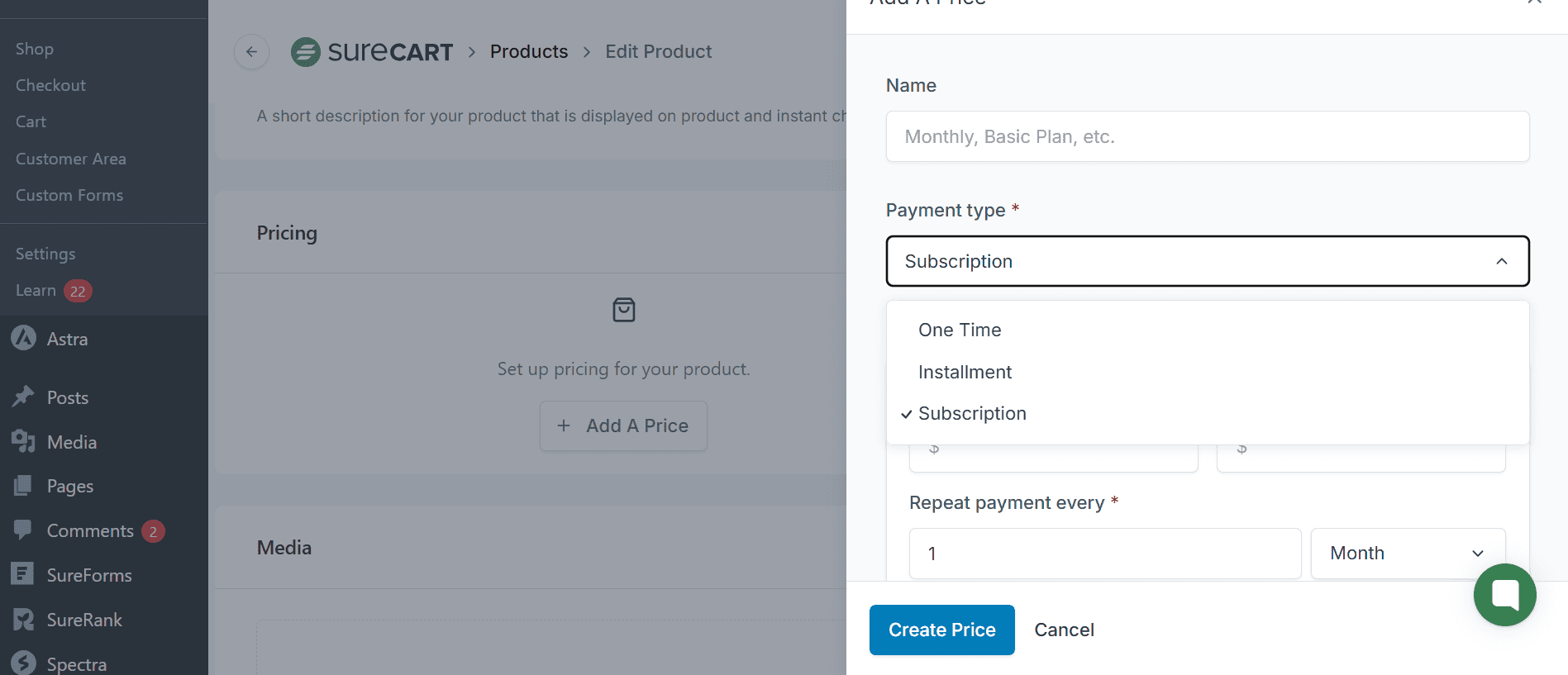
Go to SureCart → Products → Add Product. Give it a name, description, and upload any digital files, license keys, or media if you’re selling software or downloadable content.
Under the Pricing section, switch the billing type from one-time to Subscription. This is where the subscription itself gets configured.
Step 4: Choose your pricing model
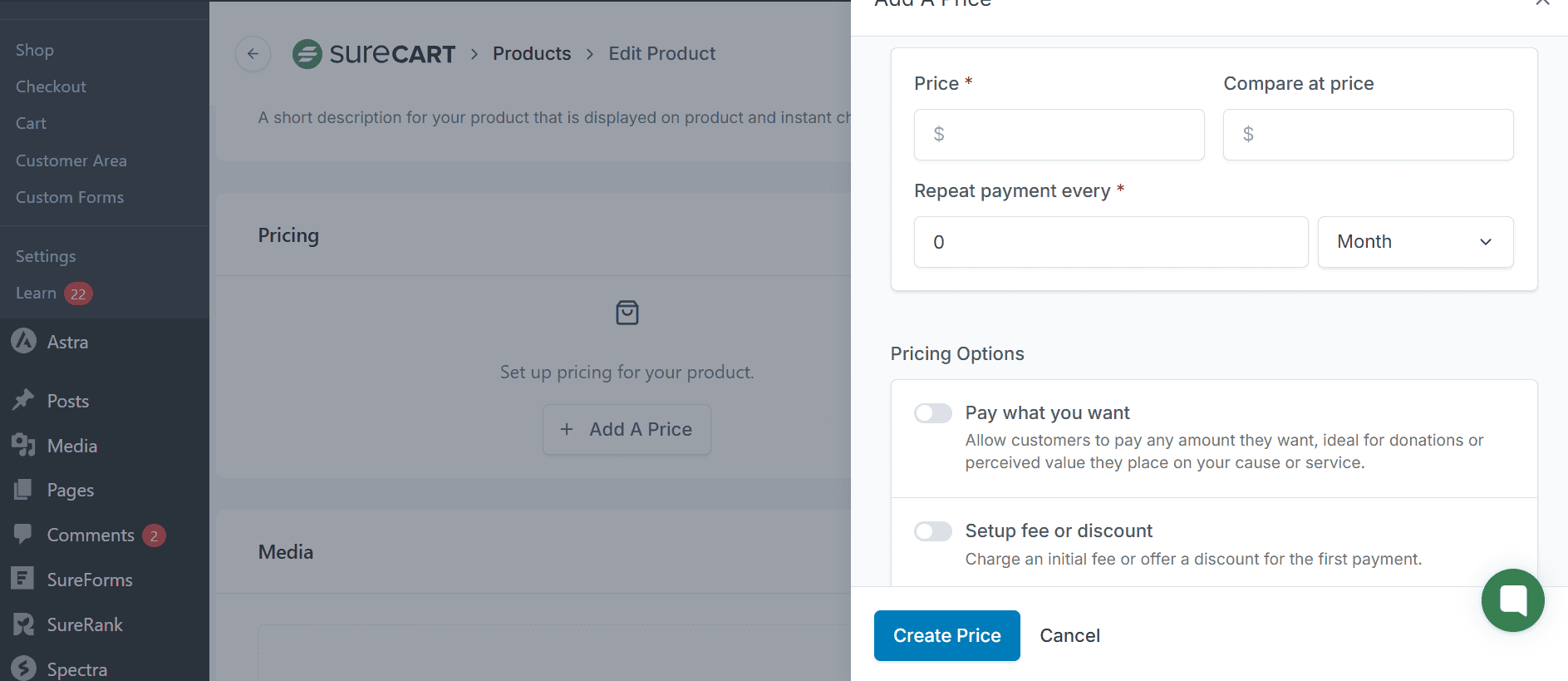
SureCart supports several recurring pricing structures. All of these are configured on the product’s Pricing tab:
Flat-rate: A fixed amount billed on a set interval (daily, weekly, monthly, quarterly, yearly). The simplest model and the most common starting point.
Multiple billing intervals on one product: Add more than one price to the same product to offer, say, monthly and annual pricing side by side. Annual plans typically carry a discount, which you set directly on the price. Customers pick their preferred interval at checkout.
Pay-what-you-want: Let the customer set their own price within a range you define. Useful for supporter memberships, donation-based subscriptions, or community-driven products where you want flexibility.
Setup fee: Attach a one-time fee that’s charged alongside the first recurring payment. Useful for onboarding, account setup, or any work that happens before the recurring service begins.
Intro price, then standard renewal price: Charge a different amount for the first billing cycle than for renewals. Common use cases: a discounted first month that converts to the regular rate, or a promotional annual rate that switches to standard pricing on renewal. You set this up by creating two prices on the product and selecting one as the renewal price for the other.
Step 5: Add a free trial (optional)
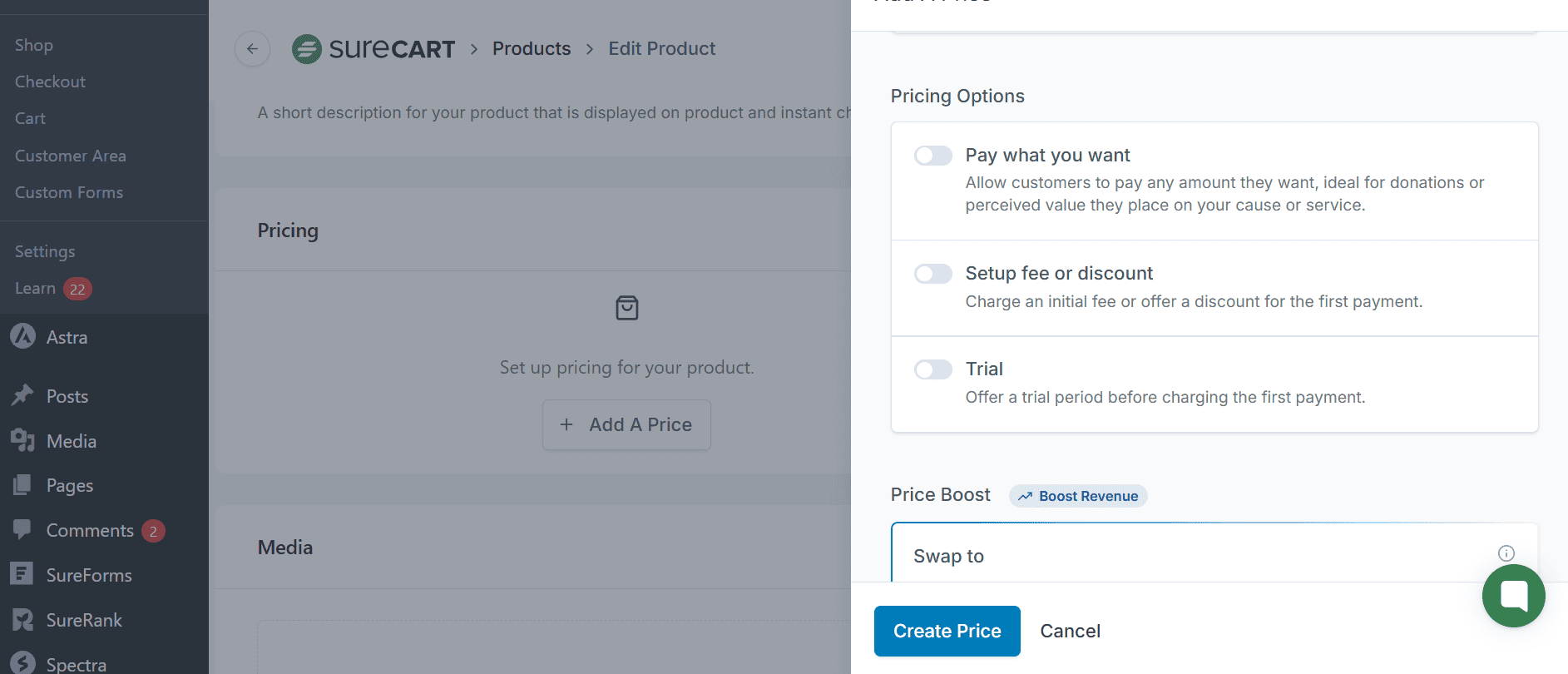
On any recurring price, you can enable a trial period by setting the number of trial days. Depending on your subscription settings, customers can start a free trial with or without a payment method. When the trial ends, the subscription can convert to paid automatically based on your configuration.
If you want to prevent the same customer from starting multiple free trials on the same product, SureCart includes a duplicate trial prevention setting in your subscription configuration. It’s opt-in, so you’ll need to enable it explicitly if you want that protection.
Step 6: Build the checkout
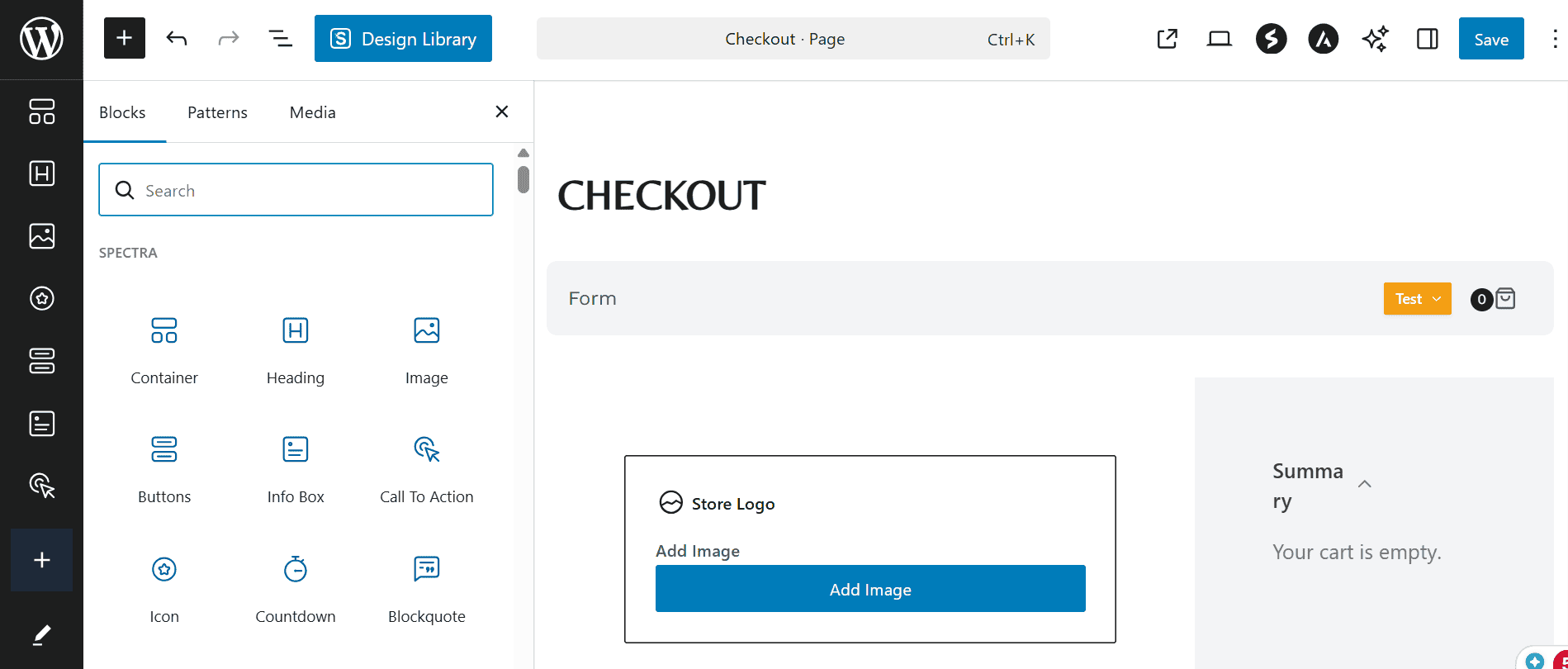
SureCart’s checkout builder lives at SureCart → Checkout Forms in your WordPress admin. You’re building a checkout page that you can embed anywhere on your WordPress site via a block or shortcode.
A few features worth enabling at this stage to grow average order value:
Order bumps: A single-click add-on shown inside the checkout flow. Use it to offer an annual upgrade, an add-on product, or an extended trial at a discount. Bumps convert well because the customer is already in a buying mindset.
Upsells: A post-purchase offer shown after the subscription is confirmed. Since the customer’s payment method is already on file, accepting an upsell is frictionless.
Abandoned checkout recovery: SureCart captures the customer’s email early in the checkout flow and sends automated recovery emails if they don’t complete the purchase. You configure this in your SureCart dashboard settings. No third-party tool needed.
Step 7: Configure the customer billing area
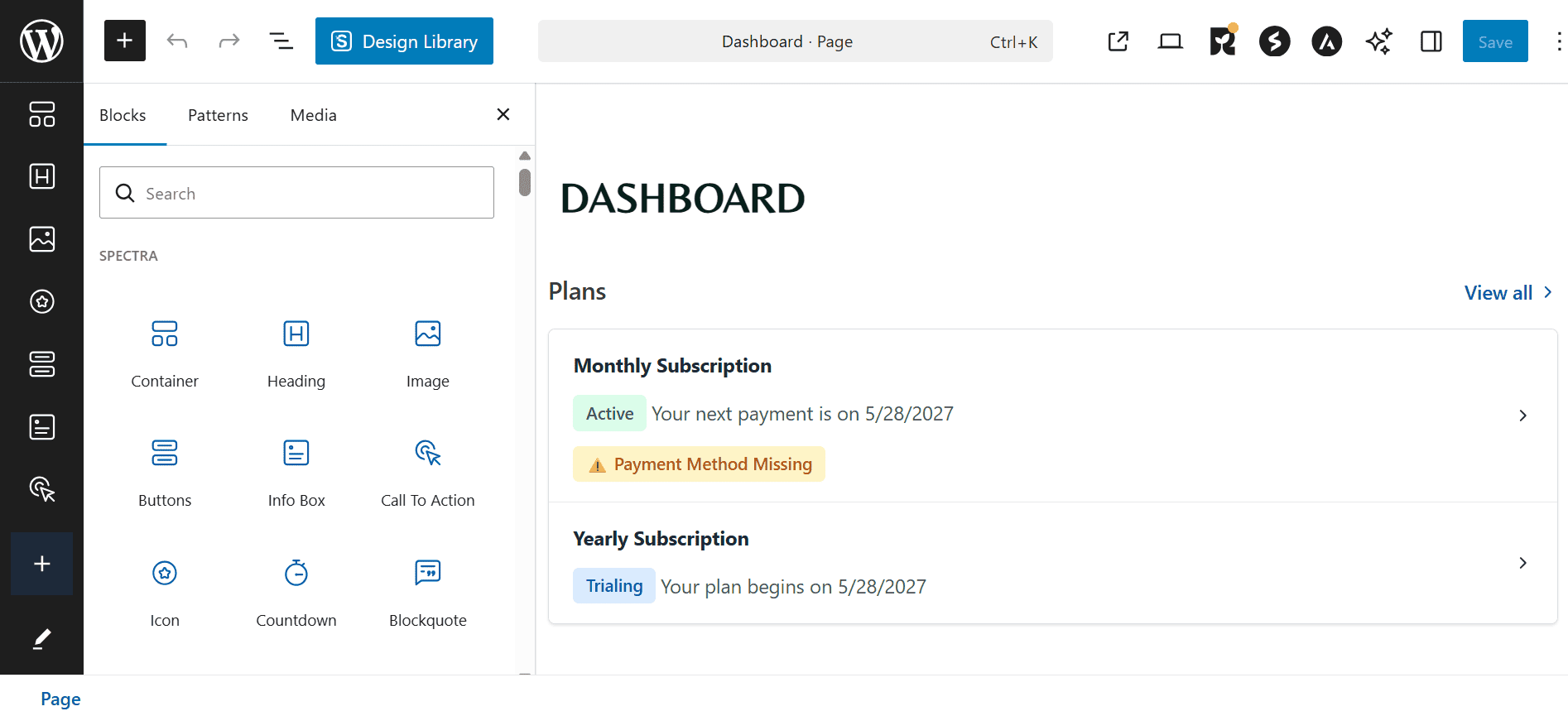
Go to SureCart → Customer Area to configure the self-service portal your subscribers will use to manage their accounts. From the portal, customers can:
- Update their payment method: swap a card without contacting support
- Switch plans: upgrade or downgrade between prices you’ve set up as available swaps; proration is handled automatically
- Cancel: depending on your subscription settings, cancellations can take effect immediately or at the end of the current billing period.
- View orders and invoices: see their full order history and download past invoices
You control which of these options are available to customers. Go to SureCart → Settings → Subscriptions and scroll down to the Customer Portal section to toggle cancellations, plan changes, and quantity updates on or off.
You can link to the customer area from your site navigation, post-purchase emails, or a dedicated account page in WordPress.
Step 8: Set up your notification templates
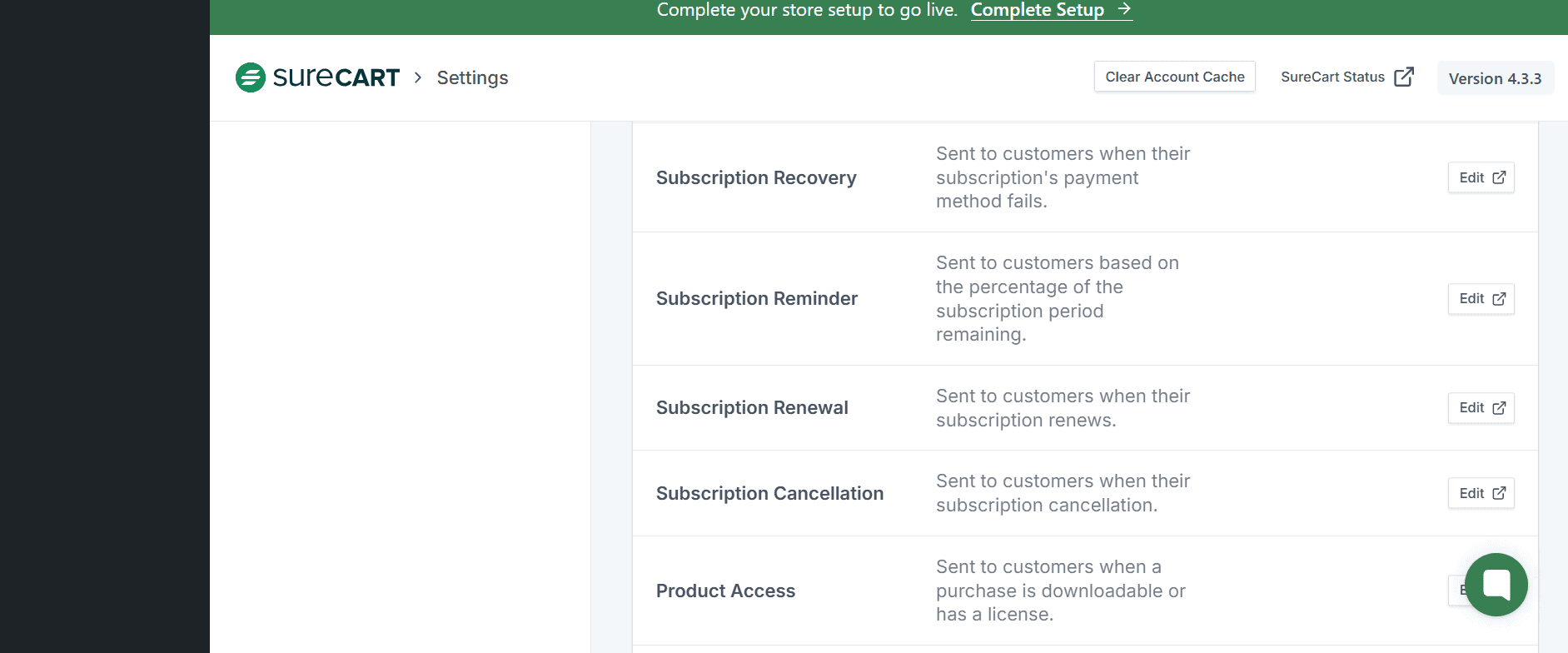
Subscription emails in SureCart are configured under SureCart → Settings → Notifications. You’ll find pre-built templates for every subscription lifecycle event. The ones to review before launch:
- Renewal reminder: sent a configurable number of days before the next charge. Reduces disputes by giving customers a heads-up.
- Payment failed: triggered when a recurring charge fails. Includes a direct link for the customer to update their payment method in the portal.
- Trial ending soon: sent before a free trial converts to paid. Reduces cancellations by reminding customers of the value they’re already getting.
- Subscription canceled: a confirmation email with an option to resubscribe.
Each template is fully customizable, so you can match your brand tone.
Step 9: Connect webhooks and external tools
By this point, your subscription business is already operational. SureCart handles recurring billing, renewals, customer management, payment recovery, and subscription notifications natively.
Webhooks are available when you want to extend those capabilities further. Every major subscription lifecycle event can trigger a webhook, allowing you to sync subscriber data, trigger automations, update CRMs, or connect with other business tools.
You configure webhooks under SureCart → Settings → Webhooks. Practical uses:
- Email platforms (ConvertKit, ActiveCampaign, Mailchimp): segment subscribers by plan, status, or churn risk
- Zapier or Make: trigger a win-back sequence when a subscription is canceled, or tag a customer in your CRM on every renewal
- Slack: get a ping when MRR crosses a milestone
- Your own backend — sync subscription state to internal dashboards or tools
For most stores, a single Zapier or Make connection covers the majority of post-sale automation needs without writing any code.
Step 10: Test your subscription flow before going live
Before publishing your checkout page, switch your payment processor to Test Mode from SureCart → Settings → Payment Processors. Run through the full customer journey end to end:
- Complete a checkout with a test card
- Confirm the subscription appears under SureCart → Subscriptions
- Test a plan swap from the customer portal
- Trigger a payment failure using a test decline card and confirm the failed-payment email fires
- Confirm the portal payment-update link works
Once everything checks out, switch the processor to Live Mode and publish your checkout page. Your subscription business on WordPress is live.
What to look for in an ecommerce platform for subscriptions
Most ecommerce tools can technically charge customers on a recurring basis.
But running a successful subscription business involves much more than recurring payments alone.
As your subscriber base grows, you’ll also need to manage upgrades, downgrades, failed payments, renewals, customer self-service, trial conversions, churn reduction, subscription analytics, and long-term retention. That’s where the difference between a basic recurring payment tool and a true ecommerce platform for subscriptions becomes obvious.
Traditional subscription setup | Modern ecommerce platform for subscriptions |
|---|---|
Multiple plugins for billing, checkout, and customer management | Native recurring billing and subscription management |
Separate tools for failed payment recovery | Built-in dunning management |
Manual handling for upgrades and downgrades | Automatic proration for plan changes |
Fragmented customer account experience | Self-service billing portal |
Limited subscription reporting | Built-in MRR, renewal, and churn tracking |
Extra SaaS tools for automation | Subscription workflows managed in one place |
The right subscription platform should simplify operations instead of adding more moving parts to your business.
Here are the features that matter most when choosing a subscription platform for WordPress:
Native recurring billing
Recurring payments should work out of the box without relying on multiple add-ons or external tools. Your platform should support flexible billing intervals, automatic renewals, and subscription management natively.
Flexible pricing models
Different businesses need different subscription models. Look for support for free trials, setup fees, annual discounts, intro pricing, installment plans, and pay-what-you-want subscriptions.
A self-service billing portal
Customers should be able to update payment methods, switch plans, pause subscriptions, download invoices, or cancel without contacting support. A proper billing portal improves customer experience while reducing support workload.
Failed payment recovery (dunning)
Failed payments are one of the biggest causes of involuntary churn in subscription businesses. Your platform should automatically retry failed payments, notify customers, and make card updates easy.
Plan changes and proration
As customers upgrade or downgrade plans, your platform should automatically handle proration so billing adjustments happen correctly without manual calculations.
Subscription analytics
Recurring revenue businesses rely heavily on metrics like MRR, renewals, churn, failed payments, and subscriber growth. Built-in subscription reporting makes it easier to understand how your business is performing over time.
Payment processor flexibility
Different audiences prefer different payment methods. A strong WordPress subscription plugin should support multiple processors and localized payment options without forcing you into a single gateway.
WordPress-native flexibility
One of the biggest advantages of selling subscriptions on WordPress is ownership. You control your site, your SEO, your checkout experience, and your customer relationships, while avoiding the increasing platform fees common with hosted ecommerce systems.
The easier your subscription system is to manage, the more time you have to focus on growing recurring revenue.
Start selling subscriptions online on WordPress
Subscriptions give businesses something most one-time sales models don’t: predictable recurring revenue.
And with WordPress, launching a subscription business no longer requires stitching together multiple tools just to manage recurring billing, customer accounts, failed payments, and renewals.
Using SureCart, you can manage the entire subscription lifecycle directly inside WordPress, from recurring payments and free trials to proration, dunning management, and customer self-service.
The result is a simpler system that’s easier to manage, easier to scale, and built for long-term recurring revenue growth.