Starting a WordPress ecommerce website sounds simple until you’re twenty minutes in and staring at five hosting options, a stack of conflicting plugin recommendations, and a WooCommerce setup wizard telling you the real work hasn’t started yet.
This guide gives you a clear path. It covers everything from picking a domain to taking your first payment, using a specific stack that is practical for beginners and honest about what it costs. If you’ve been searching for a WooCommerce alternative or want to understand the real cost of WordPress ecommerce before committing, this guide covers both.
One thing to know upfront: this guide recommends SureCart as the ecommerce plugin instead of WooCommerce. The section right below explains why, with a plain cost comparison, before the steps begin.
What you need to build a WordPress ecommerce website
Before the steps, here’s everything a working store requires:
- A domain name: your store’s web address, such as yourshopname.com
- Web hosting: a server where your WordPress site lives
- WordPress: the content management system your store is built on (free to download and use)
- A WordPress ecommerce plugin: adds product listings, checkout, and payment processing to WordPress
- A theme: controls how your store looks to visitors
- A payment processor account: an account with Stripe, PayPal, or another gateway to receive money
That is the complete list. Everything in this guide is the detail behind each of these six items.
Why this guide uses SureCart instead of WooCommerce
Most tutorials about ecommerce for WordPress default to WooCommerce. It has been around since 2011, has millions of active installs, and is the name most people recognize when they think of a WordPress online store. That familiarity is a real asset.
But WooCommerce’s “free” label comes with an important asterisk. The core plugin is free to install. Building a store with abandoned cart recovery, order bumps, upsells, dynamic pricing, and more means paying for extensions on top of that free core. These are three features that drive revenue for almost every store, regardless of what you sell.
There is also a structural issue worth understanding. WooCommerce runs entirely on your WordPress server. Every product page load, every checkout step, and every database query for orders, customers, and inventory draws from the same server resources as the rest of your site. As your store grows and traffic increases, that load grows with it. Plugin conflicts become more frequent, performance issues become harder to diagnose, and you end up managing infrastructure rather than managing a business.
SureCart takes a different approach. It is built as a headless ecommerce plugin, meaning checkout, payment processing, and subscription management run on SureCart’s cloud infrastructure rather than loading on your WordPress server. Your WordPress site renders the storefront; SureCart runs the full commerce backend: checkout, payments, orders, customer data, and subscriptions, all on its own cloud. The result is a lighter site with fewer compatibility issues between plugins.
More importantly for a first store: SureCart’s free plan includes all 100+ features. Abandoned cart recovery, order bumps, affiliate platform, and more are not gated behind a paid tier. They are available from the moment you activate the plugin.
Here is how the two compare on the features every ecommerce website actually needs:
Feature | Why it matters for any store | SureCart (Free plan) | WooCommerce (core plugin) |
|---|---|---|---|
Abandoned cart recovery | Win back customers who started checkout but didn’t finish | Included | Requires a paid plugin |
Order bumps and upsells | Increase average order value at the point of purchase | Included | Requires a paid plugin |
Affiliate platform | Let partners promote your store and earn commissions on sales | Included | Requires a paid plugin |
Multi-currency support | Sell to international customers in their own currency | Included | Requires a paid plugin |
Dynamic pricing rules | Member pricing, first-buyer discounts, role-based offers | Included | Requires a paid plugin |
Customer self-service portal | Customers manage their own downloads, subscriptions, and billing | Included | Partial (basic My Account page) |
Digital product delivery | Secure, automatic file delivery after payment | Included | Included (basic) |
Subscriptions | Sell memberships, recurring products, and SaaS plans | Included | Requires a paid plugin |
SureCart’s free Launch plan gives you access to all 100+ features. The only cost is a 2.9% fee on each sale. SureCart Pro ($199/year for one store) removes that fee entirely. Assembling the equivalent set of paid plugins on WooCommerce typically costs more than SureCart Pro for the year.
When WooCommerce makes more sense: If you are building a large physical product catalog with complex inventory rules, hundreds of individual products, or a specific dependency on a WooCommerce extension that has no equivalent elsewhere, WooCommerce gives you more depth. For most new stores, especially those selling digital products, services, subscriptions, or a mix, SureCart is the cleaner starting point.
Step-by-step: How to build your WordPress ecommerce website
The steps below walk through the full setup in order. By the end, you will have a live ecommerce website with a complete design, a working checkout, products listed, and a payment gateway connected.
Get a domain name and hosting
Your domain is the address visitors type to reach your store. Keep it short, easy to spell, and directly connected to what you sell. A .com extension is still the standard choice for an online store.
For hosting, choose a provider designed for WordPress. You want one-click WordPress installation, reliable uptime, and a server environment that stays fast under real traffic. SiteGround, Hostinger, and Cloudways all have strong WordPress-optimized plans at different price points.
Pro Tip: Skip shared hosting plans advertised as “unlimited” at the lowest tier. “Unlimited” often means slow load times during traffic spikes because you share server resources with hundreds of other sites. Look for hosts that specify PHP 8.x support and LiteSpeed or Nginx infrastructure, which handle WordPress more efficiently than older setups.
Most hosts let you register a domain directly during sign-up. Keeping your domain and hosting in the same place is convenient for a first store. You can separate them later without much friction if you need to.
Install WordPress
With hosting active, install WordPress from your host’s control panel. Every major WordPress host includes a one-click installer, usually labeled “WordPress Manager” or “Softaculous.”
Select your domain, create an admin username and a strong password, and confirm the install. The whole process takes under two minutes. After that, your WordPress dashboard is live at yourdomain.com/wp-admin.
Everything in this guide happens from inside that dashboard. No code required at any point.
Install the Astra theme
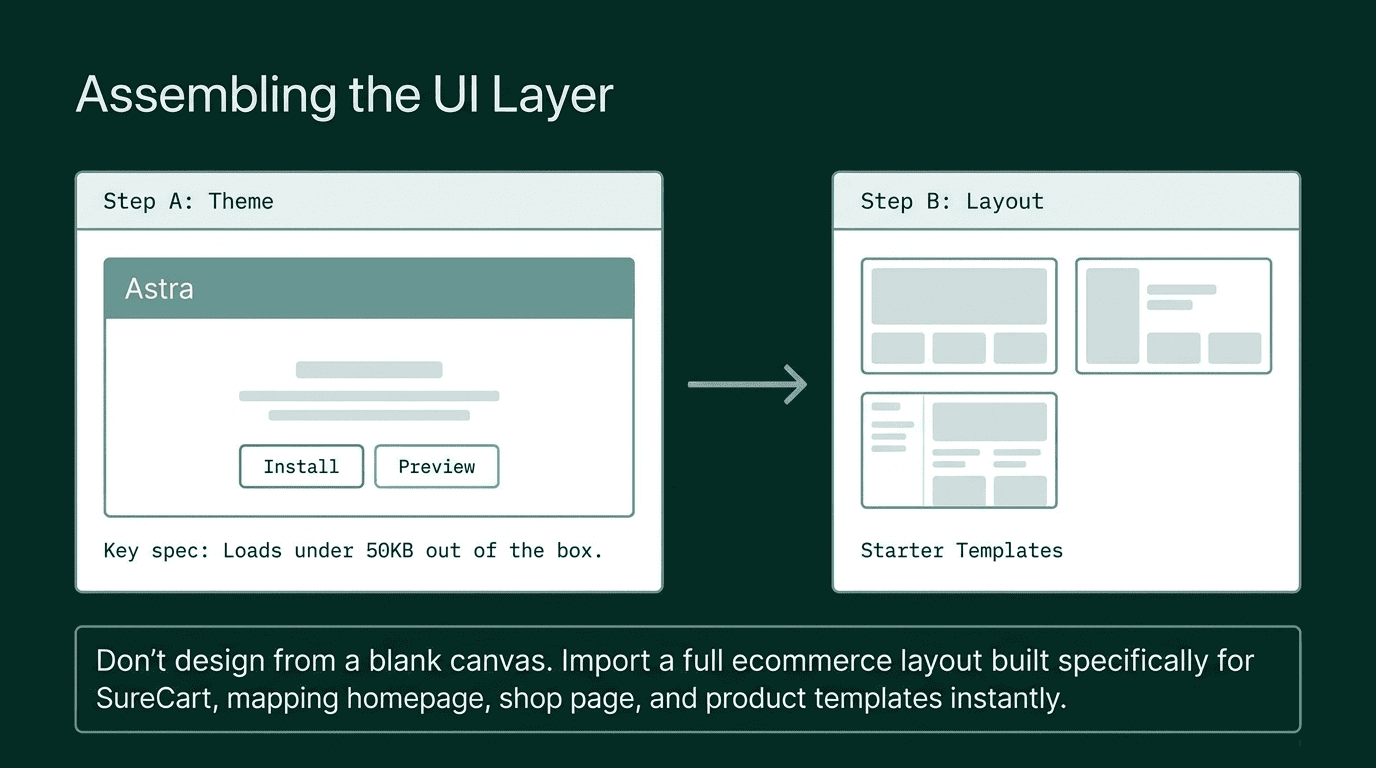
Your theme controls the visual structure of your store: page layout, typography, colors, and how product listings and checkout pages appear. Choosing carefully at the start matters because switching themes later means rebuilding your pages.
Astra is the recommended theme for this setup. It loads under 50KB out of the box, carries no unnecessary JavaScript dependencies by default, and is built to work cleanly with SureCart’s checkout forms and product page templates. The free version is a complete, functional theme, not a stripped-down preview of a paid tier.
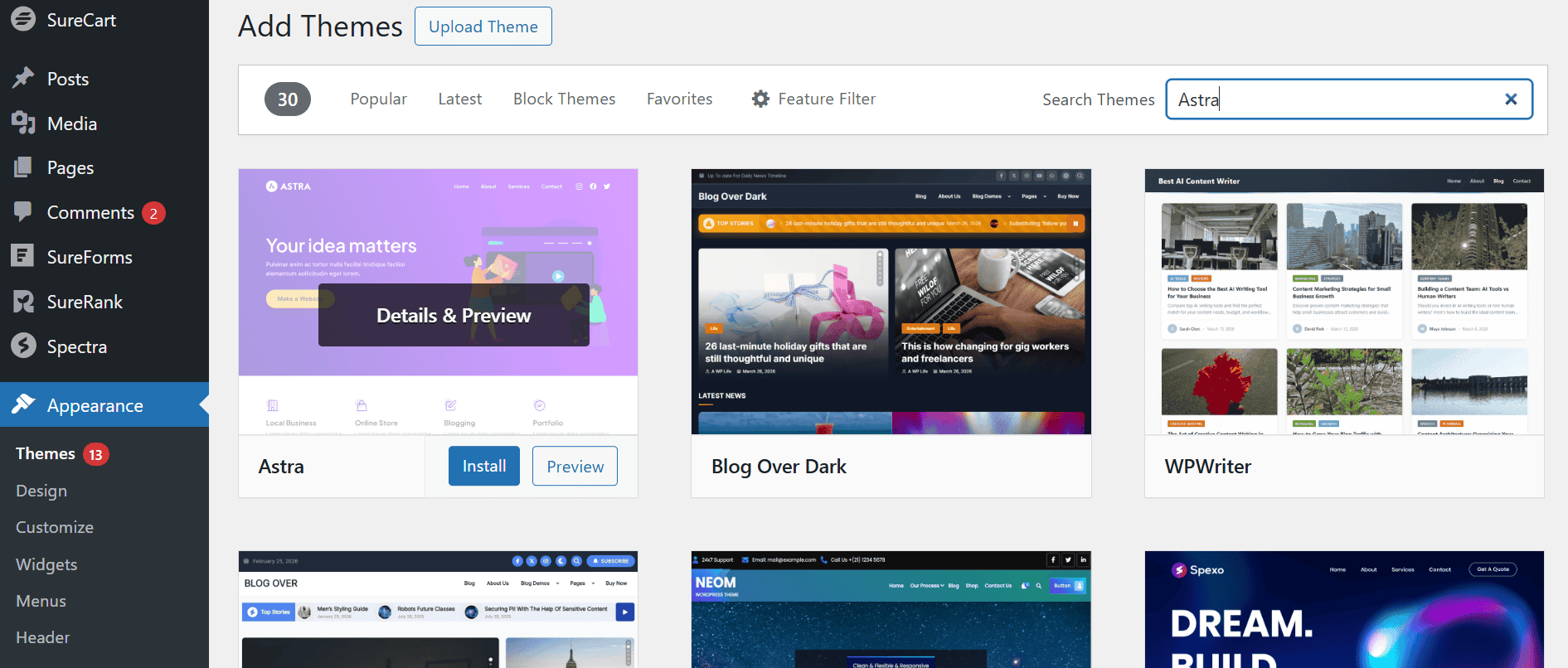
To install it:
- Go to Appearance > Themes in your WordPress dashboard
- Click Add New Theme
- Search for “Astra”
- Click Install, then Activate
Once activated, Astra applies a clean, minimal default layout. You bring in a full store design in the next step.
Select a store design with Starter Templates

You do not need to design your store from scratch. Starter Templates is a free plugin from Brainstorm Force (the same team behind Astra and SureCart) that gives you a library of pre-built website designs you can import in a couple of clicks, including ecommerce layouts built specifically for SureCart stores. You can browse the full SureCart integration at surecart.com/integrations/starter-templates.
After importing a template, you have a fully designed homepage, shop page, product pages, and checkout, all styled to work together. You replace the placeholder content with your own brand, copy, and product images.
To use Starter Templates:
- Go to Plugins > Add New in your dashboard
- Search for “Starter Templates,” click Install, then Activate
- Then you’ll see an onboarding wizard, where you can choose to “Build with AI” or “Build with Templates.”
- If you choose “Build with Templates,” you’ll see a template library, where you can choose a design from many eCommerce templates
- Choose a design, click Continue, and follow the short wizard
Your website will be ready in about two minutes.
Pro Tip: Match the template to your product type before choosing. A layout built for a digital product store has a different page structure than one designed for physical products or a membership site. Getting this right now saves significant rework later.
Install and set up SureCart
With your site design in place, install SureCart and connect it to your store.
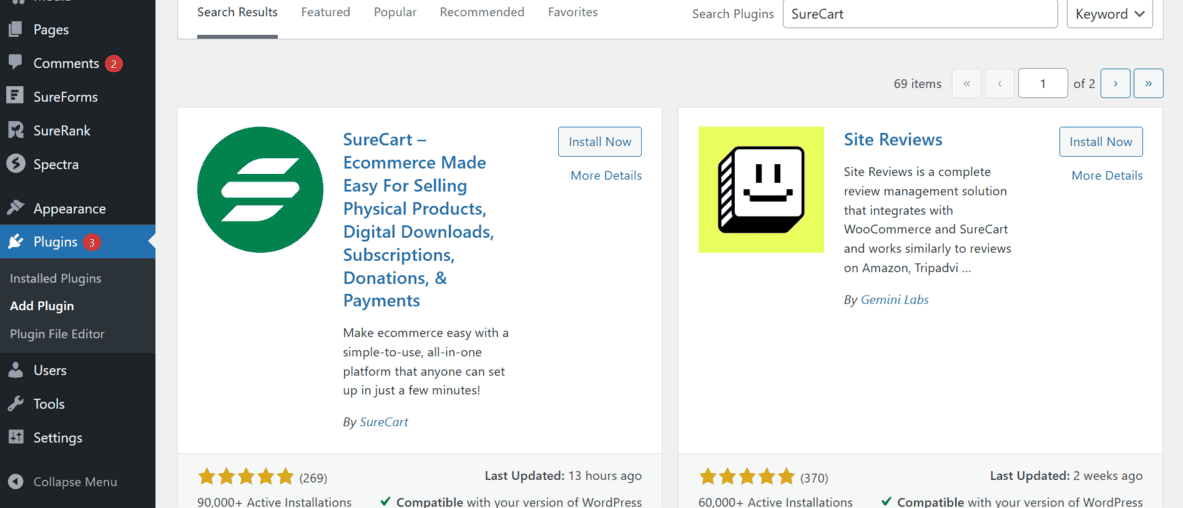
In your WordPress dashboard:
- Go to Plugins > Add New
- Search for “SureCart,” click Install, then Activate
- Once activated, SureCart’s setup wizard launches automatically
- Go through the wizard: choose your store name, enter a notification email address, and decide whether to start with demo products (recommended for first-time setups so you can see how everything looks before adding your own)
After the wizard finishes, a green banner appears at the top of your SureCart Products page prompting you to complete setup. Click Complete Setup in that banner to claim your store and connect it to a SureCart account. You can sign up at that point or sign in if you already have one.
Once claimed, SureCart creates the pages your store needs automatically: a shop page, a product page template, and a checkout page. These appear as regular WordPress pages under Pages in your dashboard. For a full setup walkthrough, refer to SureCart’s getting started documentation.
Connect your payment gateway
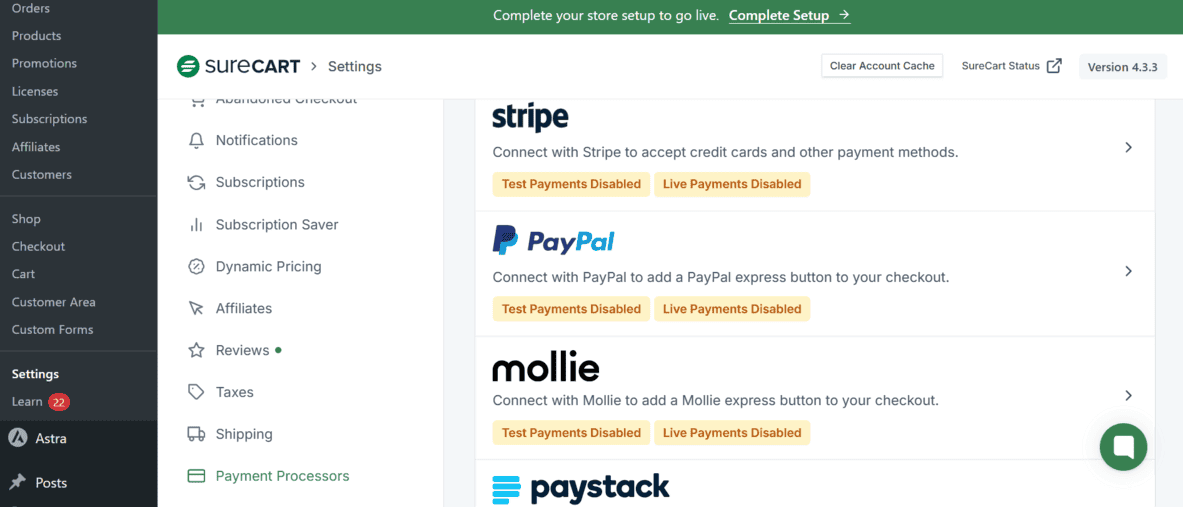
In your SureCart dashboard, go to Settings > Payment Processors to connect the gateway where your money will land.
SureCart supports four payment processors:
- Stripe: the most widely used option, works in most countries, accepts cards, and many local payment methods
- PayPal: a practical addition if your customers expect a PayPal checkout option
- Mollie: a strong choice for stores selling to customers across Europe
- Razorpay: the recommended gateway for Indian sellers, with UPI support built in
You can connect more than one. Stripe covers most cases and is the easiest to start with. Connecting it takes a few minutes: authorize SureCart to link to your Stripe account, and the integration is live.
Note that payment processors charge their own fees in addition to any platform costs. Stripe’s standard rate is 2.9% plus $0.30 per transaction in the US. These fees apply regardless of which ecommerce plugin you use.
Add your first product
In your SureCart dashboard, go to Products > Add New.
SureCart supports several product types from the same interface: digital downloads, physical products with variants and inventory tracking, subscriptions, services, donations, pay-what-you-want pricing, and software with built-in license key generation.
For a digital product (an ebook, template file, software license, or course access):
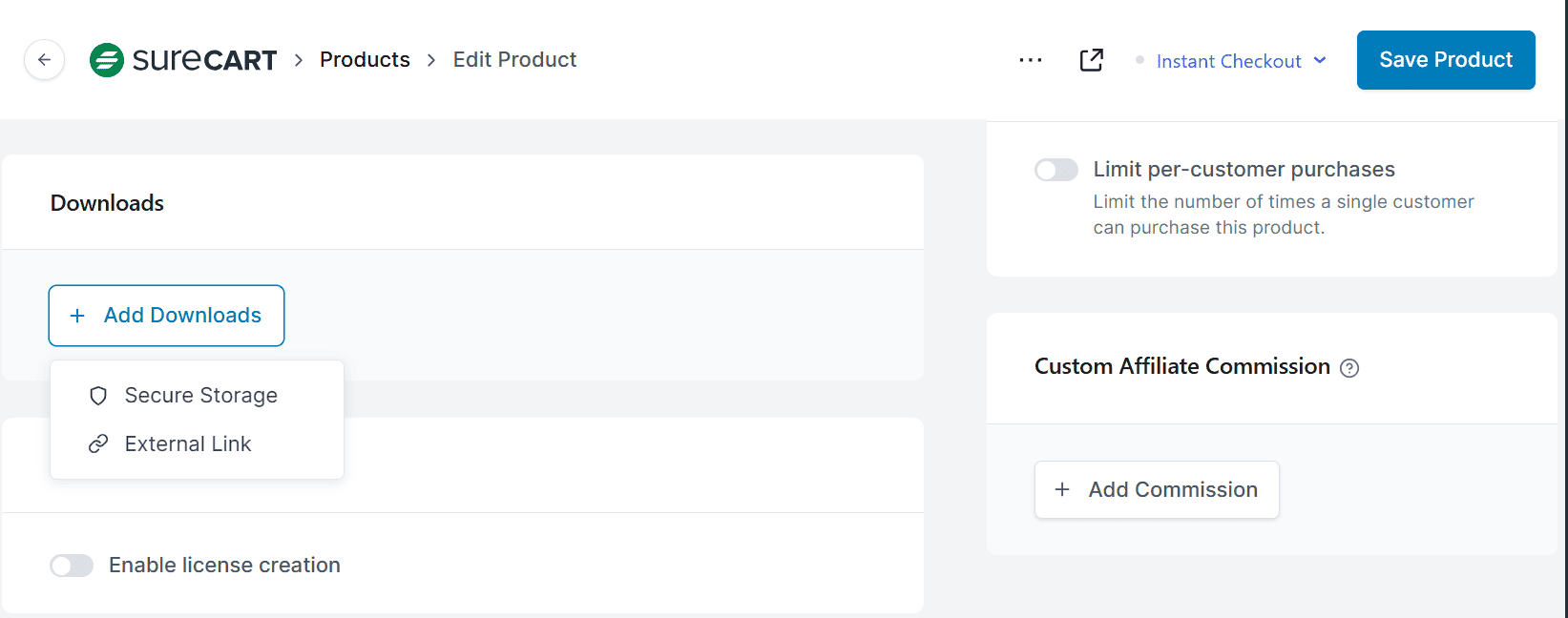
- Enter the product name, description, and images
- Under the Pricing section, click Add a Price, set your price, and click Create Price
- Scroll to the Downloads section on the product page and click Add Downloads
- Choose Secure Storage to upload the file directly to SureCart, or paste an external URL from Google Drive, Dropbox, or similar storage
- If you’re selling software, a plugin, or a theme, scroll to the Licensing section and enable it to automatically generate and deliver license keys to buyers on purchase
- Publish the product
SureCart handles secure file delivery automatically after payment. The customer receives a download link in their confirmation email and through their SureCart customer portal, without any manual action from you.
For a physical product (clothing, supplements, handmade goods):
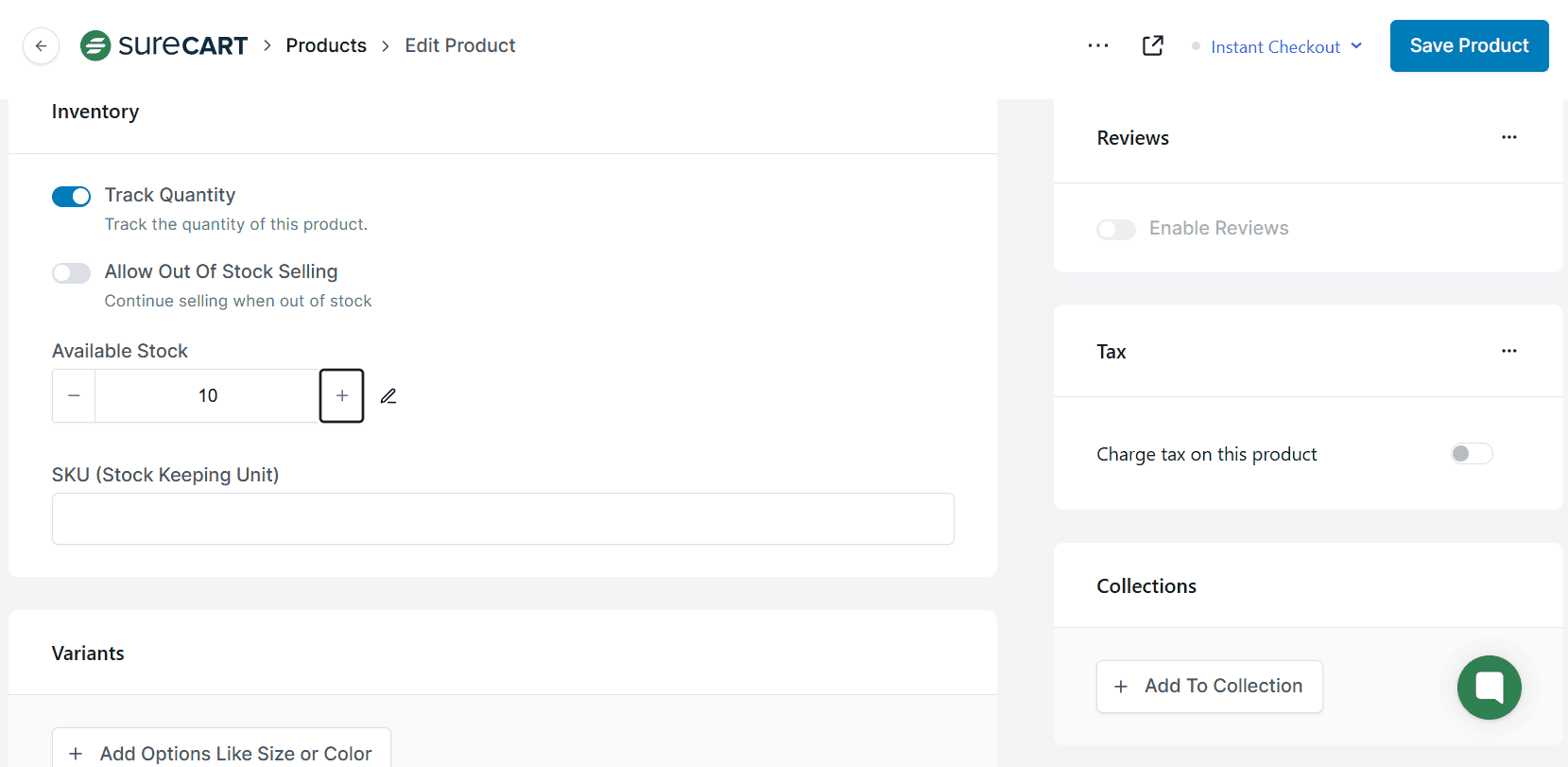
- Enter the product name, description, and images
- Under the Pricing section, click Add a Price, select One Time as the Payment Type, enter the price, and click Create Price
- Scroll to the Inventory section and click the Track Quantity toggle to enable stock tracking, then enter your available stock quantity and optionally add a SKU for each product
- Scroll to the Variants section just below Inventory and click Add Options Like Size or Color to create variant combinations; you can set separate stock quantities and prices per variant if needed
- In the Shipping section, enable the Physical product toggle and enter the product weight so SureCart can calculate shipping rates according to your shipping profile
The product goes live on your shop page the moment you publish it.
Note for the shipping profile context: If you haven’t set up a shipping profile yet, do that first from SureCart > Settings > Shipping before adding physical products. The shipping rate the customer sees at checkout is pulled from that profile based on the product weight you enter here.
For a subscription product:
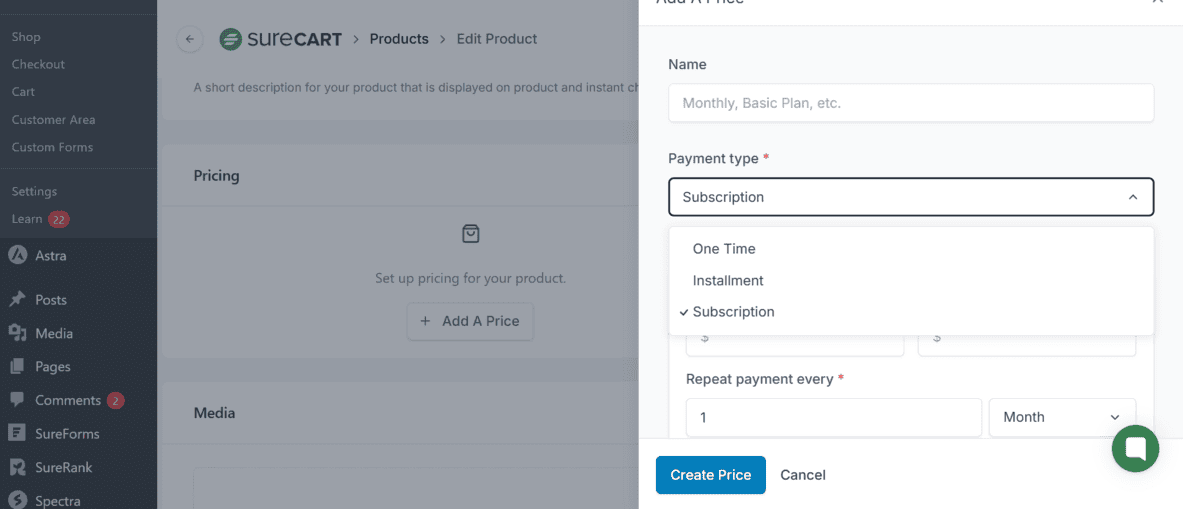
- Enter the product name, description, and images
- Under the Pricing section, click Add a Price
- In the price form, set the pricing name and select Subscription as the Payment Type
- Enter the price and choose the billing interval: daily, weekly, monthly, or yearly
- Optionally toggle the Setup Fee to charge a one-time fee alongside the first payment
- Optionally toggle Free Trial and specify the number of trial days
- Click Create Price
SureCart manages all recurring billing, renewal reminders, and customer subscription changes automatically from that point forward.
Set up your shop page and checkout
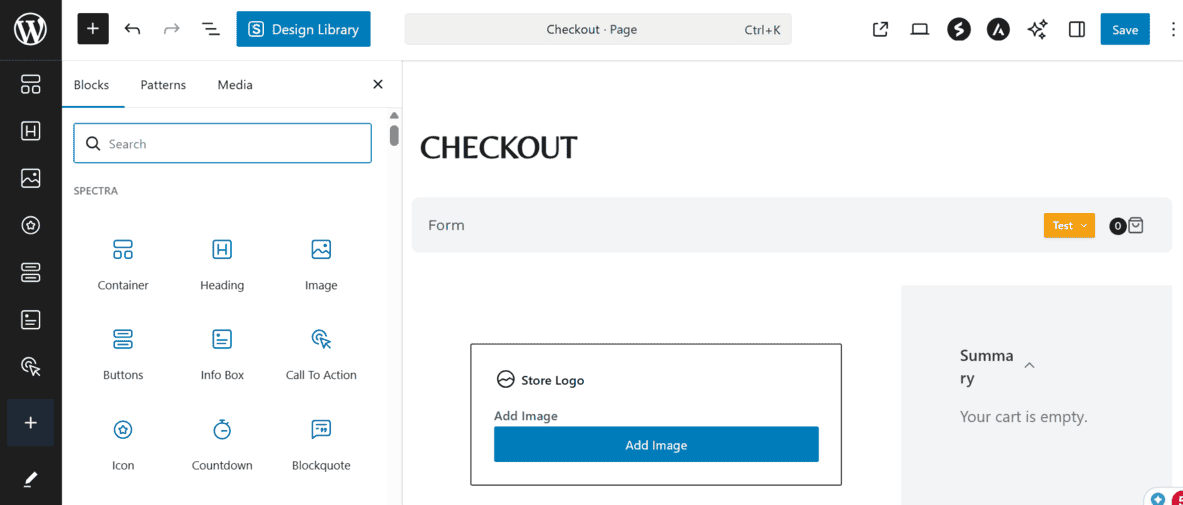
SureCart creates both pages automatically during setup. You can find them under Pages in your WordPress dashboard. The shop page displays your published products in a grid layout. The checkout page is where purchases are completed.
Your checkout form is managed inside the SureCart dashboard under Checkout Forms. From the drag-and-drop form builder, you can add or remove checkout fields, configure a coupon code input, and add order bumps. An order bump is a one-click add-on offer that appears just before the customer completes payment. No separate plugin required.
If you used a Starter Templates design earlier, the shop and checkout pages are already styled to match your site. Verify that both are accessible from your site’s main navigation menu before launch.
Configure taxes and customer emails
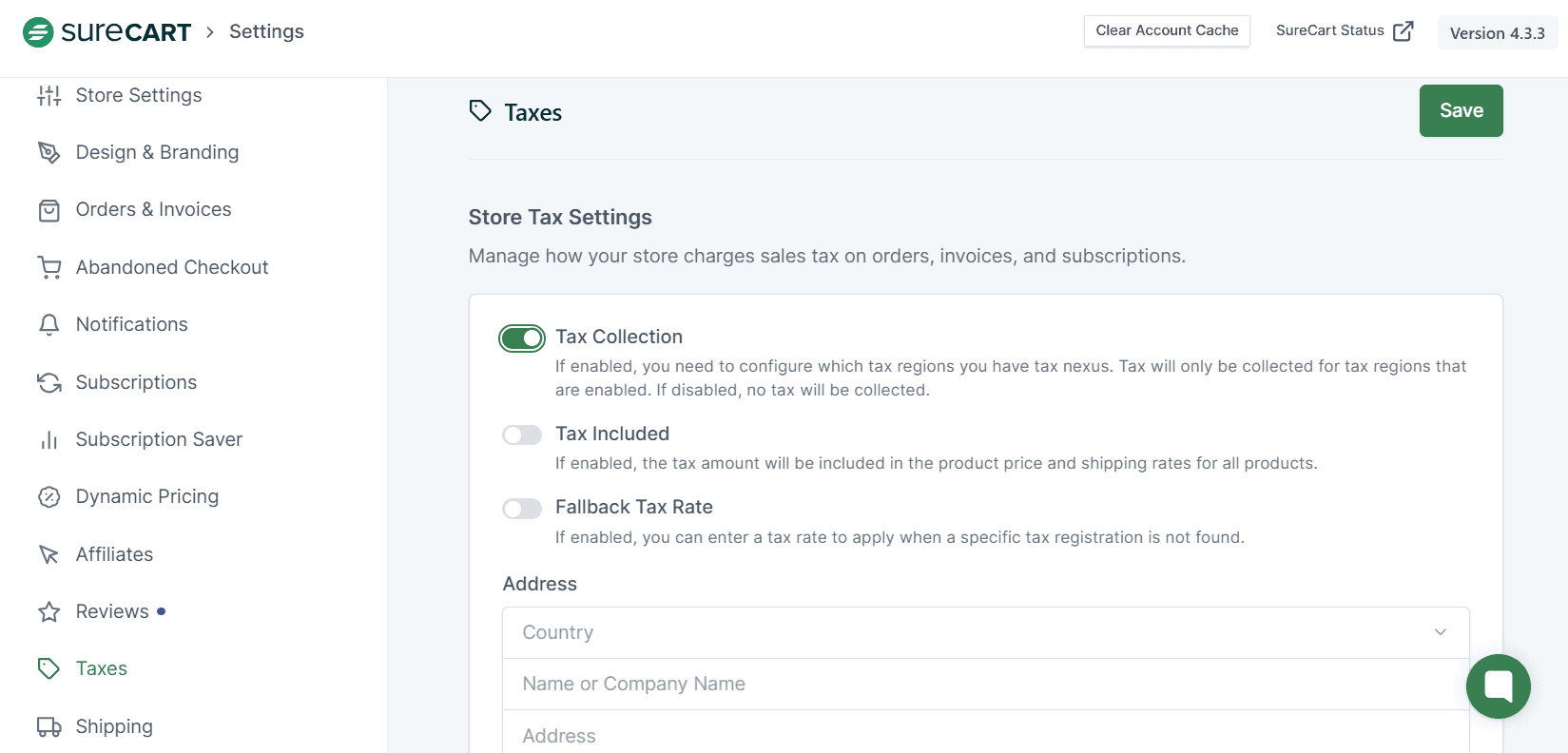
Tax settings live inside your SureCart dashboard under Settings > Taxes. Enable the Tax Collection toggle, then select the Tax Regions where your business needs to collect tax. For each region, you can choose between automatic calculation or a manual rate you define. SureCart applies the correct tax at checkout based on the customer’s location. No separate tax plugin required.
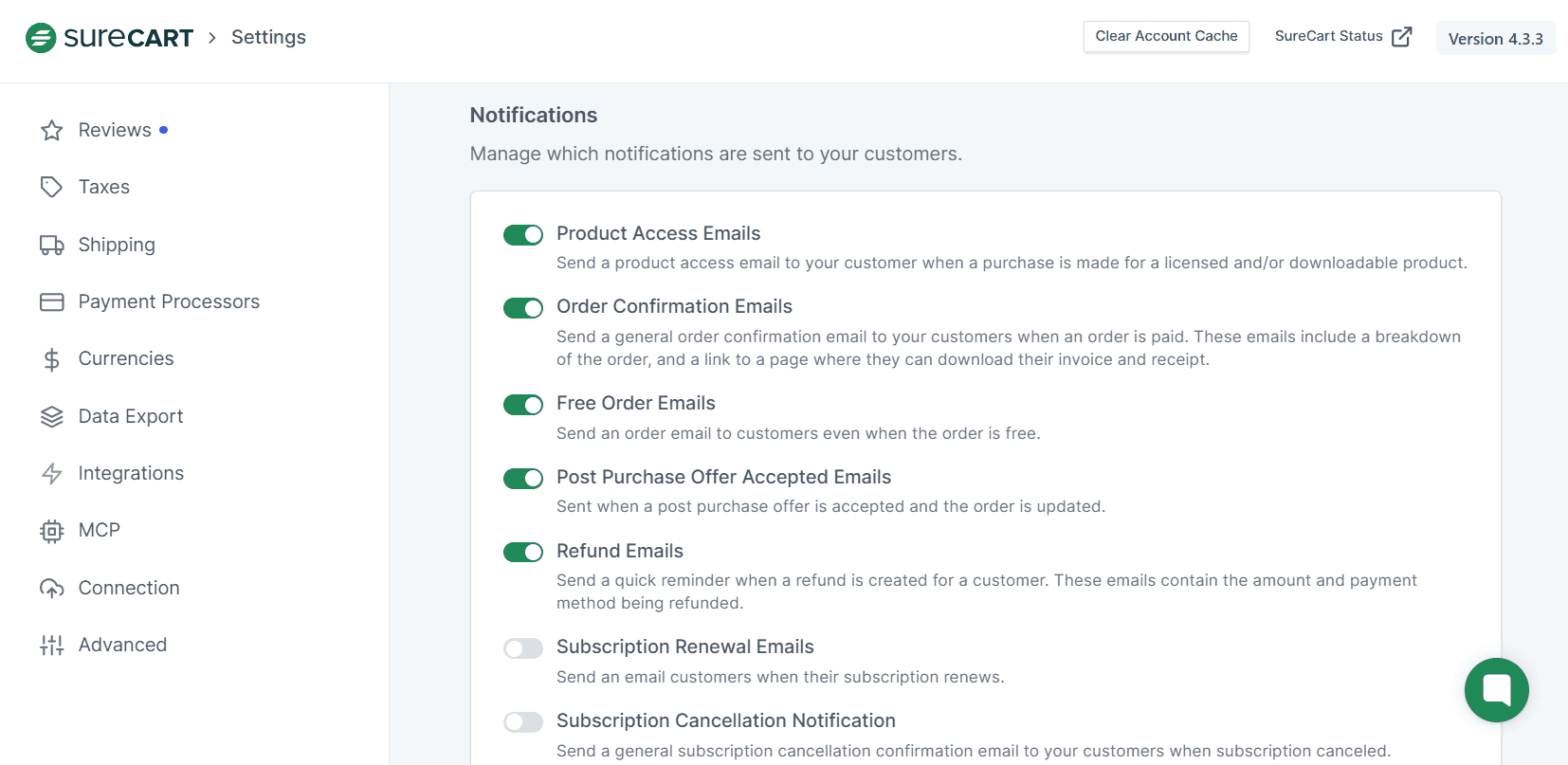
For customer emails, go to Settings > Notifications. From here, you can toggle individual notification types on or off: order confirmations, refunds, subscription renewals, subscription cancellation notices, and subscription recovery emails; and customize the subject line and body of each. SureCart sends all of these from its own infrastructure by default. You do not need a third-party transactional email plugin for them to work.
Test before you launch
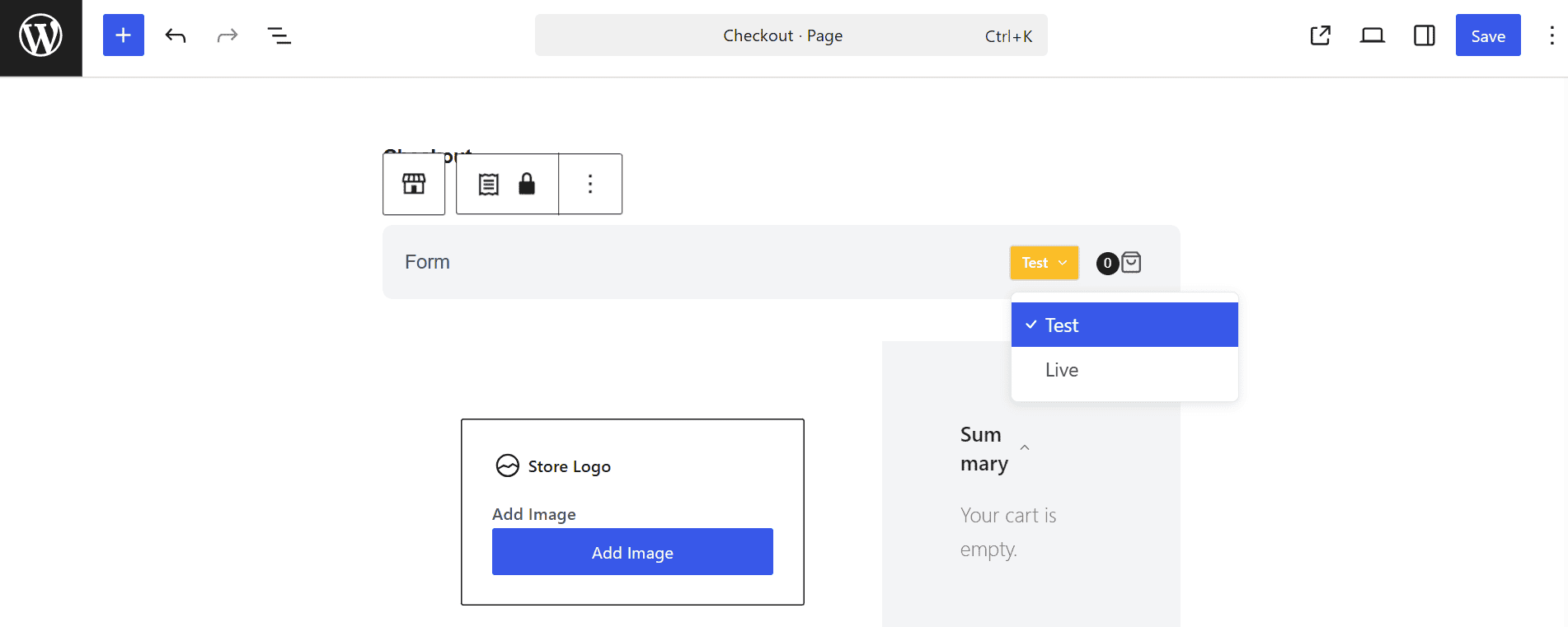
Before sending any real traffic to your store, run a complete test transaction from start to finish.
Pro Tip: SureCart has a built-in Test Mode. Open your checkout page in the WordPress editor and switch the dropdown from Live to Test. No payment information is required to complete a test order. Verify the confirmation email arrives and, if you are selling digital products, that file delivery works correctly. When done, switch the same dropdown back to Live before opening your store to customers. To clear your test data afterward, go to Settings > Payment Processors, select the processor you tested with, click General, scroll down to Clear Test Data, and type CONFIRM when prompted.
Testing takes about ten minutes and catches the most common setup issues before a real customer encounters them. It is worth every minute.
A few more plugins worth adding
The setup above gives you a complete, functional ecommerce website. A small number of additional plugins round it out for performance, search visibility, and content access control.
A caching plugin: Caching stores a static version of your pages and delivers them faster to returning visitors, reducing server load in the process. LiteSpeed Cache is free and works well on hosts running LiteSpeed servers. WP Rocket is a paid option with broader compatibility and a simpler configuration experience.
An SEO plugin: SureRank is a free SEO plugin from Brainstorm Force, the same team behind Astra and SureCart. It covers meta titles and descriptions, XML sitemap generation, schema markup, and social preview settings without the feature overload of older, heavier SEO tools. Because it comes from the same ecosystem, it installs and works cleanly alongside Astra and SureCart from day one.
SureMembers, if your store includes gated content: If you’re selling a membership, a course, or any content that should only be accessible after a purchase or while a subscription is active, SureMembers handles the access rules. It’s a separate plugin from Brainstorm Force that integrates natively with SureCart, so no custom connection work is required.
Beyond these three, be deliberate about adding more plugins. Each one is another thing to update, another potential source of conflicts, and another layer of load on your server.
Build your store
Building a WordPress ecommerce website used to mean assembling a patchwork of plugins and hoping they stayed compatible through every update cycle. The setup in this guide avoids that. Astra gives you a fast, reliable theme foundation. Starter Templates brings in a complete store design without starting from a blank page. SureCart handles checkout, abandoned cart recovery, affiliate management, digital file delivery, and customer management without requiring a paid extension to access any of it.
If this is the store you’re building, SureCart’s free Launch plan is the practical next step. Full access to all features, no credit card required.