A practical Razorpay setup guide — from account creation and KYC to going live with UPI, cards, and net banking
Picture this: you’ve spent weeks building your WordPress store. Your product page looks great. Your checkout is ready. Then a customer from Bengaluru tries to pay — and stops at the payment screen, confused. There’s no UPI option. The only choices are Stripe and PayPal, and her bank hasn’t issued an internationally-enabled card. She closes the tab. Sale lost.
This isn’t a rare edge case. It’s what happens every day on WordPress stores in India that were built using payment gateways designed for the US and Europe. And the fix is simpler than you might think.
Razorpay is a payment gateway built specifically for India. It supports UPI, net banking, debit and credit cards, EMI, digital wallets, Pay Later options — the full range of ways Indian customers actually want to pay. And it integrates directly with WordPress, with or without WooCommerce.
This guide is for anyone who wants to accept payments on WordPress in India without the usual confusion around which gateway to use, what documents you need, and what to actually click. By the end, your store will be ready to take payments from customers across India — the way they prefer to pay.
Why Your WordPress Store Needs a Local Indian Payment Gateway
If you’re already using Stripe or PayPal on your WordPress site, you might be wondering — aren’t those good enough? For international customers paying in USD or EUR, yes. For Indian customers buying in rupees? There are real gaps.
Stripe has grown significantly in India, but its native UPI support has historically required workarounds and additional plugins. PayPal charges hefty conversion fees and many Indian customers simply don’t have PayPal accounts. Neither gateway natively supports the full breadth of Indian payment methods your customers use every day — particularly net banking across 50+ Indian banks, EMI on domestic debit cards, or wallets like Mobikwik and FreeCharge.
Here’s the thing about UPI — Unified Payments Interface, a real-time payment system that lets people pay directly from their bank account using apps like Google Pay, PhonePe, or Paytm, without needing a card: it’s now the single most-used payment method in India. A checkout that doesn’t offer UPI isn’t just inconvenient — it’s actively losing you customers.
A local payment gateway like Razorpay isn’t just about ticking a feature box. It’s about your checkout feeling familiar and trustworthy to Indian customers. When someone sees Razorpay at checkout — with the UPI logo, their bank’s net banking option, and their preferred EMI partner — they recognize it. They trust it. They complete the purchase.
What Is Razorpay?
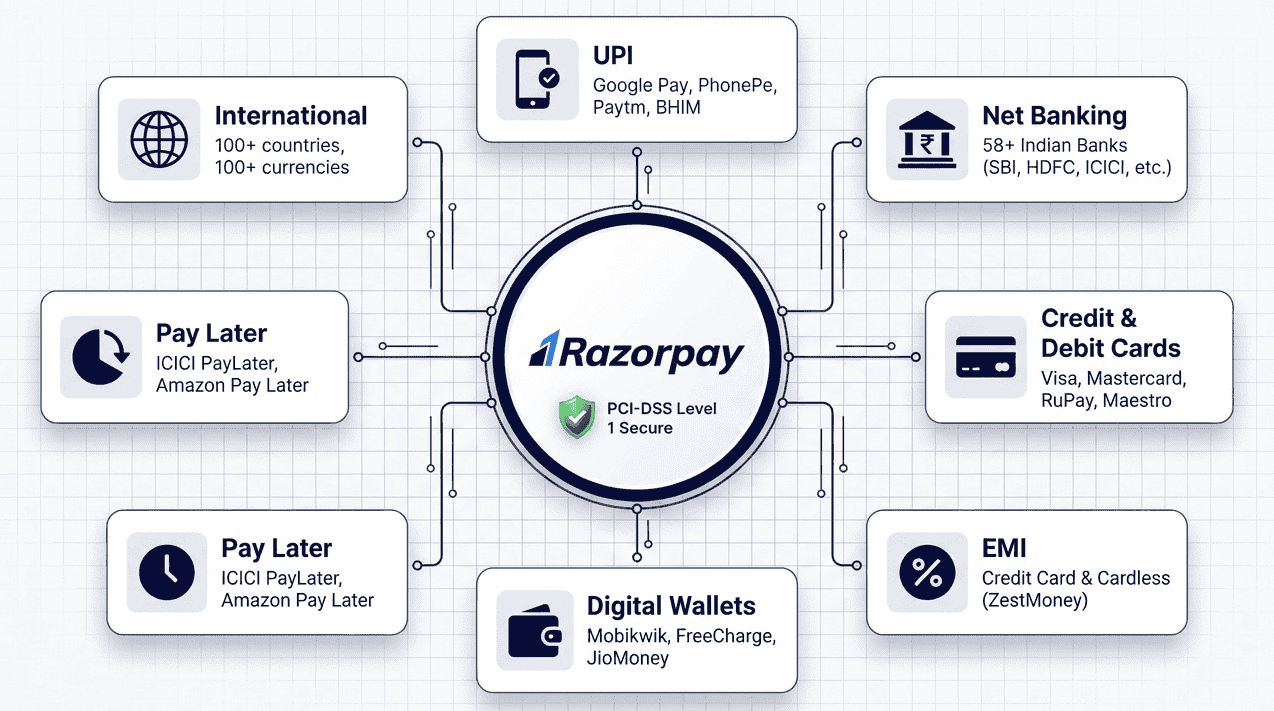
Razorpay is an RBI-licensed payment aggregator — meaning it’s regulated by the Reserve Bank of India and authorized to process payments on behalf of Indian merchants. It was founded in 2014 by IIT Roorkee alumni, backed by Y Combinator, Tiger Global, and Sequoia, and today powers payments for over 200,000 businesses across India.
What makes Razorpay particularly useful for WordPress store owners is its breadth of payment methods and how smoothly it handles the entire payment lifecycle — from collection to settlement to refunds — through a single integration.
Payment Methods Razorpay Supports
Here’s the full picture of what your customers will see at checkout:
|
Payment Method |
What It Covers |
|---|---|
|
UPI |
Google Pay, PhonePe, Paytm, BHIM, and all UPI-enabled apps — real-time bank transfers, no card needed |
|
Credit & Debit Cards |
Visa, Mastercard, RuPay, Maestro, Amex, Diners Club — domestic and international |
|
Net Banking |
58+ banks — SBI, HDFC, ICICI, Axis, Kotak, Yes Bank, PNB, and many more |
|
EMI |
Credit card EMI (major banks) and cardless EMI — ZestMoney, EarlySalary, and others |
|
Digital Wallets |
JioMoney, Mobikwik, FreeCharge, Ola Money, PayZapp |
|
Pay Later |
ICICI PayLater, Amazon Pay Later, ePayLater, RazorpayX Postpaid, and others |
|
International Payments |
Cards from 100+ countries in 100+ currencies — Visa, Mastercard, Amex, Diners Club |
Beyond payment collection, Razorpay is PCI-DSS Level 1 certified — the highest security standard in the payments industry. This means your customers’ card data is handled securely without you needing to build or maintain any security infrastructure on your WordPress server. It also supports recurring payments and subscriptions natively, which matters if you’re selling memberships, monthly software plans, or recurring digital products.
What You Need Before You Start
Before you touch any plugin settings, run through this quick checklist. Most setup frustrations come from skipping one of these steps.
|
What You Need |
Details |
|---|---|
|
A WordPress website (self-hosted) |
Hosted on WordPress.org — not WordPress.com. Any standard web host works. Must run on HTTPS — your host likely includes a free SSL certificate via Let’s Encrypt. |
|
An eCommerce plugin |
SureCart is a great fit here — it’s built for exactly this kind of store, handles subscriptions natively, and has Razorpay support built in. More on this in the setup section. |
|
A Razorpay account |
Free to create at razorpay.com. Takes about 10 minutes. Requires a valid Indian business email address. |
|
Your KYC documents |
Required for processing live payments — not for testing. Full list in the next section, broken down by business type. |
|
Your website URL (live and accessible) |
Razorpay verifies your Business Website URL before approving live payments. The domain must match where your checkout is hosted. |
|
SSL Certificate (HTTPS) |
Your site must run on HTTPS. Most modern hosts include this for free via Let’s Encrypt. |
Step 1: Create Your Razorpay Account and Complete KYC
KYC stands for Know Your Customer — a mandatory verification process regulated by the RBI that every Indian payment gateway must complete before letting you process real money. Think of it as proving to Razorpay that you’re a legitimate business before they handle your customers’ funds.
The good news: Razorpay’s KYC process is 100% online. No branch visits, no couriered documents.
Creating Your Account
Go to razorpay.com and click Sign Up. Enter your email, phone number, and business name. After email verification, you’ll land in the Razorpay Dashboard — your central hub for managing payments, settlements, refunds, and settings.
From day one, you can generate Test Mode API keys and start building. KYC approval is only required before you accept real payments from customers.
KYC Documents — What You’ll Need
The documents required depend on how your business is registered:
|
Business Type |
Documents Required |
|---|---|
|
Sole Proprietor / Freelancer |
Personal PAN card · Aadhaar card · Bank account proof (cancelled cheque or recent bank statement) · Business address proof (utility bill under 2 months old, or GST registration certificate) |
|
Private / Public Ltd Company / OPC |
Company PAN card · Certificate of Incorporation · Director’s PAN and Aadhaar · Bank account proof · Business address proof in the company name |
|
Partnership Firm |
Firm PAN card · Partnership deed · PAN and Aadhaar of all partners · Bank account proof · Business address proof |
|
LLP |
LLP PAN card · LLP Agreement · Designated partners’ PAN and KYC · Bank account proof · Business address proof |
|
NGO / Trust |
Trust Deed or Registration Certificate · PAN card of the entity · Resolution letter authorizing a signatory · Bank account proof |
Source: razorpay.com/docs/payments/business-types-kyc-documents · razorpay.com/blog/documents-required-for-payment-gateway
A few document tips: upload clear scans in PDF, JPG, or PNG format, each under 5 MB. The name on your PAN card must match your bank account name — mismatches are the most common cause of KYC delays. Once submitted, verification typically takes 1–3 business days.
⚠️ Don’t Skip This — Business Website URL Verification
Before you can process live payments, Razorpay requires you to add and verify your Business Website URL in your Dashboard.
How to add it: Razorpay Dashboard → Account & Settings → Business Website Details → Add your domain → Save.
If this URL is missing — or doesn’t match the WordPress site where your checkout is hosted — Razorpay will block all live payments with the error: “Payment blocked as website does not match registered website(s).”
This is the single most common cause of “everything looks set up but live payments aren’t working.” Add this before you go live.
Getting Your API Keys
Once your account is created, you’ll need your API keys — these are what connect your WordPress site to Razorpay.
In your Razorpay Dashboard: Account & Settings → API Keys.
Use Test Mode keys while building and testing. Switch to Live Mode keys only when you’re ready for real transactions. Treat your Secret Key like a password — don’t share it, don’t publish it anywhere publicly.
Razorpay Fees — What You Actually Pay
Let’s be direct about pricing, because it’s one of the first things every store owner wants to know.
Razorpay uses a usage-based model: no setup fee, no monthly subscription, no annual maintenance charge. You only pay when a transaction succeeds — and fees are deducted before settlement to your bank account.
|
Payment Method |
Razorpay Fee |
Effective Cost (after 18% GST on fee) |
|---|---|---|
|
UPI, Standard Debit/Credit Cards, Net Banking, Wallets |
2.00% |
~2.36% |
|
Cardless EMI (ZestMoney, EarlySalary, etc.) |
3.00% |
~3.54% |
|
Corporate Cards, Amex, Diners Club, Pay Later |
3.00% |
~3.54% |
|
International Cards |
3.00% |
~3.54% |
|
International Bank Transfers |
1.00% |
~1.18% |
|
Subscription billing (add-on to gateway fee) |
+0.99% |
On top of the payment method fee |
|
Setup Fee |
₹0 |
— |
|
Annual Maintenance Charge |
₹0 |
— |
GST at 18% applies only to Razorpay’s platform fee — not to your full transaction amount. So, on a 2% fee, the total effective cost is 2.36%, not 2% of the transaction plus 18% of the whole sale price.
💡 Real Numbers — What Razorpay Actually Costs Per Sale
Example 1: ₹2,000 online course sold via UPI Gateway fee: 2% of ₹2,000 = ₹40 · GST on fee: 18% of ₹40 = ₹7.20 Total deducted: ₹47.20 → You receive: ₹1,952.80
Example 2: ₹500 ebook via credit card Gateway fee: 2% of ₹500 = ₹10 · GST on fee: 18% of ₹10 = ₹1.80 Total deducted: ₹11.80 → You receive: ₹488.20
Example 3: ₹5,000 purchase via cardless EMI Gateway fee: 3% of ₹5,000 = ₹150 · GST on fee: 18% of ₹150 = ₹27 Total deducted: ₹177 → You receive: ₹4,823
Settlements reach your linked bank account on a T+2 schedule — if a customer pays on Monday, the money hits your account on Wednesday (business days). Razorpay also offers Instant Settlements at an additional fee if you need same-day access to funds.
Step 2: Connect Razorpay to Your WordPress Site
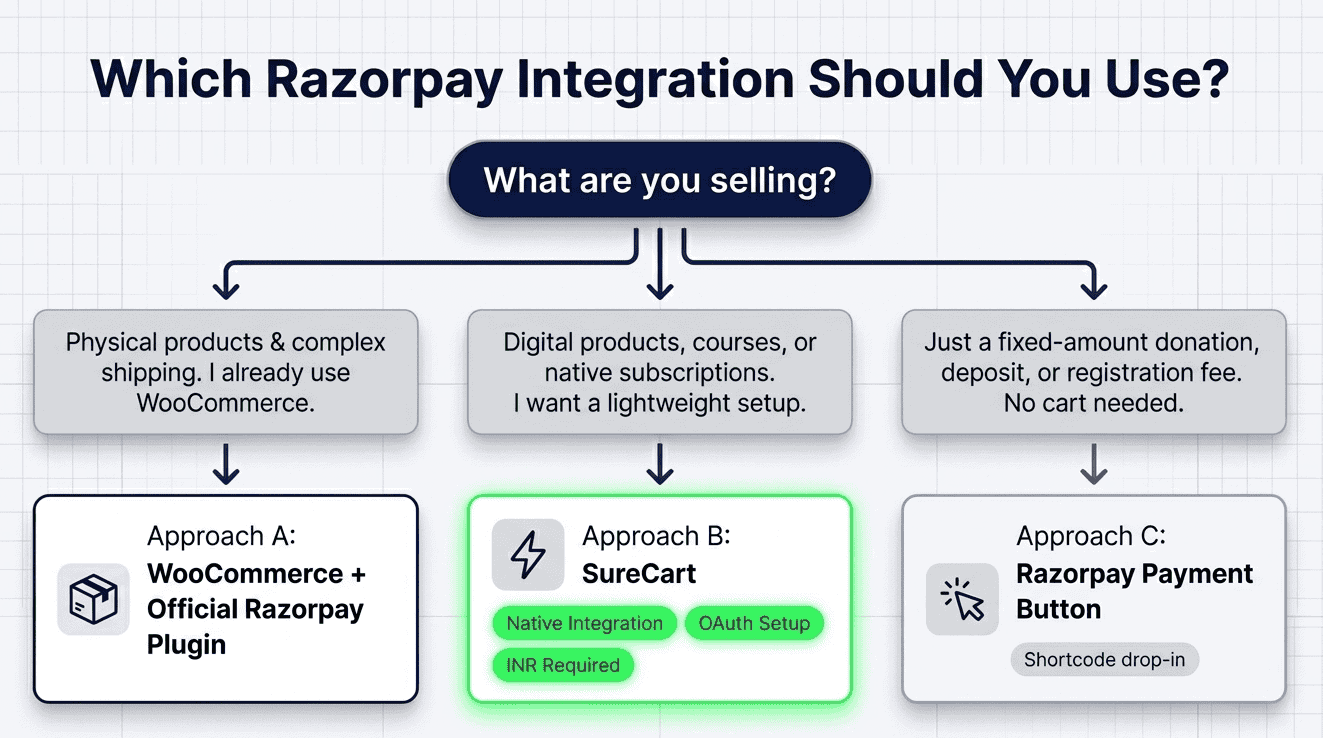
There are three practical ways to accept payments on WordPress in India using Razorpay, depending on how your site is built.
Approach A: WooCommerce + Official Razorpay Plugin
If your store runs WooCommerce, this is the most straightforward path. Razorpay publishes and maintains an official plugin on the WordPress plugin directory.
Here’s the step-by-step:
- Install the plugin: WordPress Dashboard → Plugins → Add New → Search “Razorpay for WooCommerce” → Install Now → Activate
- Open WooCommerce settings: WooCommerce → Settings → Payments → Click “Razorpay”
- Enable the gateway: Toggle it on. Set a display name customers will see — something like “Pay with UPI / Card / Net Banking” works well.
- Enter your API credentials: Paste your Key ID and Key Secret from Razorpay Dashboard → API Keys. Use Test keys while building.
- Set Payment Action: Choose “Authorize and Capture” — this automatically collects the payment once authorized. Only choose “Authorize” if you need to manually verify orders before charging.
- Save and test: Make a test purchase using Test Mode to confirm everything is working.
- Go live: Replace Test keys with Live Mode keys. Done.
⚠️ Razorpay Button Not Appearing at Checkout?
Two common causes:
- A caching or optimization plugin is interfering — WP Rocket, SpeedyCache, and SiteGround Optimizer are frequent culprits. Temporarily disable your caching plugin and reload the checkout to confirm.
- Your API keys aren’t entered correctly — check for leading or trailing spaces when pasting.
Approach B: SureCart + Razorpay (For a Cleaner WordPress Store)
WooCommerce is the most documented path, but it’s not the only one — and for many store owners selling digital products, subscriptions, or services, it’s actually more than what’s needed.
SureCart is a modern eCommerce plugin for WordPress with a much lighter footprint. It handles products, checkout, subscriptions, and customer dashboards — and as of early 2026, it has native Razorpay integration built in. No extra plugin, no bridge extension, no API key gymnastics.
This is particularly useful if you’re selling courses, memberships, digital downloads, or subscription products — use cases where WooCommerce’s weight becomes overhead rather than value.
SureCart’s Razorpay connection uses OAuth (a secure authorization handshake), so you don’t manually enter API keys. Here’s how it works:
- Install SureCart: From the WordPress plugin directory. Create a free SureCart account when prompted.
- Log into Razorpay first: Open your Razorpay account in the same browser before connecting. SureCart’s OAuth flow requires you to already be logged in — if you’re redirected to Razorpay to log in during the connection, the redirect back to SureCart may fail.
- Connect Razorpay: SureCart → Settings → Payment Processors → Razorpay → Connect. You’ll be redirected to Razorpay to authorize, then back to SureCart.
- Start in Test Mode: Connect Test Mode first and make a test purchase to verify everything is working.
- Connect Live Mode: Once satisfied, go back to Settings → Payment Processors → Razorpay and connect Live Mode separately.
📌 A Few Things to Know About SureCart + Razorpay
Currency: Razorpay via SureCart requires INR as your checkout currency. If your store is configured in USD or another currency, Razorpay won’t appear at checkout.
Phone number field: Razorpay requires a customer phone number to process payments. SureCart automatically adds a Phone field to your checkout form when Razorpay is enabled — no manual configuration needed.
Running alongside other gateways: You can enable Razorpay alongside Stripe, PayPal, or Mollie in SureCart. International customers pay via Stripe; Indian customers use Razorpay.
Full setup guide: surecart.com/docs/connect-razorpay/
If you’re evaluating the right eCommerce plugin to pair with Razorpay, SureCart’s free plan gives you full access to core features, including the Razorpay integration.
Approach C: Razorpay Payment Button (No Cart Required)
If you don’t have a full eCommerce plugin and just need to accept a fixed payment amount — a booking fee, workshop registration, deposit, or one-time donation — Razorpay’s Payment Button is the fastest route.
You create the button in your Razorpay Dashboard, copy a shortcode, and paste it into any WordPress page or post. No WooCommerce, no SureCart, no plugin required.
⚠️ Important Limitation
The Payment Button only handles fixed amounts. It cannot calculate cart totals, apply discounts, or handle variable pricing. For a full checkout experience, use Approach A or B.
Step 3: Test Your Integration Before Going Live
This step is non-negotiable. It takes 15 minutes and prevents you from discovering problems after a real customer tries to pay.
Razorpay’s Test Mode uses mock bank pages with Success and Failure buttons to simulate a real payment experience. No real money moves. No bank accounts are touched.
What to test:
- Place a test order via UPI — confirm the order shows as “Paid” in your WordPress dashboard
- Repeat with a test card payment (Razorpay provides test card numbers in their documentation)
- Check that the order confirmation email is sent to the customer
- For WooCommerce: verify the order status changes from “Pending” to “Processing” after a successful payment
- For SureCart: verify the order appears in SureCart → Orders and shows in your Razorpay dashboard
- If you’re selling subscriptions: place a test subscription order and verify the recurring payment is scheduled correctly
📌 Test Mode vs. Live Mode — The Switch You Cannot Miss
In WooCommerce: There’s a checkbox in the Razorpay plugin settings to toggle between Test and Live mode. Switch it to Live and replace your API keys when ready.
In SureCart: Test Mode and Live Mode are connected independently. You’ll connect your Razorpay account twice — once for each mode. Both must be set up for the correct mode to process payments.
Deliver nothing until payment is captured: If your Payment Action is set to “Authorize” (not “Authorize and Capture”), the payment is reserved but not collected. Only fulfill orders — grant access, send downloads, ship products — after the payment is confirmed as captured.
Accepting Recurring Payments in India with Razorpay
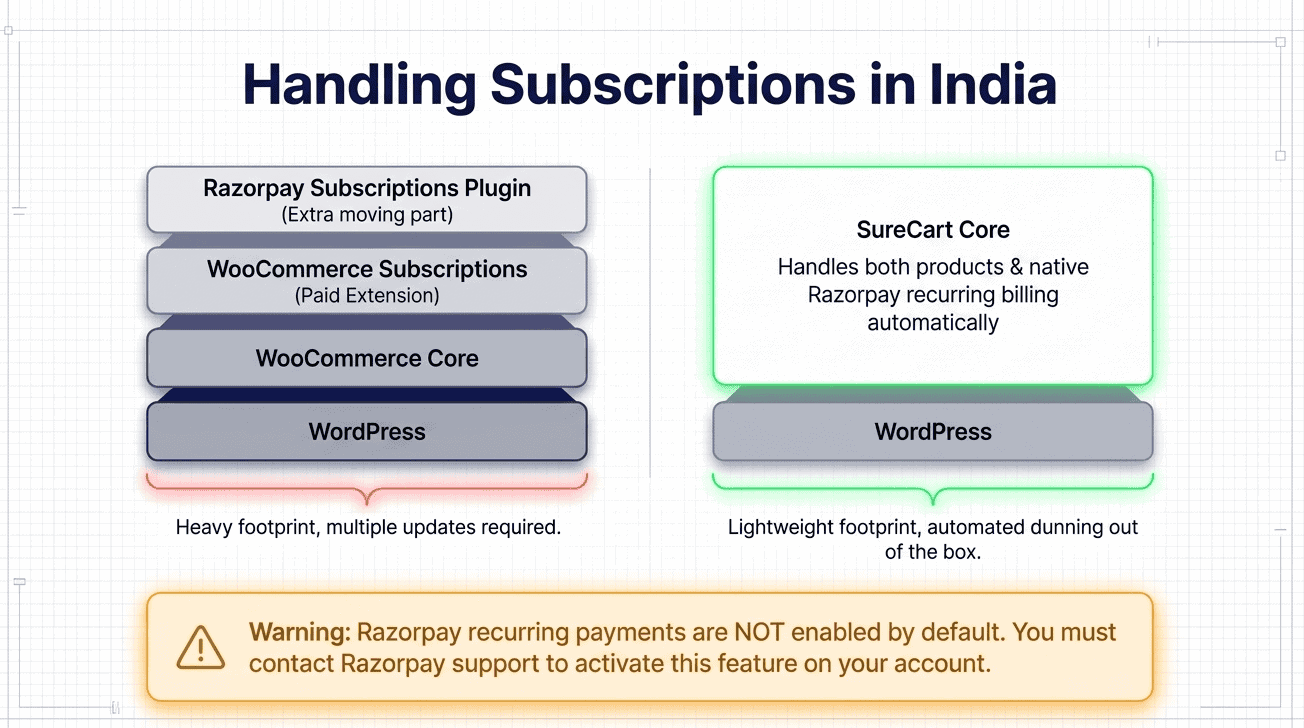
If your WordPress store sells memberships, online courses with monthly billing, software subscriptions, or any recurring service — read this section before assuming subscriptions just work out of the box.
WooCommerce: What You’ll Need
WooCommerce doesn’t handle subscriptions natively — you’ll need the WooCommerce Subscriptions extension (a paid plugin), plus the separate Razorpay Subscriptions Plugin for WooCommerce. It works, but it’s two additional moving parts to install, configure, and keep updated.
SureCart: Subscriptions Without the Extra Setup
SureCart handles recurring billing as a core feature — no extension needed, no additional plugin to purchase. When you connect Razorpay to SureCart and create a product with subscription pricing (monthly, annual, or custom intervals), billing cycles run automatically from there.
This includes free trials, setup fees, grace periods, and automated dunning — the retry logic that kicks in when a payment fails and attempts to recover the charge before a subscription lapses. You configure the plan once; SureCart and Razorpay handle every renewal after that.
For anyone building a subscription business on WordPress, this is meaningfully simpler than the WooCommerce path. It’s also what makes SureCart particularly well-suited to course creators, SaaS founders, and membership site owners targeting Indian customers.
⚠️ Enable Recurring Payments on Your Razorpay Account First
Razorpay’s recurring payment feature isn’t always enabled by default. If subscription checkouts fail or throw errors — even when everything else looks correctly configured — this is almost always why.
Check your Razorpay Dashboard → Settings → Payment Methods to see if recurring/subscription billing is active. If not, contact Razorpay Support to enable it.
On pricing: on top of the standard gateway fee (2% for cards), Razorpay charges an additional 0.99% subscription management fee per transaction. So a monthly ₹999 subscription paid by credit card costs approximately 2% + 0.99% + GST applied to both fees.
Common Mistakes to Avoid When Setting Up Razorpay on WordPress
These are the things that trip up most first-time Razorpay integrations. None are obscure — but they’re consistently overlooked.
Missing Business Website URL: Razorpay will block all live payments if your domain isn’t added and verified in your Dashboard settings. It doesn’t give a clear error during setup — it only fails at runtime. Add your domain before you flip to Live Mode.
Using Test API keys in production: Everything works perfectly in Test Mode — that’s the point. But if you forget to swap keys before going live, real customers hit a payment failure, and you’ll have no idea why. Double-check which keys are active before announcing your store is open.
Not enabling recurring payments for subscriptions: If you’re selling subscriptions and checkout silently fails or throws a vague error, this is almost always the cause. Contact Razorpay Support to enable the recurring payments feature on your account.
Caching plugin interference: If the Razorpay payment button doesn’t appear on your checkout page at all, your caching or optimization plugin is likely serving a cached version of the page without the payment script. Disable caching temporarily and test again.
Not testing all payment methods: UPI working doesn’t mean EMI works. Net banking working doesn’t mean international cards work. Test each method you plan to offer — especially EMI, which has different authorization flows.
Fulfilling orders immediately after authorization: In “Authorize” mode, payments are reserved but not collected. If you grant access to a course or ship a product before payment is captured, you may be providing goods for a transaction that was never actually collected. Use “Authorize and Capture” unless you have a specific reason not to.
Frequently Asked Questions
Is Razorpay free to use in India?
There’s no setup fee and no monthly charge — Razorpay only takes a cut when a transaction succeeds. For most domestic payments (UPI, debit cards, net banking, wallets), the fee is 2% of the transaction + 18% GST on that fee. On a ₹1,000 transaction, that’s ₹20 fee + ₹3.60 GST = ₹23.60 total deducted. You keep ₹976.40.
Can I accept international payments through Razorpay on my WordPress store?
Yes. Razorpay supports Visa, Mastercard, Amex, and Diners Club cards from 100+ countries in 100+ foreign currencies. International card transactions are charged at 3% + GST. To enable international payments, you need to request multi-currency support from Razorpay — it isn’t on by default.
Does Razorpay support EMI on WordPress?
Yes — both credit card EMI (from major Indian banks like HDFC, ICICI, SBI, Axis) and cardless EMI (LazyPay, ZestMoney, and others) appear at checkout when Razorpay is configured. Cardless EMI transactions are charged at 3% + GST; credit card EMI rates vary by issuing bank.
How long does Razorpay KYC take?
Typically 1–3 business days after you’ve submitted all required documents correctly. You can use Test Mode to build and test your integration immediately — no need to wait for KYC before you start. KYC approval is only required when you’re ready to accept real payments.
Can I use Razorpay on WordPress without WooCommerce?
Yes — two ways. For a fixed-amount payment (booking, registration fee, donation), use Razorpay’s Payment Button directly on any page via a shortcode. For a full checkout experience with products, cart, and subscriptions — without WooCommerce — SureCart has native Razorpay support built in as of early 2026.
What currency does Razorpay require for my WordPress checkout?
For domestic Indian payments, Razorpay requires Indian Rupees (INR). If your store is configured in USD or any other currency, Razorpay won’t appear as a payment option at checkout. This applies to both WooCommerce and SureCart integrations — set your store currency to INR before testing.
Is Razorpay secure for WordPress?
Yes. Razorpay is RBI-licensed and PCI-DSS Level 1 certified — the highest compliance tier in the payments industry. Card data is tokenized at the point of entry, meaning raw card numbers never touch your WordPress server. Using Razorpay’s hosted checkout actually reduces your compliance exposure significantly compared to building your own payment forms.
What happens if a payment is authorized but not captured?
If your Payment Action is set to “Authorize” (rather than “Authorize and Capture”), the payment is reserved against the customer’s account but not actually collected. Payments that stay authorized without being captured are automatically refunded after a fixed period. Always deliver products or grant access only after confirming payment is captured — not just authorized.
Your WordPress Store Is Ready for India
Back to where we started: the customer who tried to pay and couldn’t. UPI not available. Familiar payment options missing. Tab closed. Sale gone.
That’s a solvable problem — and everything you need to solve it is in this guide. The setup itself, once you have your documents ready, is a few focused hours: create the Razorpay account, complete KYC, connect it to your WordPress plugin, run through test transactions, verify your Business Website URL, swap in your live keys. Done.
The goal of all of it is straightforward: to accept payments on WordPress in India in a way that actually works for Indian customers — with the payment methods they use daily, through a checkout that feels native rather than foreign.
If you’re building that store from scratch and want the cleanest path to get there, SureCart is worth starting with. Native Razorpay integration, subscriptions built in, no plugin sprawl. The free plan covers everything you need to go live.